On this page
A failed payment can leave an order stuck, and Shopify will not email your finance team about it. You may only hear about it when a customer complains — or not at all. This Shopify Flow tutorial uses Shopify Sidekick and FlowSend to send an internal alert whenever a payment transaction on an order fails.
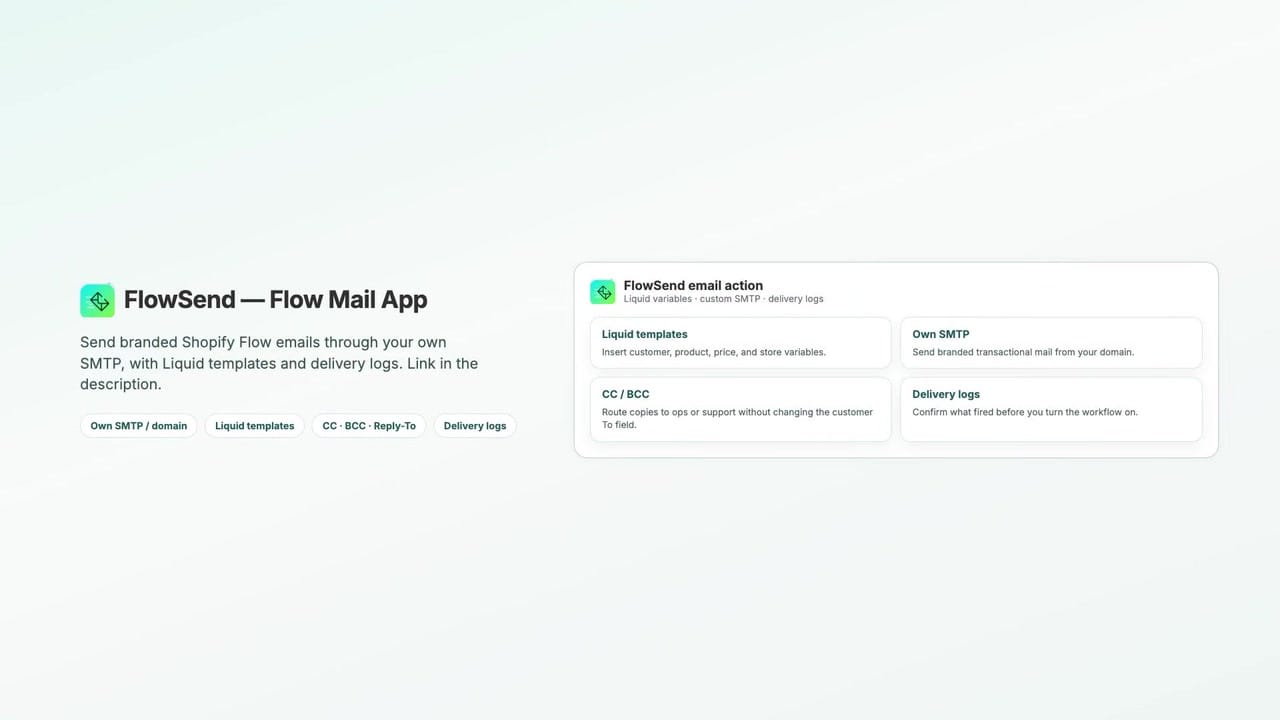
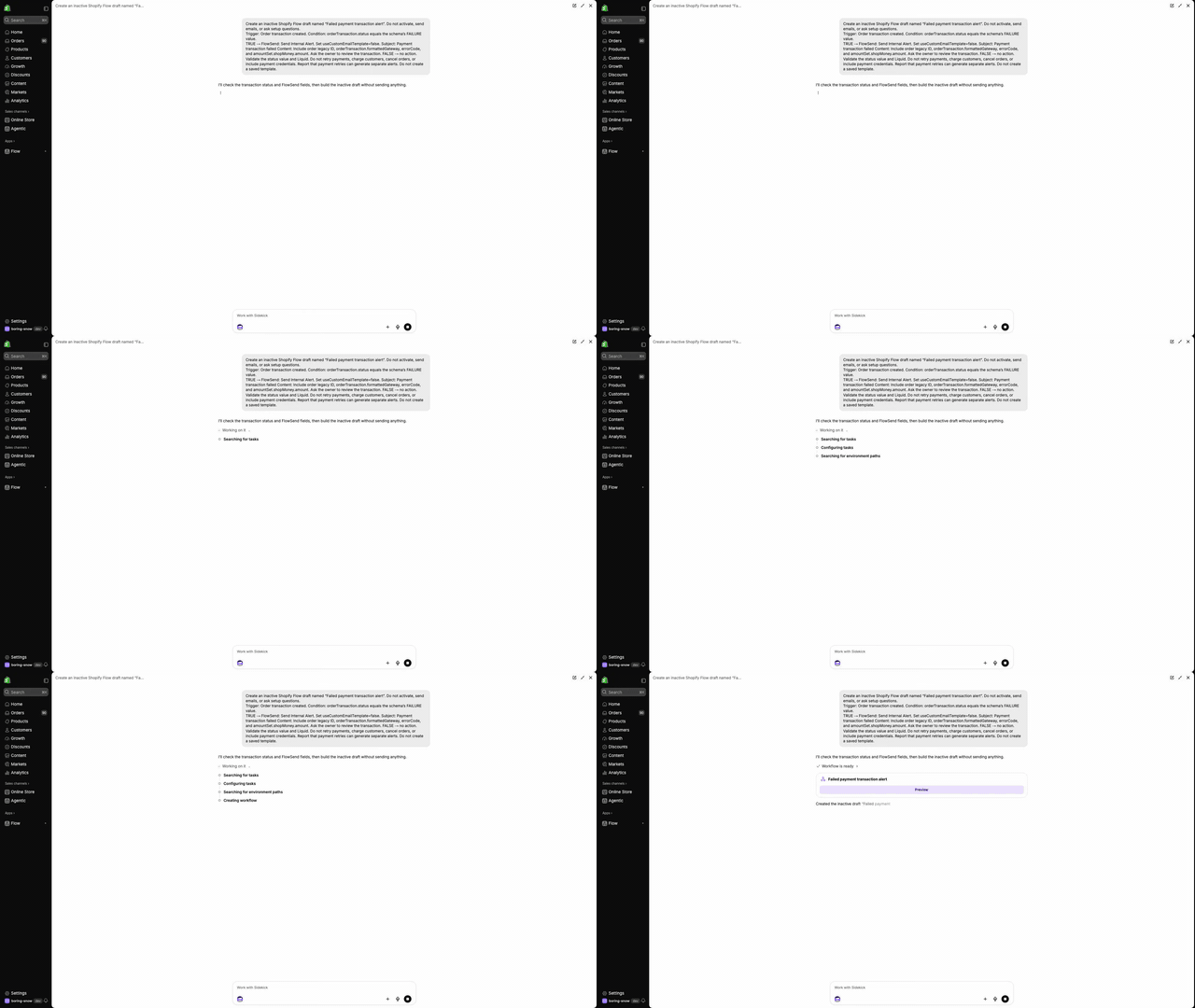
FlowSend is a Shopify Flow mail app from Final Apps. It sends branded transactional emails from a Flow workflow, using your own domain or SMTP provider. Here, FlowSend's Send Internal Alert action emails your team the order ID, payment gateway, error code, and amount, so someone can review the transaction in Shopify admin before deciding what to do.
Nothing is retried, charged, or canceled automatically, and the alert does not include payment credentials.
What this workflow does
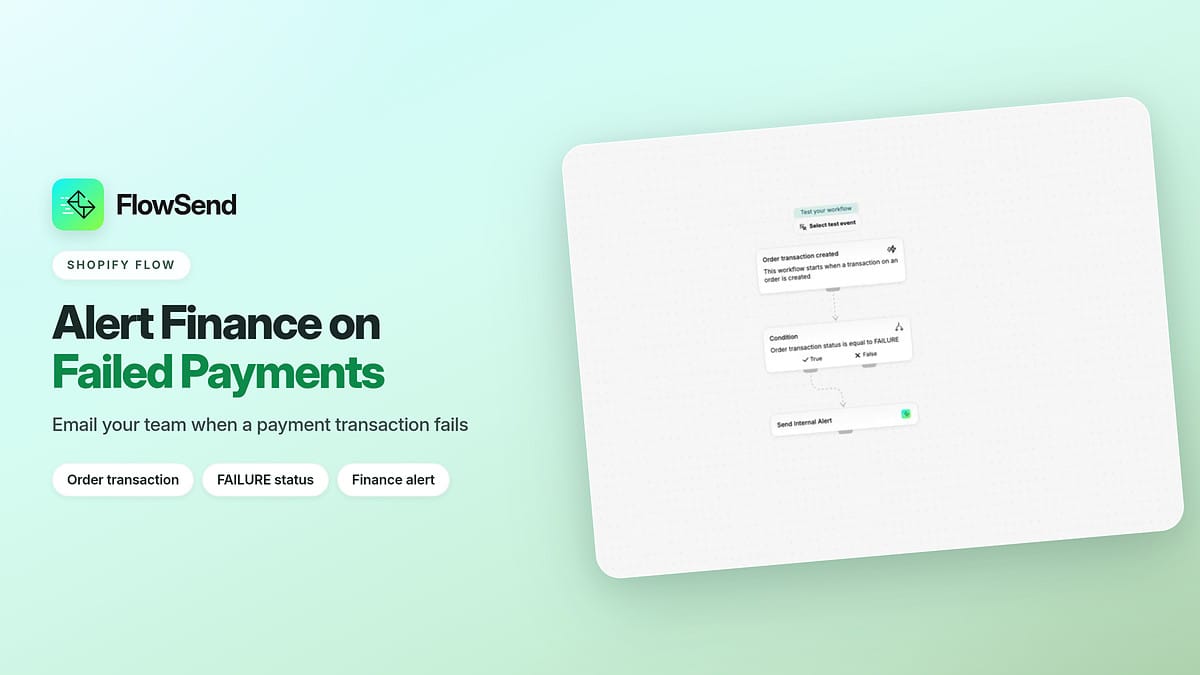
The workflow starts from Order transaction created, which runs each time a transaction is recorded on an order. That watches the payment attempt itself, not the order as a whole. A failed transaction does not cancel the order, and a canceled order is not a failed payment, so cancellations never trigger this alert.
The condition has one check: the transaction status equals FAILURE. If that is true, FlowSend sends one internal alert with the subject Payment transaction failed. The message includes:
- The order's legacy ID
- The payment gateway
- The error code
- The amount (and currency, as shown in the alert content)
- A request to review the transaction in Shopify admin before taking any action
- A note that payment retries can generate separate alerts for the same order
The custom email template stays off. FlowSend uses inline alert content and does not create a saved template. The false branch has no action.
Each retry is a new transaction, so it can send its own alert.
Before you start
You will need:
- A Shopify store with FlowSend installed. The listing and these walkthroughs note that you can get started for $1 for the first month.
- Shopify Flow, which is what triggers and runs the workflow.
- Access to Shopify Sidekick in your admin, so you can paste the prompt below.
- The finance or staff email you want the alert to reach. Configure that recipient before you use the workflow.
Step 1. Paste the Sidekick prompt
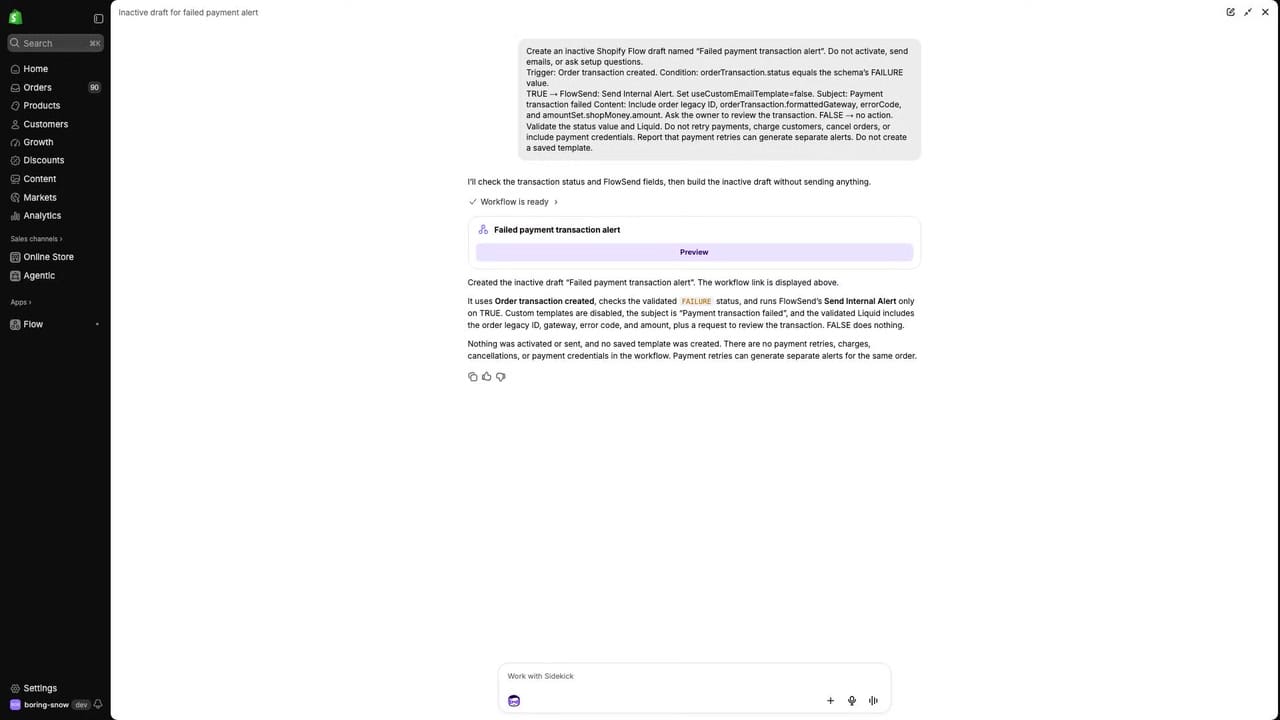
Open Sidekick in your Shopify admin and paste this prompt, which is the one used in the walkthrough. It asks Sidekick to create an inactive draft named "Failed payment transaction alert," without activating the workflow, sending emails, or asking setup questions.
Create an inactive Shopify Flow draft named “Failed payment transaction alert”. Do not activate, send emails, or ask setup questions.
Trigger: Order transaction created. Condition: orderTransaction.status equals the schema’s FAILURE value.
TRUE → FlowSend: Send Internal Alert. Set useCustomEmailTemplate=false. Subject: Payment transaction failed Content: Include order legacy ID, orderTransaction.formattedGateway, errorCode, and amountSet.shopMoney.amount. Ask the owner to review the transaction. FALSE → no action.
Validate the status value and Liquid. Do not retry payments, charge customers, cancel orders, or include payment credentials. Report that payment retries can generate separate alerts. Do not create a saved template.
Step 2. Let Sidekick validate and create a draft
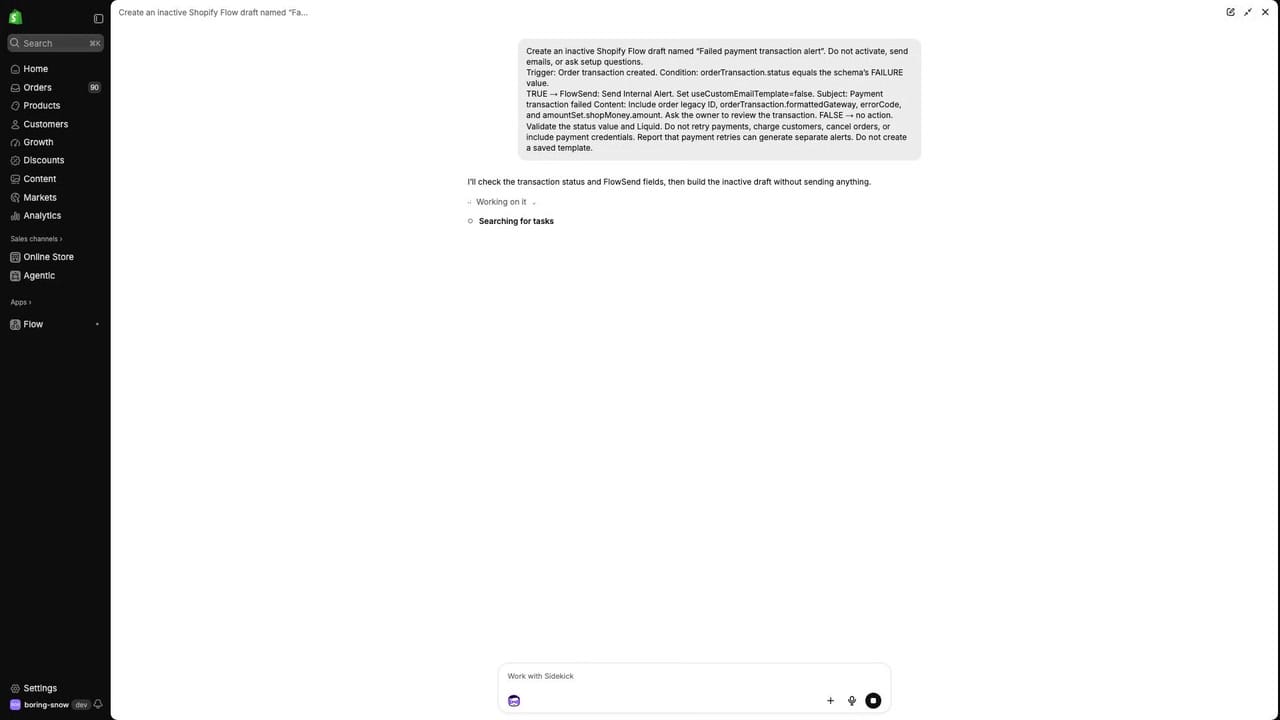
Sidekick checks the transaction status and the FlowSend fields, searches for the right tasks, and creates the workflow. When it finishes, you should see Workflow is ready and a preview card for Failed payment transaction alert.
In the walkthrough, Sidekick confirms that the FAILURE status and Liquid passed validation, that nothing was activated or sent, and that the workflow does not retry payments, charge customers, cancel orders, or include payment credentials. It also reports that payment retries can generate separate alerts for the same order.
Step 3. Open the draft in Flow
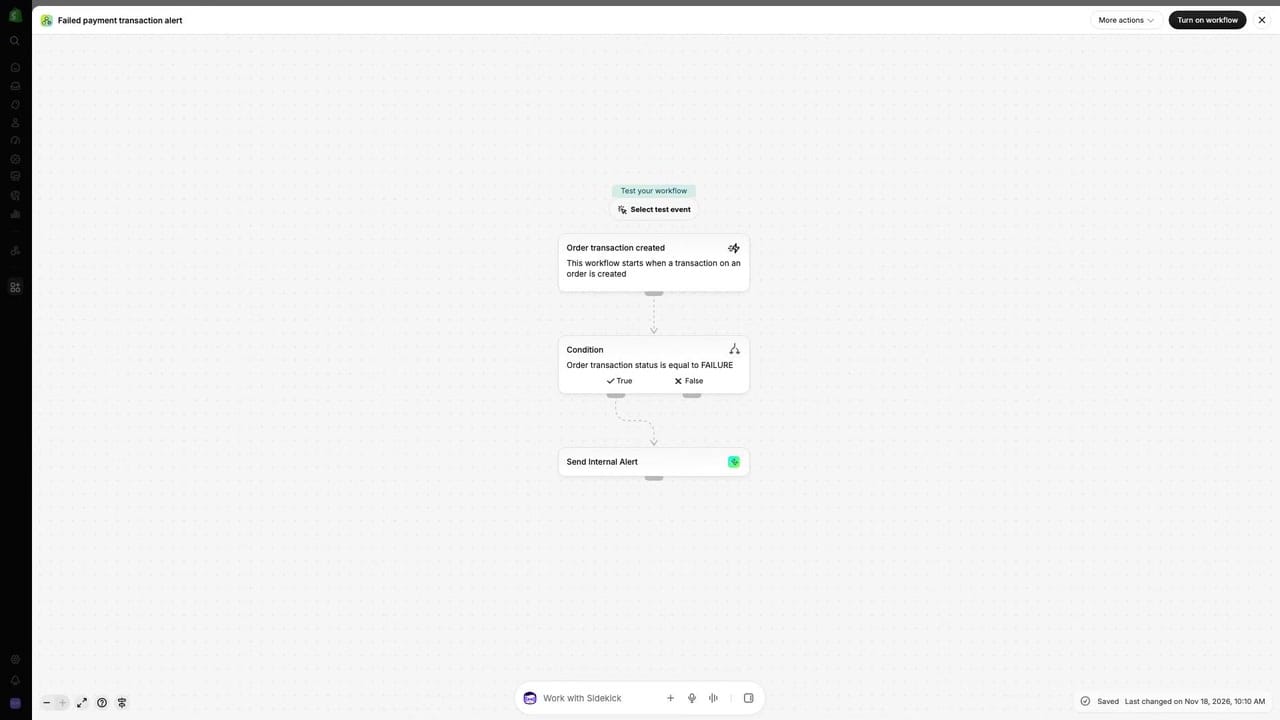
Open the draft from Sidekick's preview link. The workflow is saved as a draft and stays switched off until you turn it on.
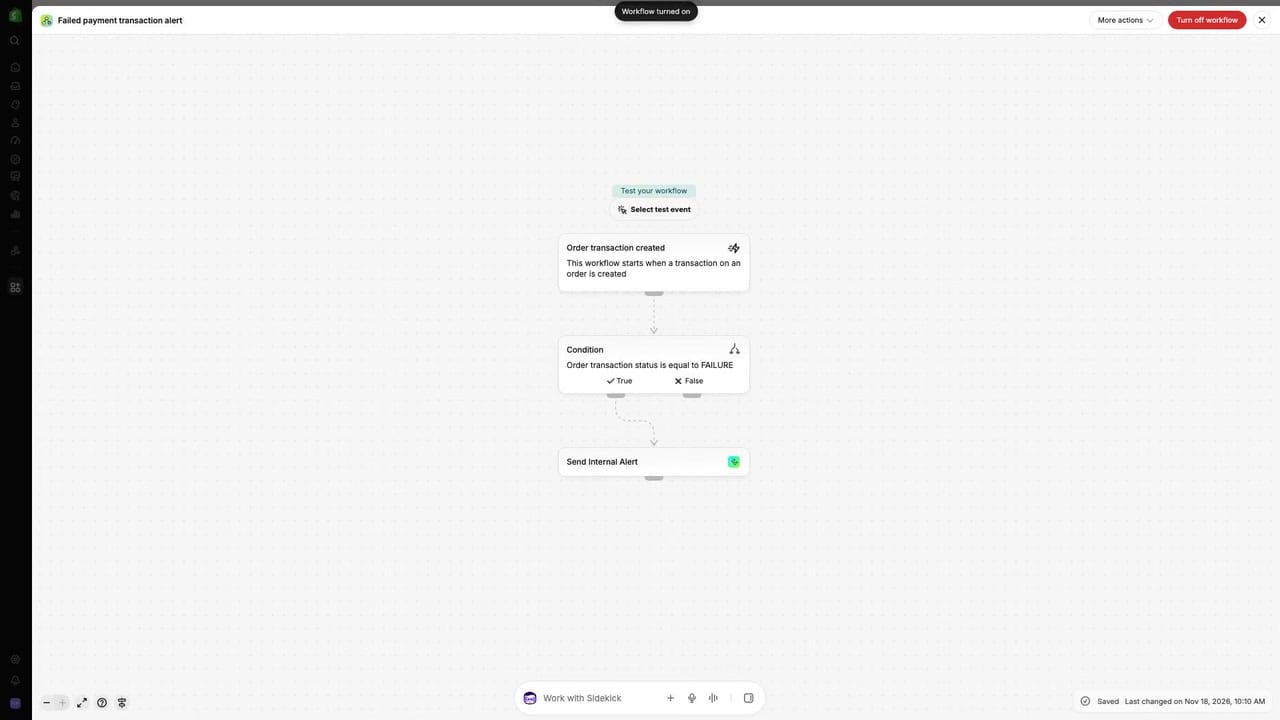
The canvas has three steps:
- Order transaction created — this Shopify trigger runs each time a transaction is recorded on an order.
- Condition — "Order transaction status is equal to FAILURE."
- Send Internal Alert — FlowSend's internal alert action, on the true branch only.
Step 4. Check the FAILURE condition
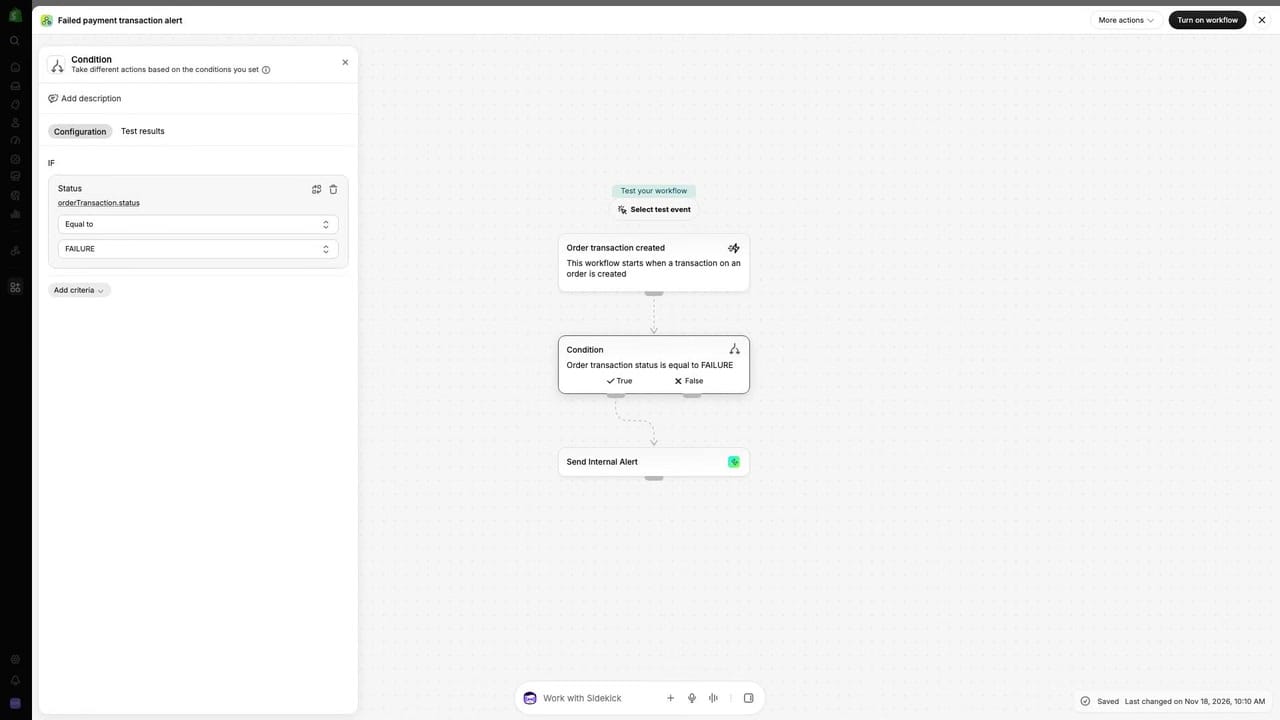
Click the condition to confirm the check. In the walkthrough it is set to:
- Status (
orderTransaction.status) - Equal to
- FAILURE
Only a failed payment transaction follows the true branch. Successful payments and order cancellations do not.
Step 5. Review the FlowSend internal alert
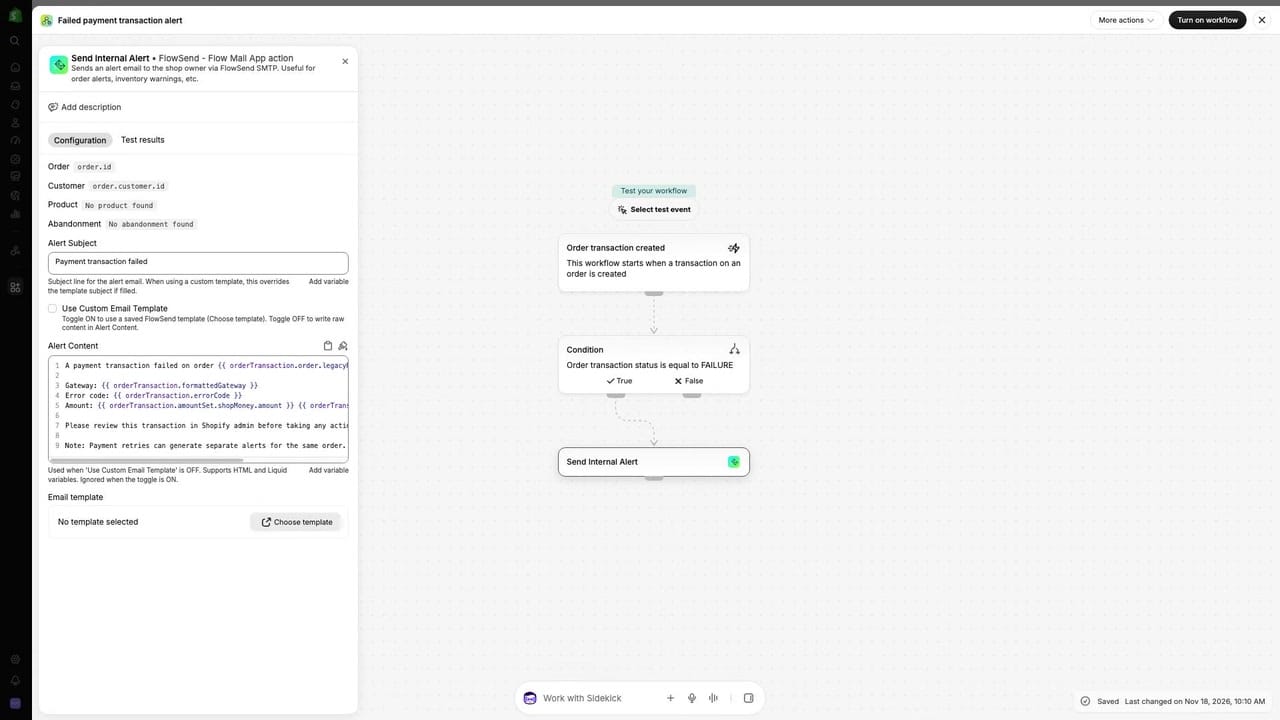
Open the Send Internal Alert action. The UI describes it as a FlowSend action that sends an alert email to the shop owner via FlowSend SMTP.
In the walkthrough:
- Alert Subject is
Payment transaction failed. - Use Custom Email Template is left off, so FlowSend uses the inline Alert Content instead of a saved template.
- The content includes the order legacy ID, gateway, error code, and amount, a request to review the transaction in Shopify admin, and a note that payment retries can generate separate alerts for the same order.
- Email template stays on "No template selected."
Step 6. Turn the workflow on yourself
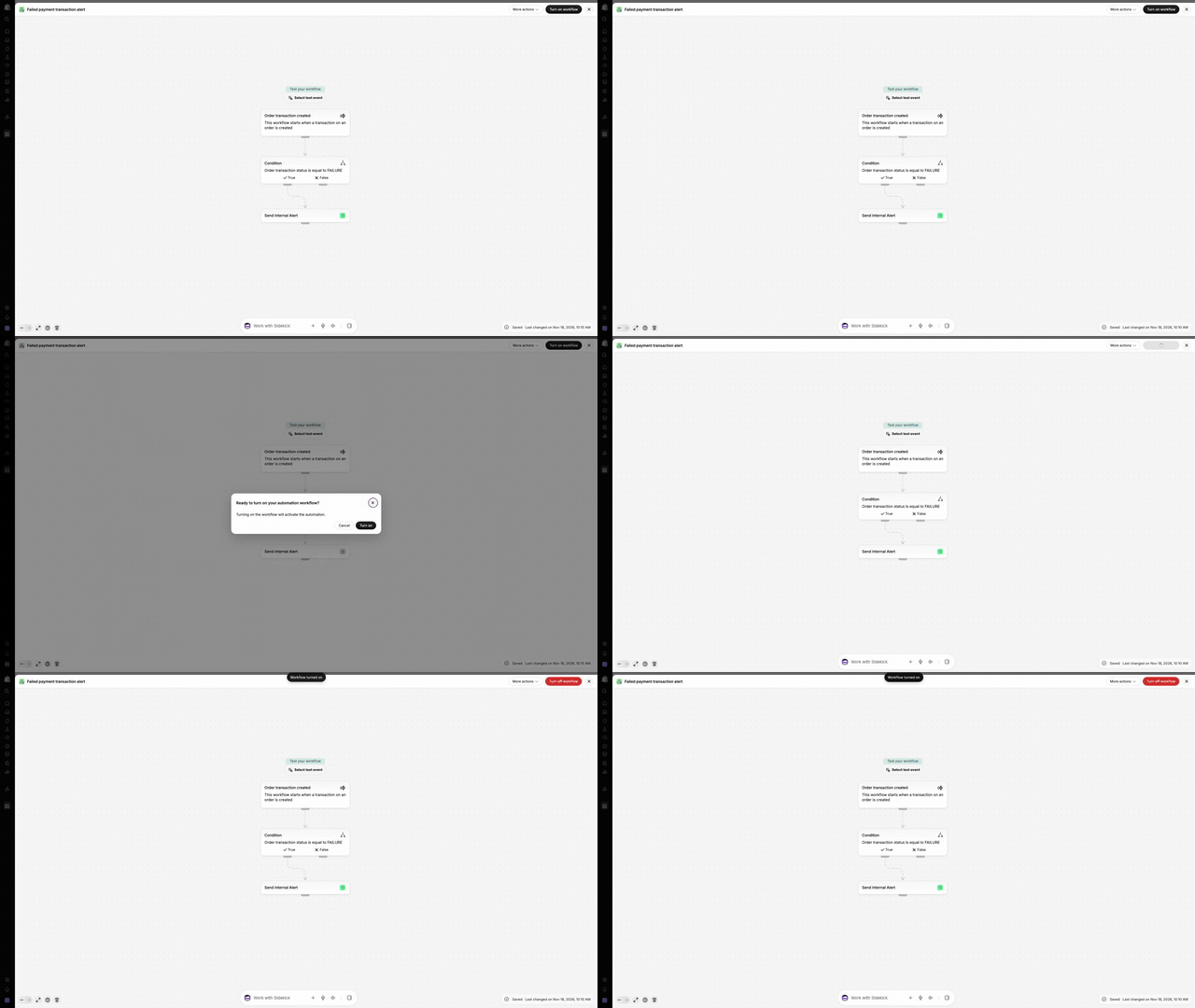
Sidekick leaves the workflow off, as the prompt requested. Review the trigger, condition, and alert content first, and set the finance recipient you actually want to notify. Then click Turn on workflow, confirm the dialog, and wait for the Workflow turned on confirmation.
Frequently asked questions
Does this retry the payment or cancel the order?
No. The workflow only notifies your team. It does not retry payments, charge customers, or cancel orders, and the alert does not include payment credentials.
Why can the same order generate more than one alert?
Each payment retry is a new transaction. If that retry also fails, the workflow can send another alert for the same order.
Why not use an order-based trigger?
This workflow watches the payment attempt, not the order. A failed transaction does not cancel the order, and a canceled order is not a failed payment, so cancellations never trigger the alert.
Does FlowSend create a saved email template for this alert?
No. Use Custom Email Template stays off, and the walkthrough does not create a saved template. The subject and body are written inline on the Send Internal Alert action.
How much does it cost to get started?
FlowSend is free to install on the Shopify App Store. At the time of writing, the listing and these walkthroughs offer a $1 first month to get started (the current listing describes this as a BFCM offer, with Professional at $9.99/month, Advanced at $29.99/month, and Enterprise at $49.99/month or $499.99/year after that). Pricing can change, so check the FlowSend listing for the plan that fits your store.
Start alerting finance about failed payments
Install FlowSend, paste the Sidekick prompt, review the inactive draft in Flow, and turn it on when the alert looks right. Your finance team can then review failed transactions in Shopify admin before taking any action.
Install FlowSend on the Shopify App Store — get started for $1.