On this page
When you record a manual payment in Shopify — a bank transfer, check, cash, or any other manual gateway — nothing tells your finance team to reconcile it. Those payments can slip through without being checked against your records. This Shopify Flow tutorial uses Shopify Sidekick and FlowSend to send an internal alert every time a manual payment transaction is recorded successfully.
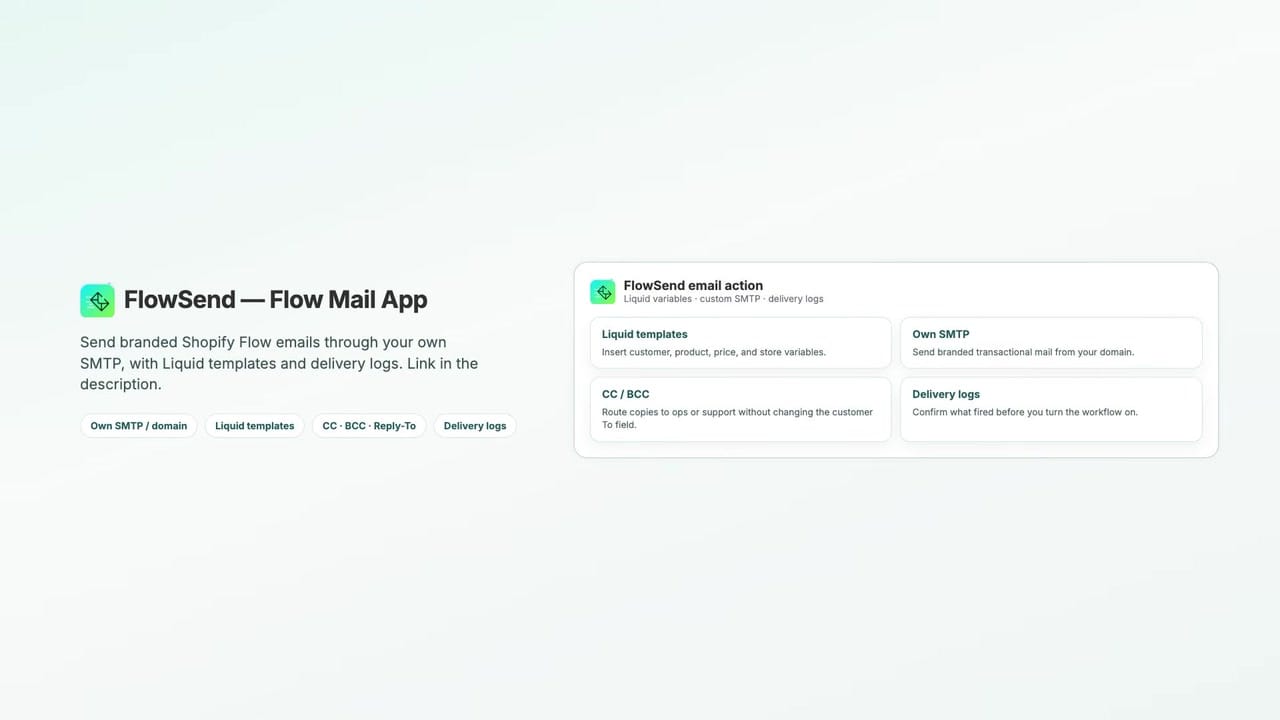
FlowSend is a Shopify Flow mail app from Final Apps. It sends branded transactional emails from a Flow workflow, using your own domain or SMTP provider. Here, FlowSend's Send Internal Alert action emails your team the order ID, payment gateway, and transaction amount, so someone can match the payment against bank or payment records.
This alert is for record-keeping only. It never changes the order's payment status, and it is not proof that money has reached your bank.
What this workflow does
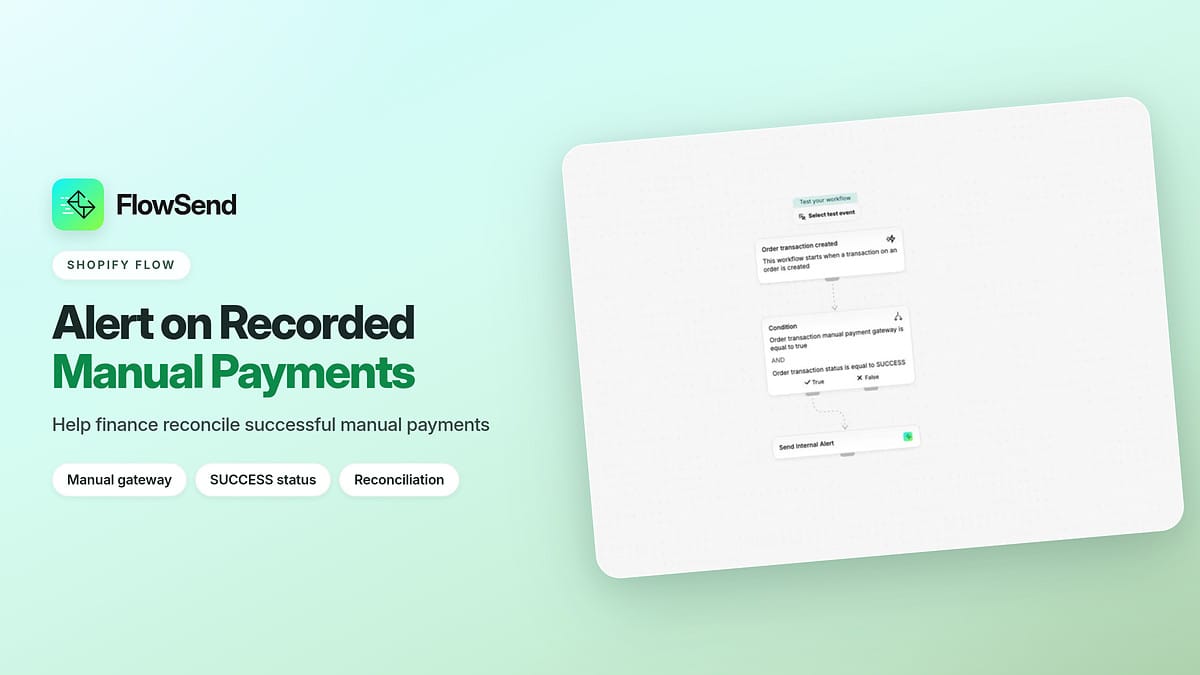
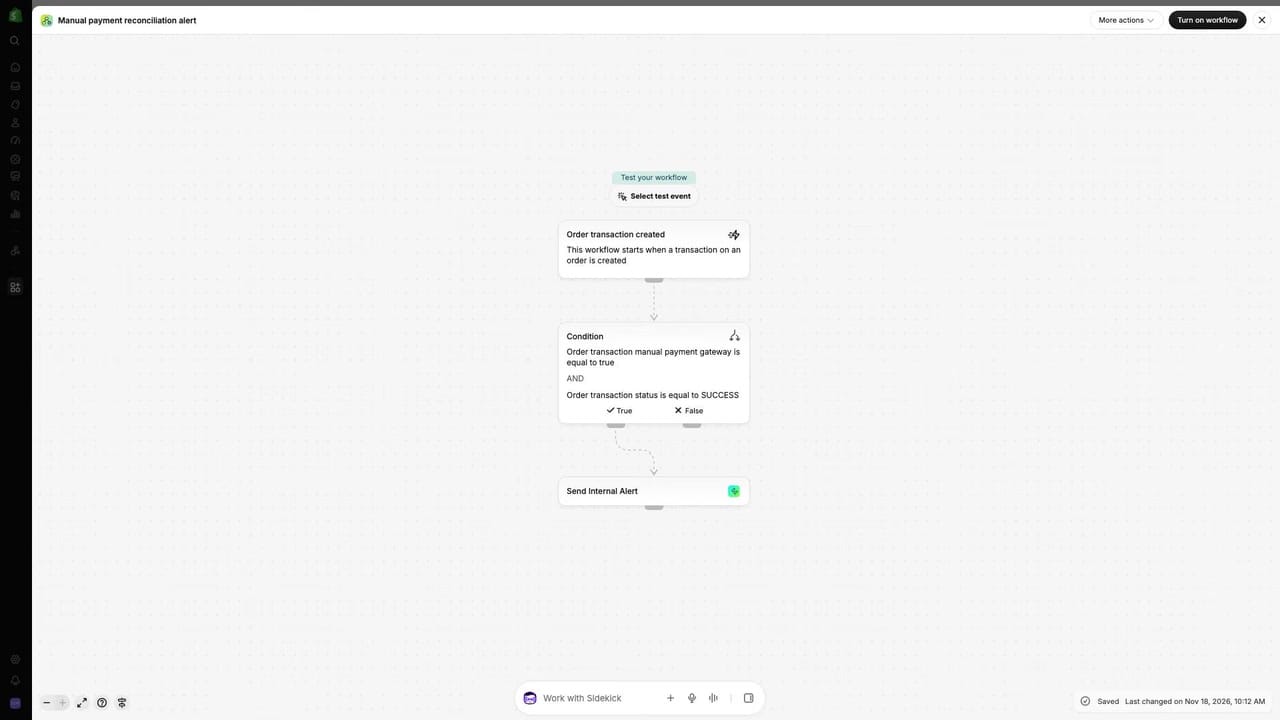
The workflow starts from Order transaction created, which runs each time a transaction is recorded on an order. The condition has two checks joined by AND:
- The manual payment gateway flag is true, so only manual payment methods count
- AND the transaction status equals SUCCESS
Both must pass together. A pending or failed manual entry will not send an alert, and a successful card payment will not send one either.
If the condition is true, FlowSend sends one internal alert with the subject Manual payment transaction recorded successfully. The message includes:
- The order's legacy ID
- The formatted payment gateway
- The transaction amount and currency
- A request to reconcile the recorded payment against your payment records
- A note that the alert is for record-keeping only and does not change the order's payment status
The custom email template stays off. FlowSend uses inline alert content and does not create a saved template. The false branch has no action.
The wording makes no bank-settlement or cash-on-delivery assumption. A recorded manual payment confirms that the payment was entered in Shopify, not that the funds have settled.
Before you start
You will need:
- A Shopify store with FlowSend installed. The listing and these walkthroughs note that you can get started for $1 for the first month.
- Shopify Flow, which is what triggers and runs the workflow.
- Access to Shopify Sidekick in your admin, so you can paste the prompt below.
- The finance or staff email you want the alert to reach. Configure that recipient before you use the workflow.
Step 1. Paste the Sidekick prompt
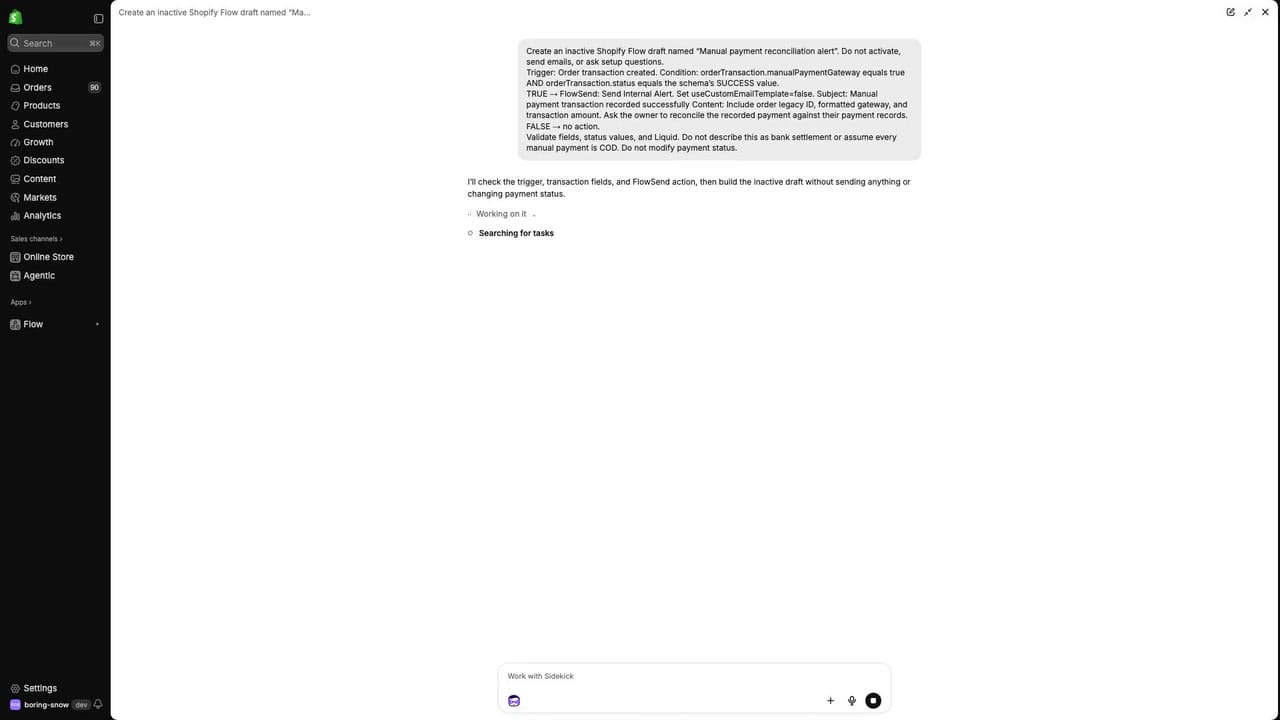
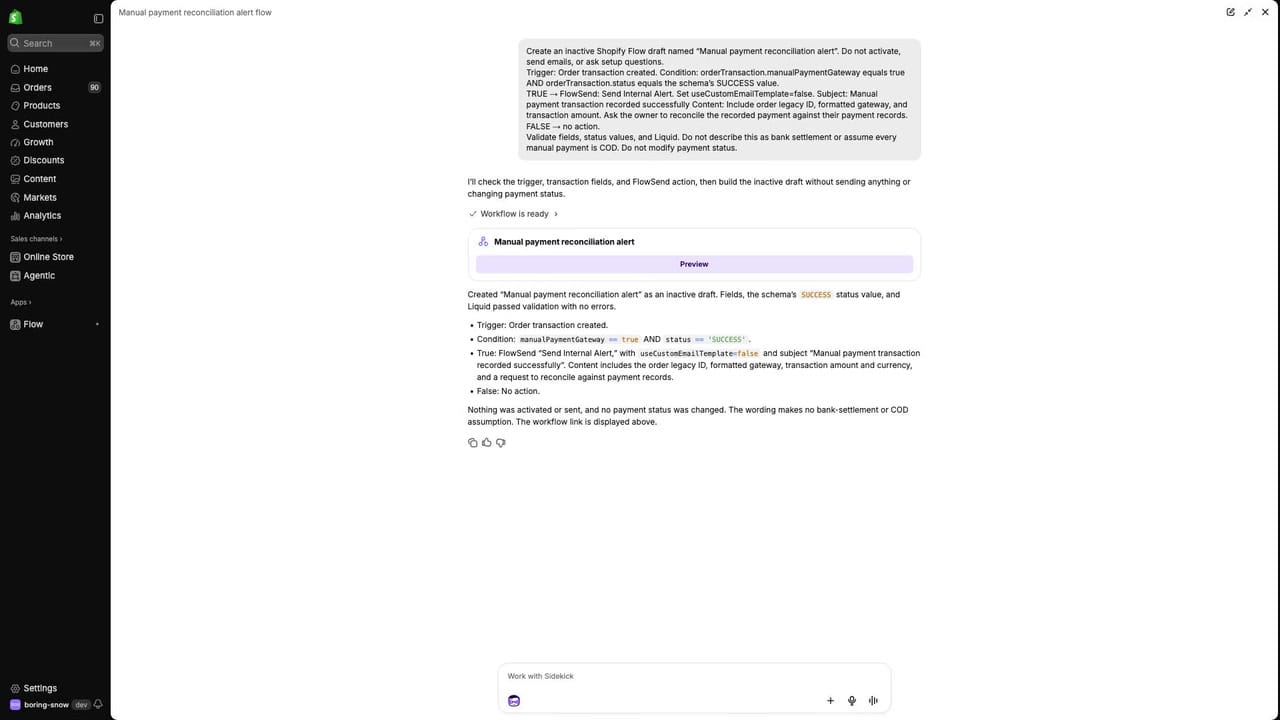
Open Sidekick in your Shopify admin and paste this prompt, which is the one used in the walkthrough. It asks Sidekick to create an inactive draft named "Manual payment reconciliation alert," without activating the workflow, sending emails, or asking setup questions.
Create an inactive Shopify Flow draft named “Manual payment reconciliation alert”. Do not activate, send emails, or ask setup questions.
Trigger: Order transaction created. Condition: orderTransaction.manualPaymentGateway equals true AND orderTransaction.status equals the schema’s SUCCESS value.
TRUE → FlowSend: Send Internal Alert. Set useCustomEmailTemplate=false. Subject: Manual payment transaction recorded successfully Content: Include order legacy ID, formatted gateway, and transaction amount. Ask the owner to reconcile the recorded payment against their payment records. FALSE → no action.
Validate fields, status values, and Liquid. Do not describe this as bank settlement or assume every manual payment is COD. Do not modify payment status.
Step 2. Let Sidekick validate and create a draft
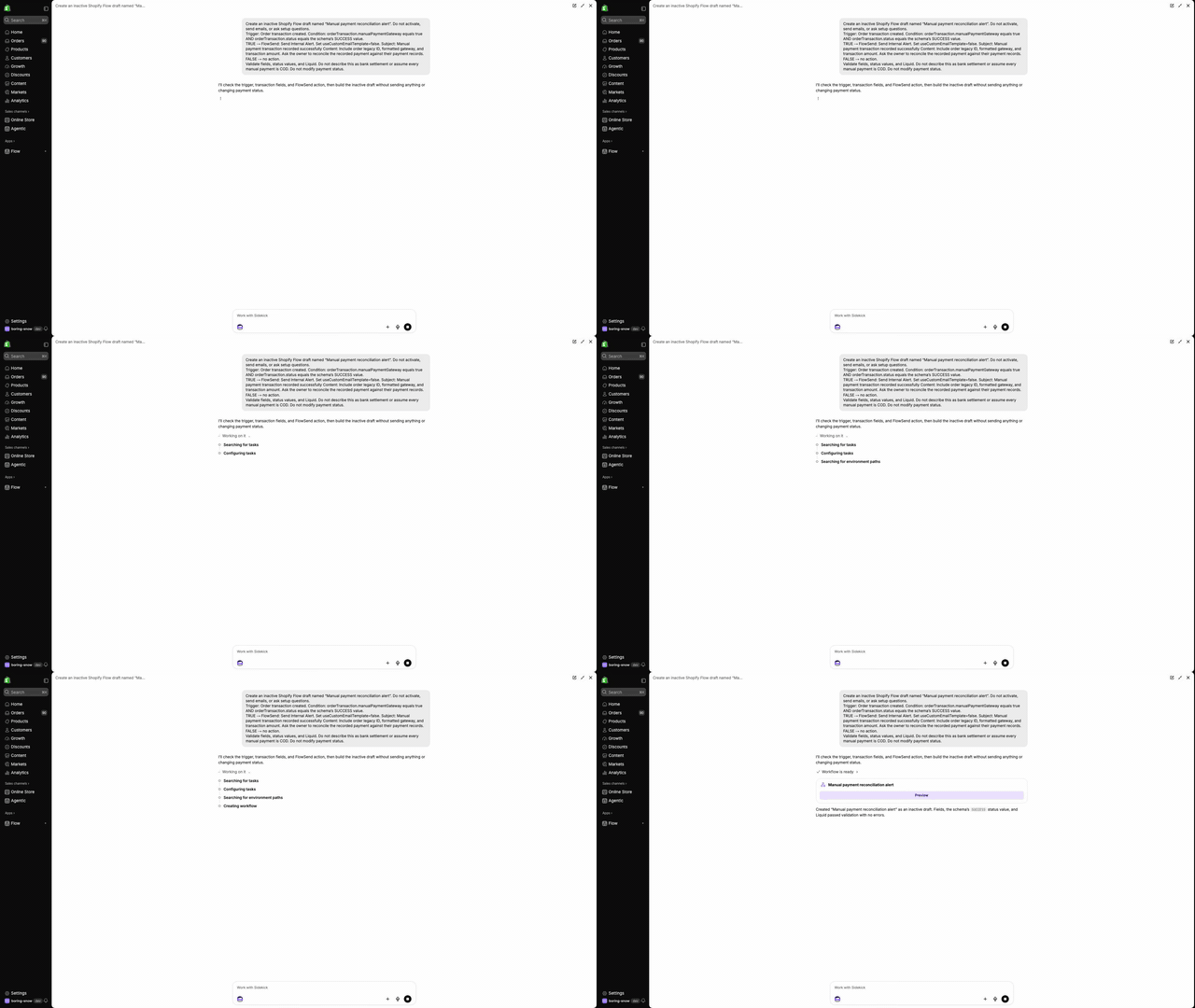
Sidekick checks the trigger, the transaction fields, and the FlowSend action, then creates the workflow. When it finishes, you should see Workflow is ready and a preview card for Manual payment reconciliation alert.
In the walkthrough, Sidekick confirms that the fields, the schema's SUCCESS status, and the Liquid passed validation with no errors. Nothing was activated or sent, and no payment status was changed. The wording makes no bank-settlement or COD assumption.
Step 3. Open the draft in Flow
Open the draft from Sidekick's preview link. The workflow is saved as a draft and stays switched off until you turn it on.
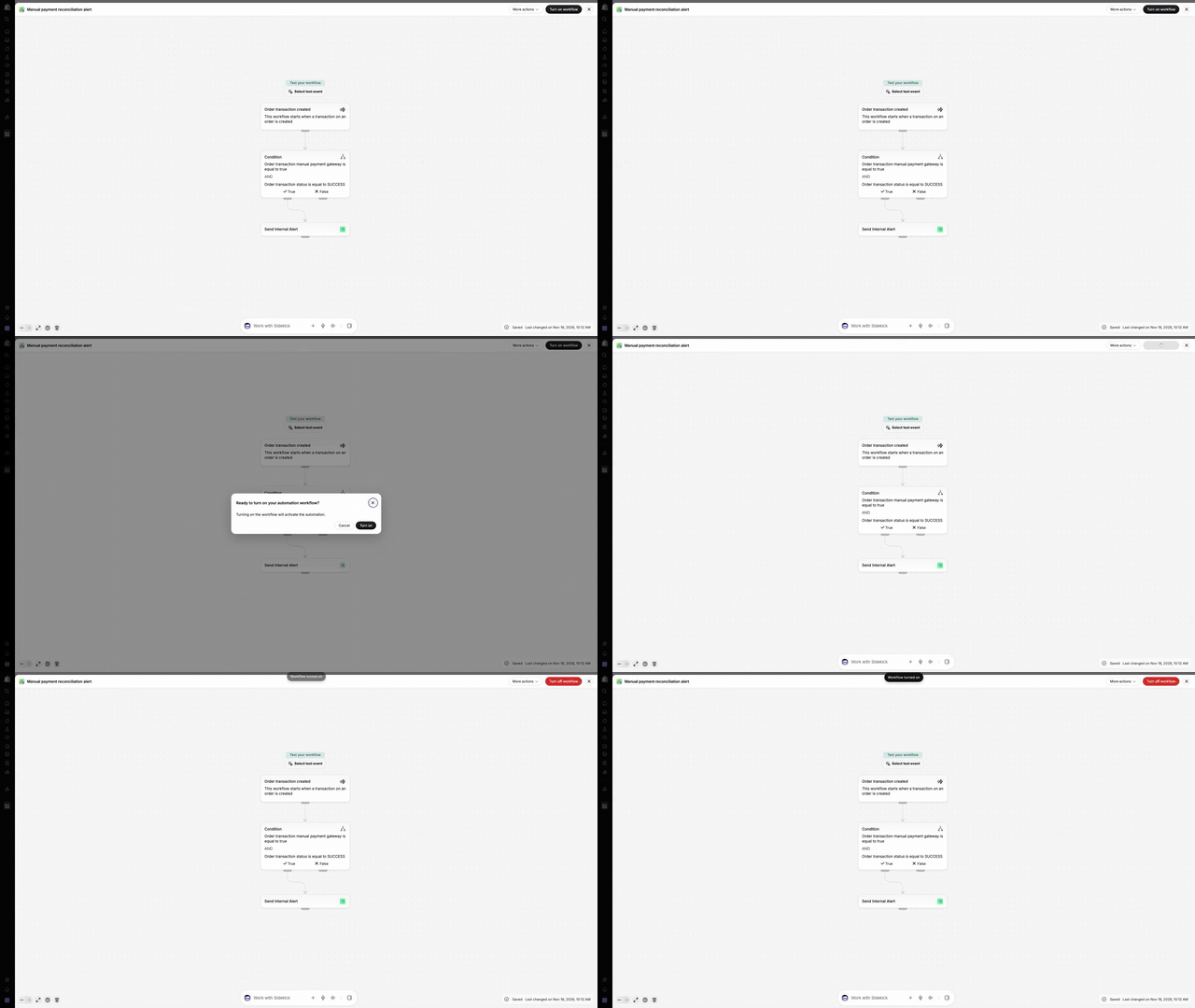
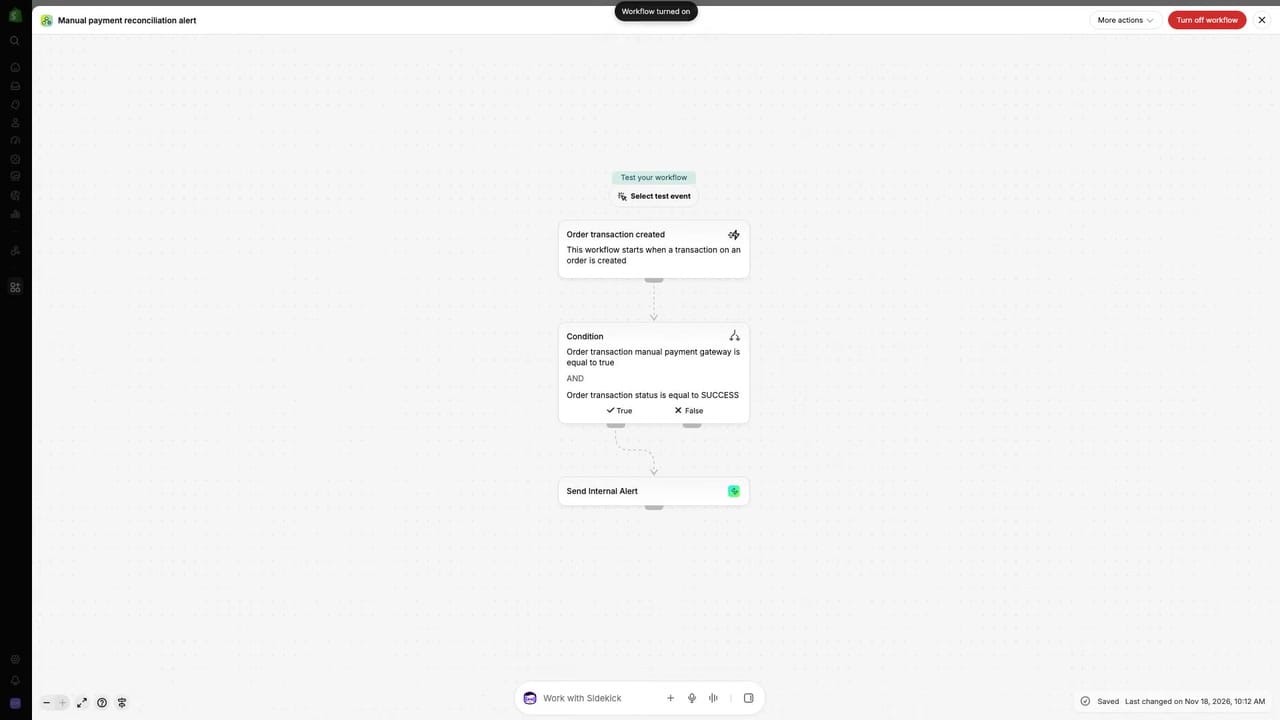
The canvas has three steps:
- Order transaction created — this Shopify trigger runs each time a transaction is recorded on an order.
- Condition — manual payment gateway is true AND transaction status equals SUCCESS.
- Send Internal Alert — FlowSend's internal alert action, on the true branch only.
Step 4. Check both conditions
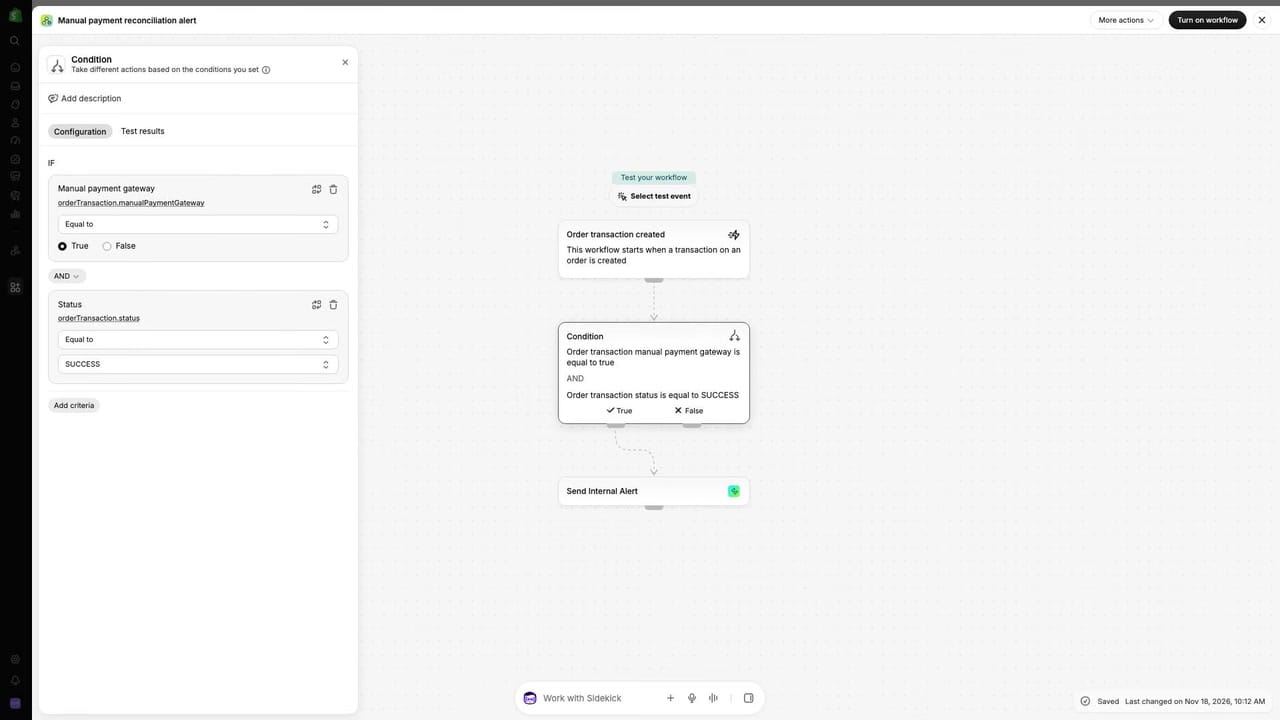
Click the condition to confirm both checks. In the walkthrough they are set to:
- Manual payment gateway (
orderTransaction.manualPaymentGateway) Equal to True - AND
- Status (
orderTransaction.status) Equal to SUCCESS
Only a successful transaction on a manual payment gateway follows the true branch.
Step 5. Review the FlowSend internal alert
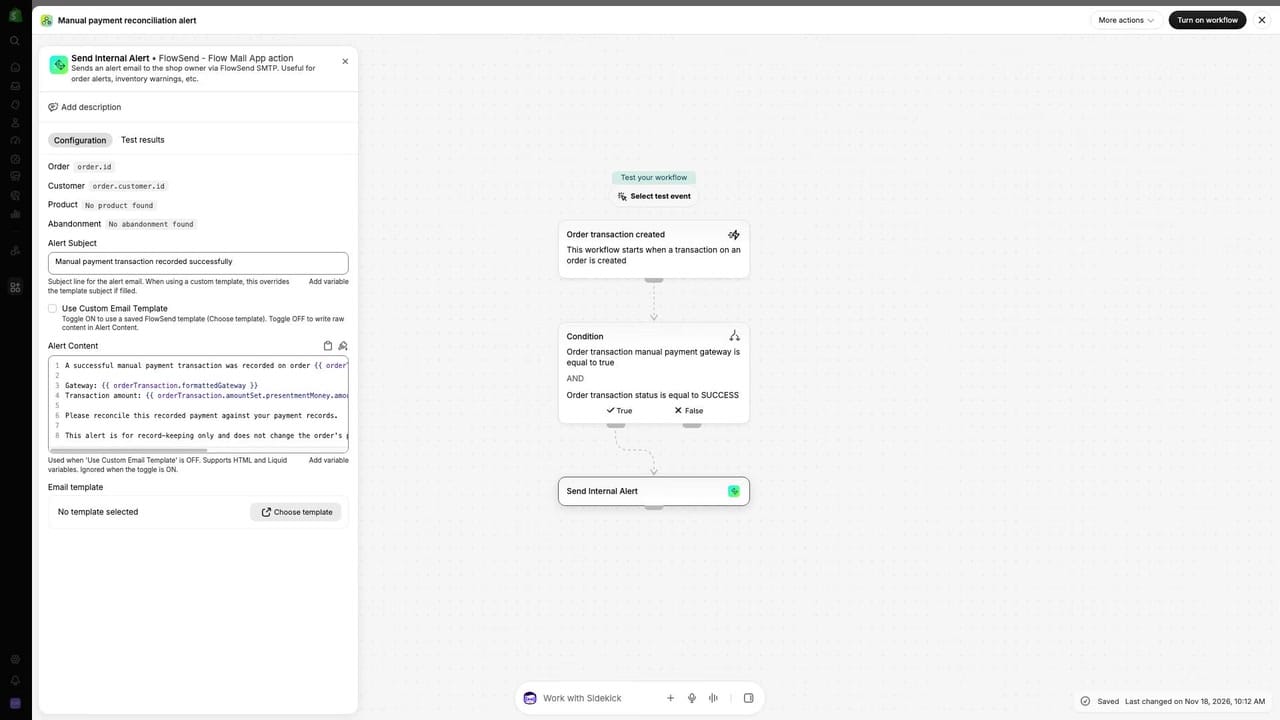
Open the Send Internal Alert action. The UI describes it as a FlowSend action that sends an alert email to the shop owner via FlowSend SMTP.
In the walkthrough:
- Alert Subject is
Manual payment transaction recorded successfully. - Use Custom Email Template is left off, so FlowSend uses the inline Alert Content instead of a saved template.
- The content includes the order, the formatted gateway, and the transaction amount, a request to reconcile the payment against your records, and a note that the alert is for record-keeping only.
- Email template stays on "No template selected."
Step 6. Turn the workflow on yourself
Sidekick leaves the workflow off, as the prompt requested. Review the trigger, both conditions, and the alert content first, and set the finance recipient you actually want to notify. Then click Turn on workflow, confirm the dialog, and wait for the Workflow turned on confirmation.
Frequently asked questions
Does a recorded manual payment mean the money is in my bank?
No. The alert confirms that the payment was recorded in Shopify. It is not proof of bank settlement, so your team should still reconcile it against their payment records.
Will this fire for card payments or failed manual entries?
No. The manual payment gateway flag must be true, and the status must be SUCCESS. A successful card payment, or a pending or failed manual entry, will not send an alert.
Does this treat every manual payment as cash on delivery?
No. The walkthrough is careful not to assume that every manual payment is COD, and the workflow never modifies payment status.
Does FlowSend create a saved email template for this alert?
No. Use Custom Email Template stays off, and the walkthrough does not create a saved template. The subject and body are written inline on the Send Internal Alert action.
How much does it cost to get started?
FlowSend is free to install on the Shopify App Store. At the time of writing, the listing and these walkthroughs offer a $1 first month to get started (the current listing describes this as a BFCM offer, with Professional at $9.99/month, Advanced at $29.99/month, and Enterprise at $49.99/month or $499.99/year after that). Pricing can change, so check the FlowSend listing for the plan that fits your store.
Start reconciling recorded manual payments
Install FlowSend, paste the Sidekick prompt, review the inactive draft in Flow, and turn it on when the alert looks right. Your finance team can then match each recorded manual payment against their records.
Install FlowSend on the Shopify App Store — get started for $1.