On this page
A good desk setup video looks simple: a slow glide across the desk, the monitor glowing, the keyboard catching the light. Filming one is not. You need a steady camera move, the right light, a clean take and then time in an editor to cut and color it.
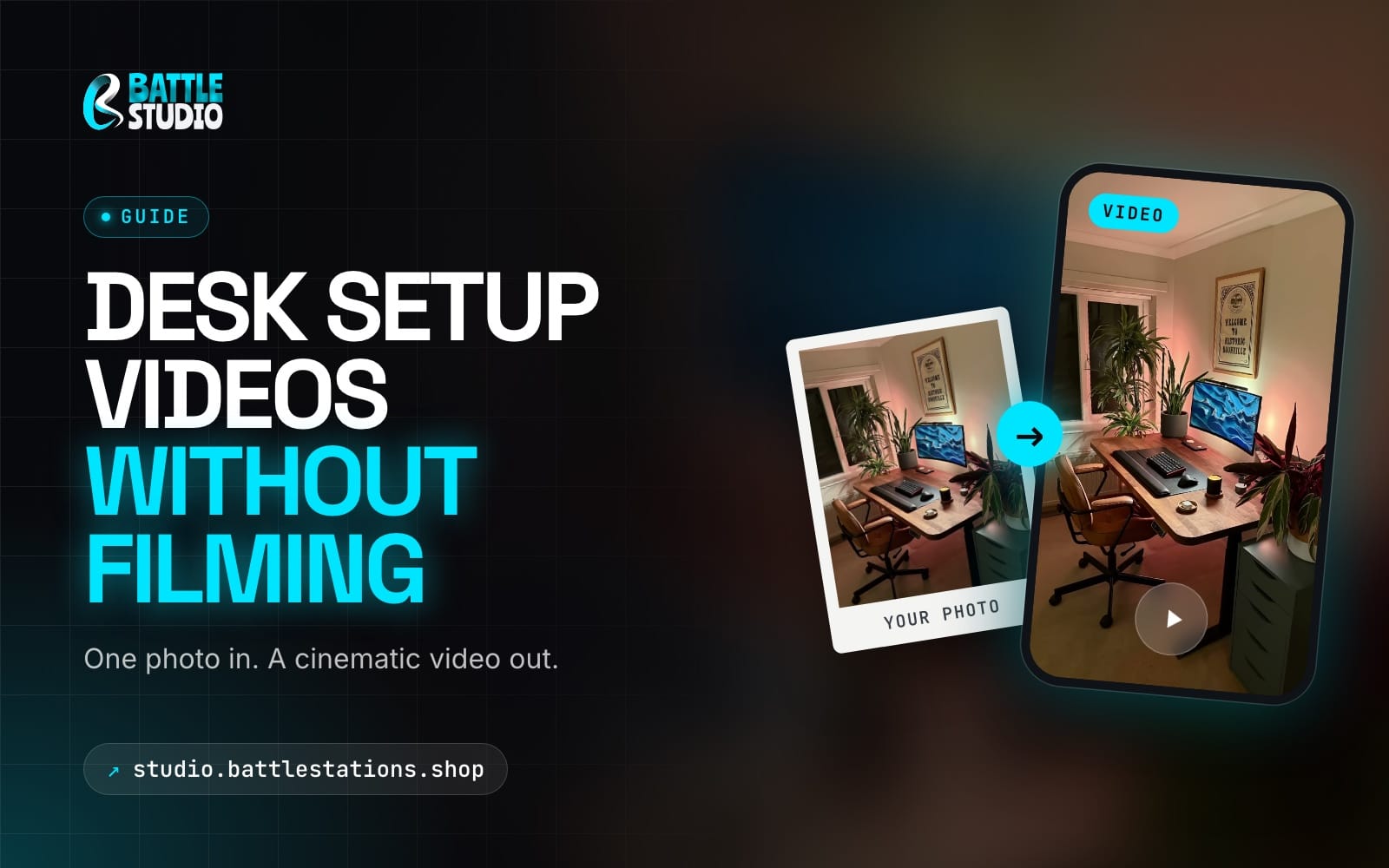
If you already have a decent photo of your setup, you can skip all of that. This guide covers how to turn a desk photo into a video, what makes the photo work, and which look suits which kind of desk.
Why setup videos beat setup photos
On TikTok, Instagram Reels and YouTube Shorts, the feed is video first. A still photo of a desk gets a second's glance; a clip that moves from the first frame gets watched, and often watched twice. Motion is what stops the scroll.
That's why the most-shared setup posts are short clips: a reveal, a room tour, a lights-on transition. The setup is the same as in the photo. What changes is the camera and the light.
What you need
- One clear photo of your setup. Taken on your phone is fine. More on what makes a good one below.
- An image-to-video tool made for setups. General AI video tools tend to reinvent the scene: your monitor turns into a different monitor and your keyboard grows extra keys. A tool tuned for setups keeps your gear as it is and only adds the camera move and the light.
- About a minute.
We built Battle Studio for exactly this, so the steps below use it. The photo advice applies whatever tool you use.
Step 1: Take (or pick) the right photo
The video can only show what's in the photo, so this step matters most.
- Step back. Get the whole desk, the monitor and the lighting in frame, straight on or from a slight angle.
- Lights on. Switch on the monitor, lamps and LED strips. The video brings out light that's already there; it can't invent your RGB.
- Tidy first. Cables, cups and wrappers show up in the video too.
- Use the original file. Not a screenshot, not a copy that's been through a messaging app. Compression shows once the camera starts moving.
If you have close-ups of your keyboard, mouse or speakers, keep them. You can add up to five photos: the first opens the video and each extra one becomes another shot.
We go deeper on this in how to photograph your desk setup for video.
Step 2: Pick a look that suits the desk
Each template is a different camera move and mood. Matching it to the setup makes a bigger difference than any setting:
| Your setup | Try |
|---|---|
| Gear worth showing off | Cinematic Reveal: a slow glide across each piece |
| Minimal or white desk | Soft Daylight: calm morning light, shallow focus |
| Plants, wood, warm lamps | Cozy Desk Tour or Golden Hour |
| RGB, dark room | Neon Pulse |
| All-black setup | Monochrome |
| Ultrawide or big monitor | Orbit |
Step 3: Choose the shape
- Vertical 9:16 for TikTok, Reels and Shorts. Generate it vertical from the start, so nothing gets cropped off the sides when you upload.
- Widescreen 16:9 for YouTube, X or a Reddit post.
Shorter clips keep people watching and loop well; a longer one gives a slow reveal room to breathe.
Step 4: Generate, download, post
Rendering usually takes about a minute. Download the MP4, then add a sound in the TikTok or Instagram editor as you would with a clip you filmed. Put your gear list in the caption: setup viewers search for the monitor and keyboard as much as the look.
Get more than one post out of one photo
The same photo in three templates gives you three different posts: a cinematic reveal on Monday, a moody black and white on Wednesday, a lights-on transition on Friday. It's the easiest way to post more often without reshooting anything.
For more formats to try, see desk setup video ideas for TikTok, Reels and Shorts.
FAQ
Can I make a desk tour video without a camera?
Yes. Upload a photo of your desk, pick a template and download the finished video. There's no filming or editing involved.
Will the AI change my setup?
A setup-specific tool animates the camera and light rather than the gear, so the video shows your desk. Small details can shift as the camera moves; a sharp, well-lit photo keeps them truest.
How long does it take?
About a minute per video with Battle Studio.