On this page
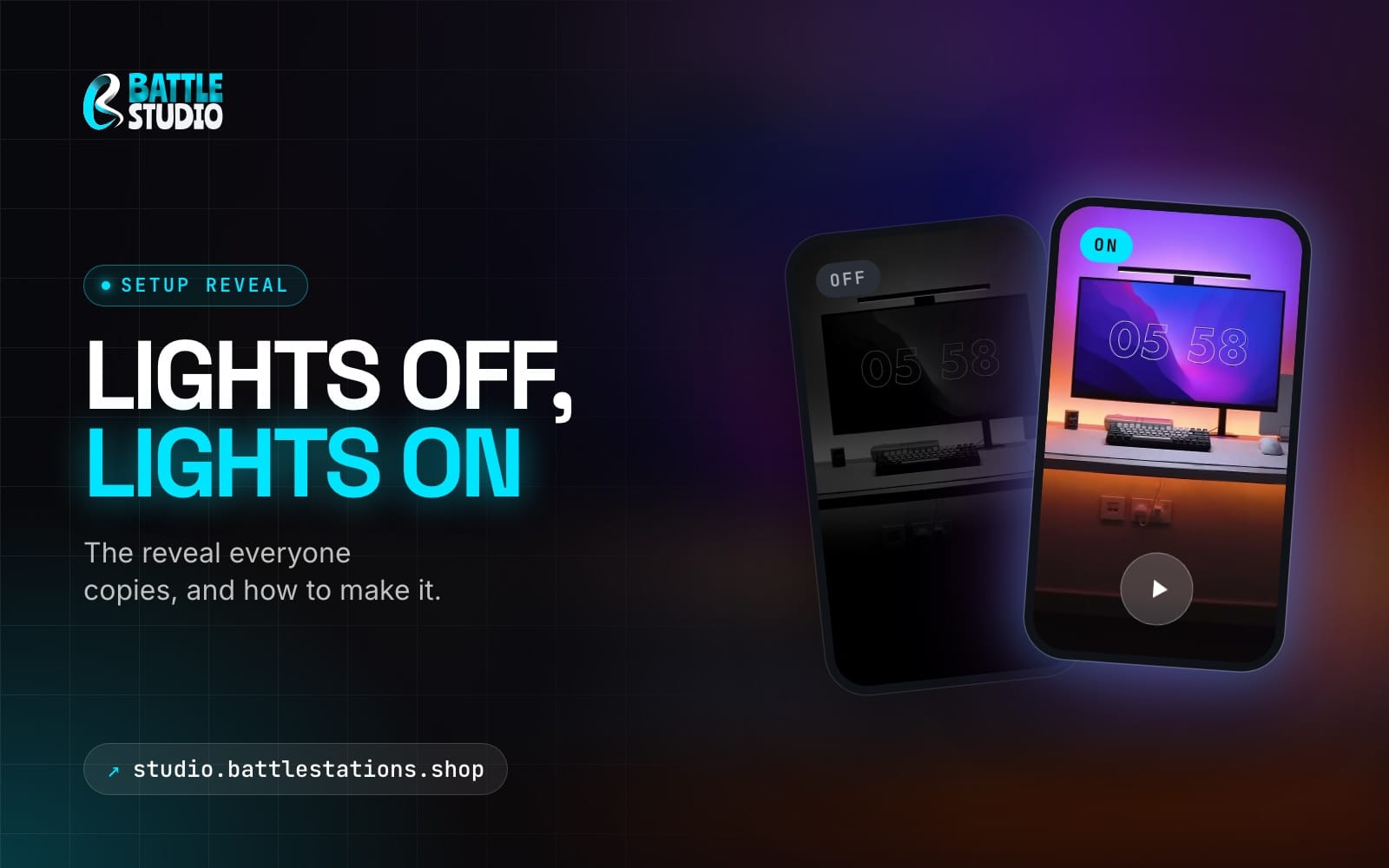
You've seen it a hundred times: a plain, slightly dull desk in daylight. The room goes dark. Then the light under the desk comes on, the monitor light bar, the lamp, the screens, until the whole setup glows. It's the most copied format in setup content because it works: it's a before-and-after and a reveal in one clip.
Here's how to make one, first the filmed way and then the faster way.
Why the reveal works
It has a hook (a dark or flat frame that makes you wait), a build (each light adding something) and a payoff (the finished setup at its best). Viewers stay to the end because the end is the point. That's also why it loops well: the flat opening after the glowing finish makes people watch it again.
The filmed way
If you want to shoot it for real:
- Lock the camera. Use a tripod or wedge your phone so it doesn't move at all. Any shift between the shots ruins the effect.
- Lock the exposure. On iPhone, press and hold to lock AE/AF; on Android, use Pro mode. Otherwise the camera brightens the dark room and the reveal falls flat.
- Shoot the "before." Room lights on, setup lights off, a few seconds.
- Kill the room lights, then switch each light on in turn. Smart plugs and an app or a single remote make this far easier than running between switches. Leave a beat between each one.
- Edit. Trim the dead time, cut or ramp the speed so each light lands on a beat, and add your sound.
Expect a few takes. The usual failures are a moving camera, a switch you forgot, and exposure that adjusts halfway through.
The faster way: from one photo
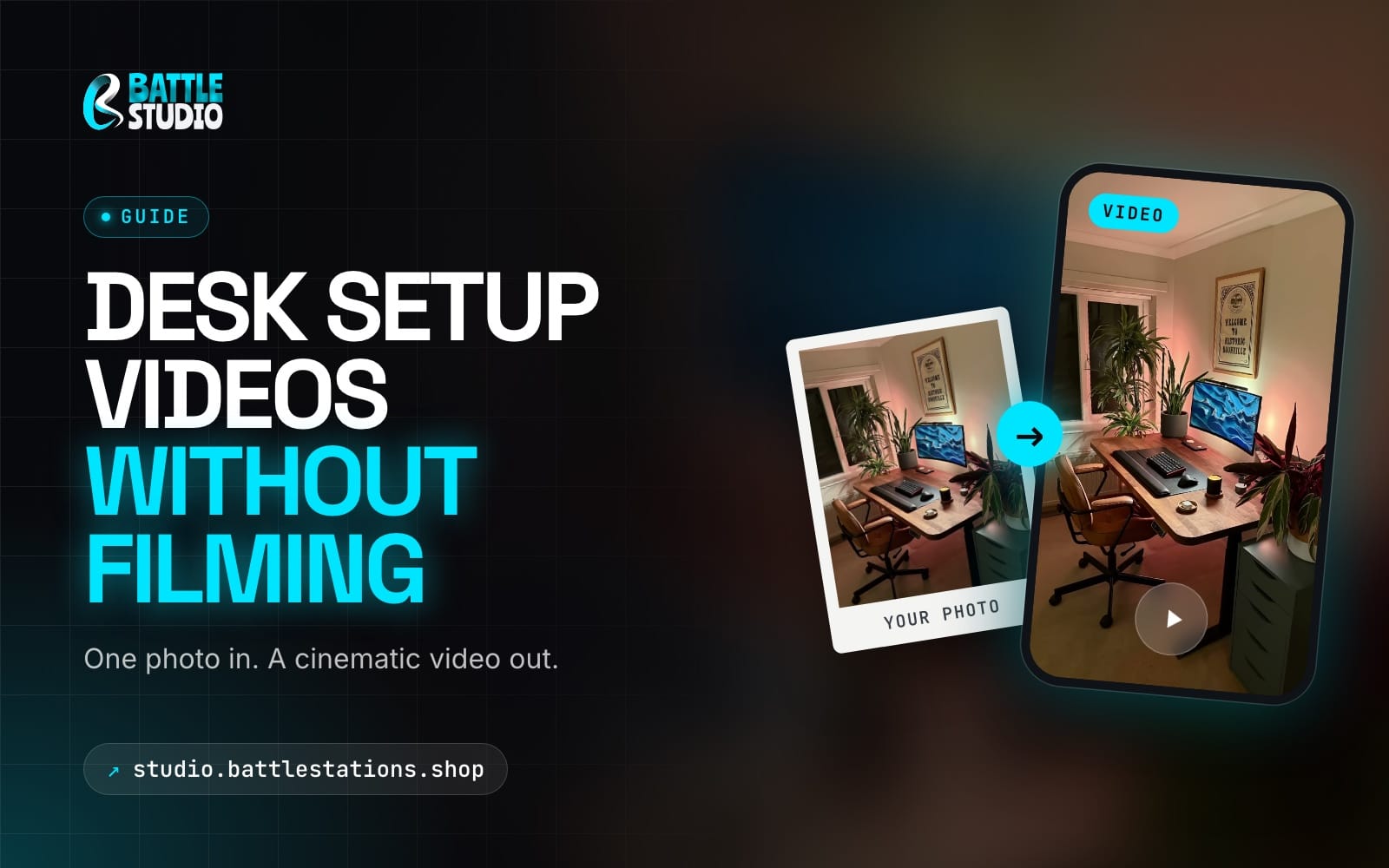
If you have a photo of your setup with every light on, you can skip filming entirely. The Lights On template in Battle Studio starts in flat daylight, dims the room and switches your LED strips, light bar, lamps and screens on one at a time, ending on your photo.
Tips for the photo:
- Every light on. The reveal ends on your photo, so anything that's off in the photo stays off.
- Dim, not dark. Lower the room lights so the glow stands out, but keep enough light that the desk stays sharp.
- Hold it steady. Low light blurs easily. Rest the phone on something or use night mode.
You don't need a lights-off photo: the template creates the darker opening for you. Extra photos (up to five) become extra shots after the reveal, such as a close-up of the keyboard.
Other reveals worth trying
The lights-on transition isn't the only reveal format:
- Walk-in reveal. The camera steps into the room from the doorway and the setup comes into view, like a first-person room tour. See room tour videos.
- Build-up time-lapse. The desk starts bare and the gear appears piece by piece as day turns to night. See setup time-lapses.
- Cinematic reveal. A slow glide across each piece of gear before the whole desk comes into view.
All of them are on the setup reveal video page.
Posting it
- Vertical 9:16 for TikTok, Reels and Shorts.
- Keep it short. Under 15 seconds loops well.
- Time the sound. Pick a track with a clear drop, or match a beat to the moment the last light comes on.
- Caption the gear. People will ask which LED strips and light bar you used. Answer it in the caption first.
FAQ
Do I need a photo with the lights off too?
Not with a photo-to-video tool: the darker opening is generated. If you film it, you'll shoot both states anyway.
Does it work without RGB?
Yes. Lamps, a monitor light bar and the screens themselves are enough for a good reveal. The more separate light sources there are, the better the build.