On this page
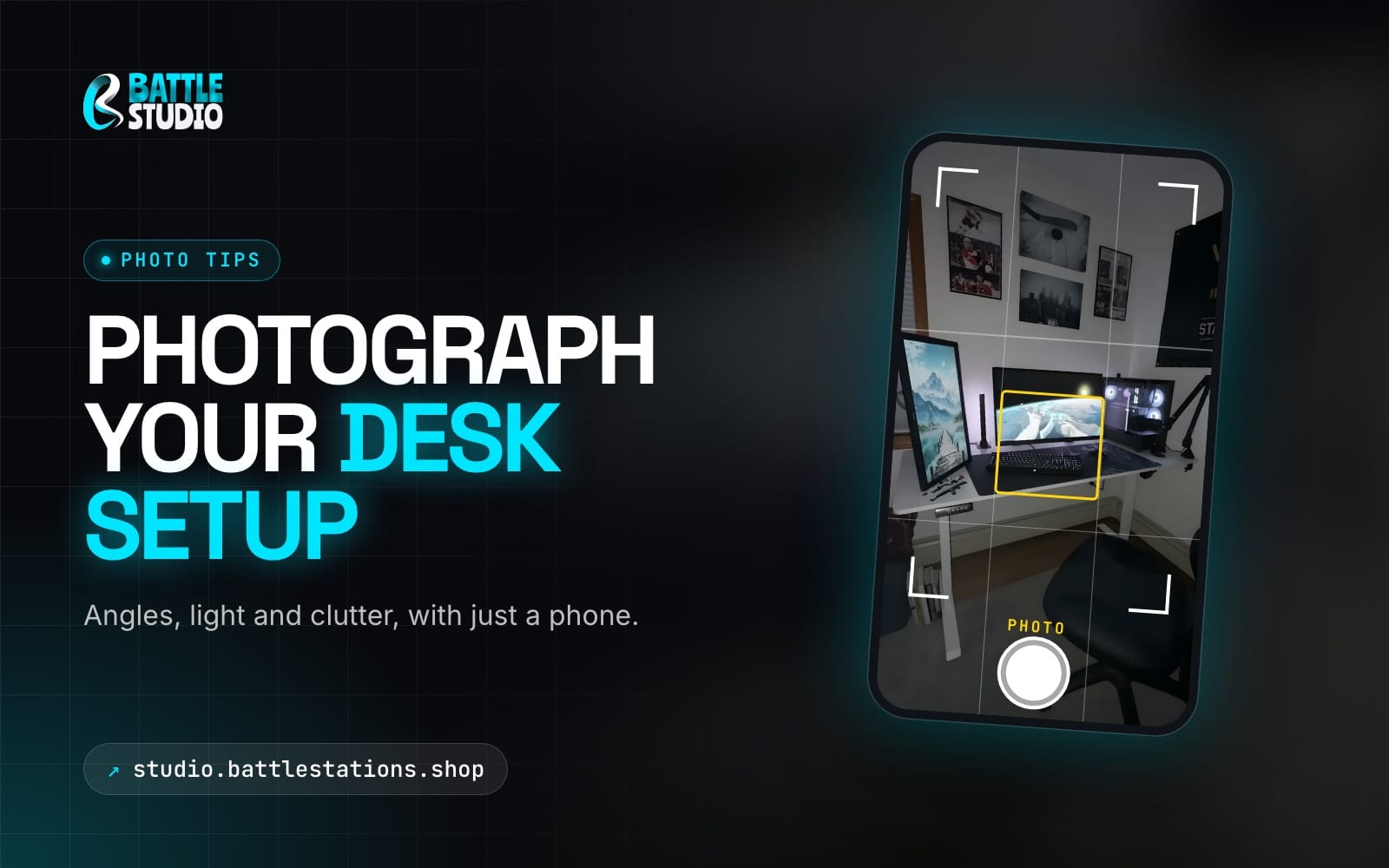
Most setup photos that look "off" have one of a handful of problems: the wrong angle, mixed lighting, clutter or blur. All of them are fixable with the phone you already have. These tips work for a normal photo post, and they matter even more if you're turning the photo into a video, because any flaw gets bigger once the camera starts moving.
1. Get the angle right
- Straight on or a slight angle. Stand back and center the desk, or step a little to one side. Very low or very high angles distort the monitor.
- Camera at desk height or just above. Shooting down from standing height makes the desk look flat.
- Leave space around the setup. A little room on every side gives you options when cropping, and gives a video camera space to move without cutting off your gear.
- Shoot vertical for vertical posts. If the photo is going to TikTok, Reels or Shorts, a portrait photo gives you more of the setup in a 9:16 frame.
2. Light it on purpose
- Pick one mood. Daylight for clean, minimal desks; dim room plus your own lights (lamps, LEDs, screens) for gaming and cozy setups. Mixing harsh ceiling light with RGB rarely looks good.
- Dim, not dark. For RGB shots, lower the room lights but don't kill them completely. The gear still needs detail.
- Turn the monitor on. A black screen is a big dead rectangle in the middle of the photo. A wallpaper that matches your lighting ties everything together.
3. Clear the clutter
The quickest upgrade to any setup photo:
- Hide cables, or at least the loose ones in front of the desk.
- Remove cups, wrappers and chargers.
- Straighten the keyboard, mouse and desk mat.
Close-ups and slow camera moves show every speck, so give the desk a quick wipe as well.
4. Keep it sharp
- Steady the phone. Rest it on a chair, books or a small tripod. Low light means slow shutter speeds, and handheld shots blur.
- Use night mode for dark rooms, holding still until it finishes.
- Tap to focus on the desk, not the background.
- Skip heavy filters. Edit lightly if you need to; strong filters crush shadow detail.
5. Watch for reflections
Glass PC panels, glossy monitors and windows behind the desk all reflect. Turn off ceiling lights, shoot glass at a slight angle, and check the frame for your own reflection before you shoot.
6. Take a few close-ups too
After the wide shot, take a few details: the keyboard at key height, the mouse, the speakers, the PC through the glass. On their own they make a good carousel. In a video tool like Battle Studio, each extra photo becomes another shot after the wide one.
Quick checklist
- [ ] Whole setup in frame, with space around it
- [ ] Desk-height angle, straight or slightly angled
- [ ] One lighting mood; monitor on
- [ ] Clutter and loose cables gone
- [ ] Phone steadied; sharp focus on the desk
- [ ] No reflections in glass or screens
- [ ] Original file, not a screenshot or compressed copy
Turning the photo into a video
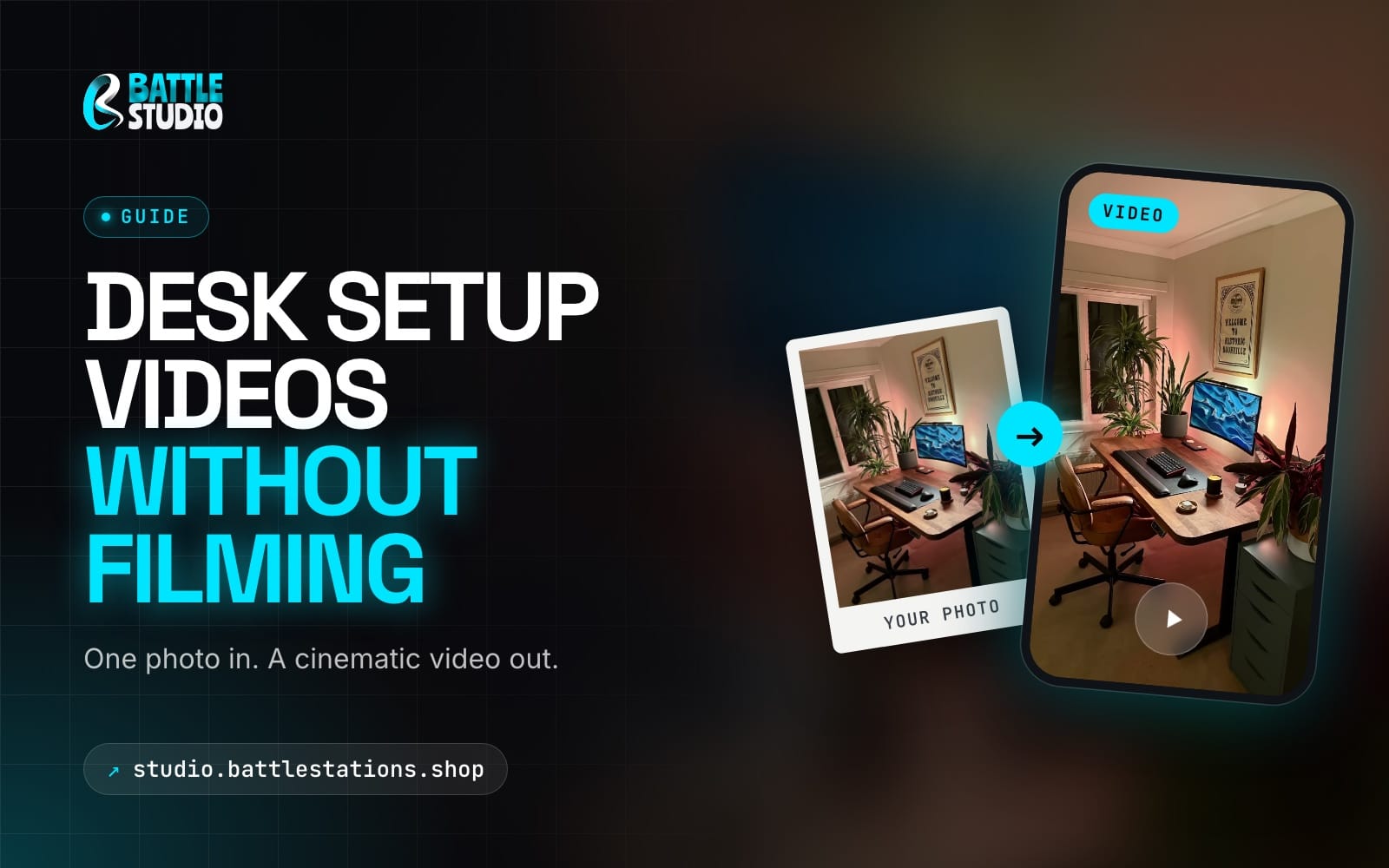
Once you have a strong photo, you can animate it: a slow reveal, an orbit around the monitor, a lights-off to lights-on transition. See how to make a desk setup video without filming, or try it on your photo at studio.battlestations.shop.
For specific setups: