On this page
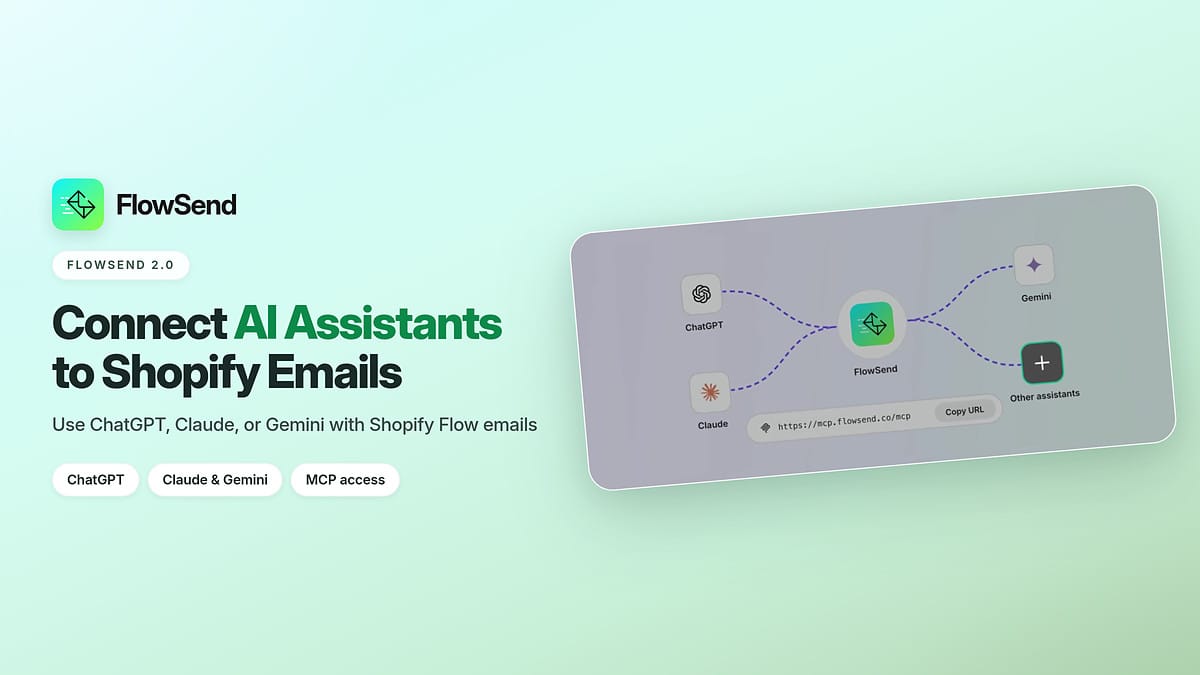
If you already use ChatGPT, Claude, or Gemini day to day, you should not have to jump between tools just to work with your Shopify emails. FlowSend 2.0 adds AI Access, which lets you connect an MCP-compatible assistant to FlowSend with a single server URL and work with FlowSend from the conversation.
FlowSend is a Shopify Flow mail app from Final Apps. It sends branded transactional emails from a Flow workflow, using your own domain or SMTP provider, instead of a generic shopifyemail.com from address. AI Access sits on top of that setup: once the assistant is connected, it can interact with the FlowSend features your plan supports, right from chat.
This guide follows the FlowSend 2.0 walkthrough for AI Access and shows you where to find the feature, how to copy your MCP server URL, and where to review connections and History.
What MCP is, and how FlowSend uses it
MCP stands for Model Context Protocol. It is a standard way for an AI assistant to connect to an external app through a server URL, rather than a one-off, assistant-specific integration.
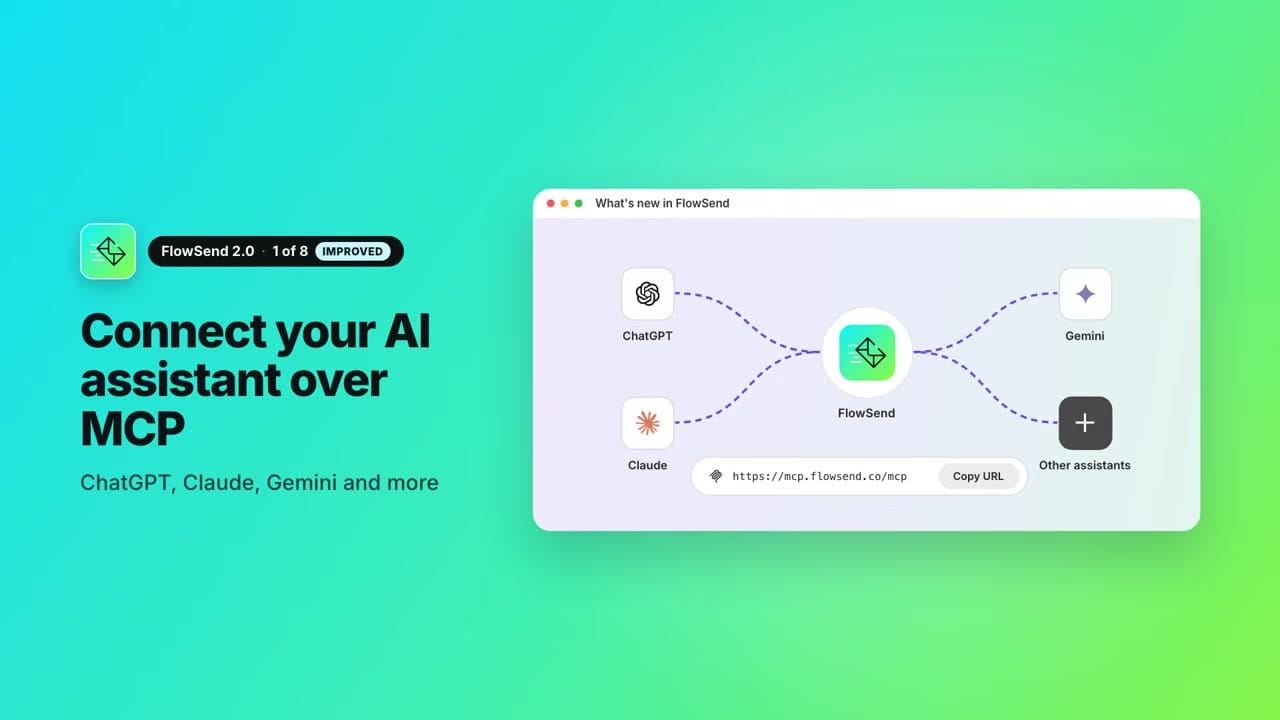
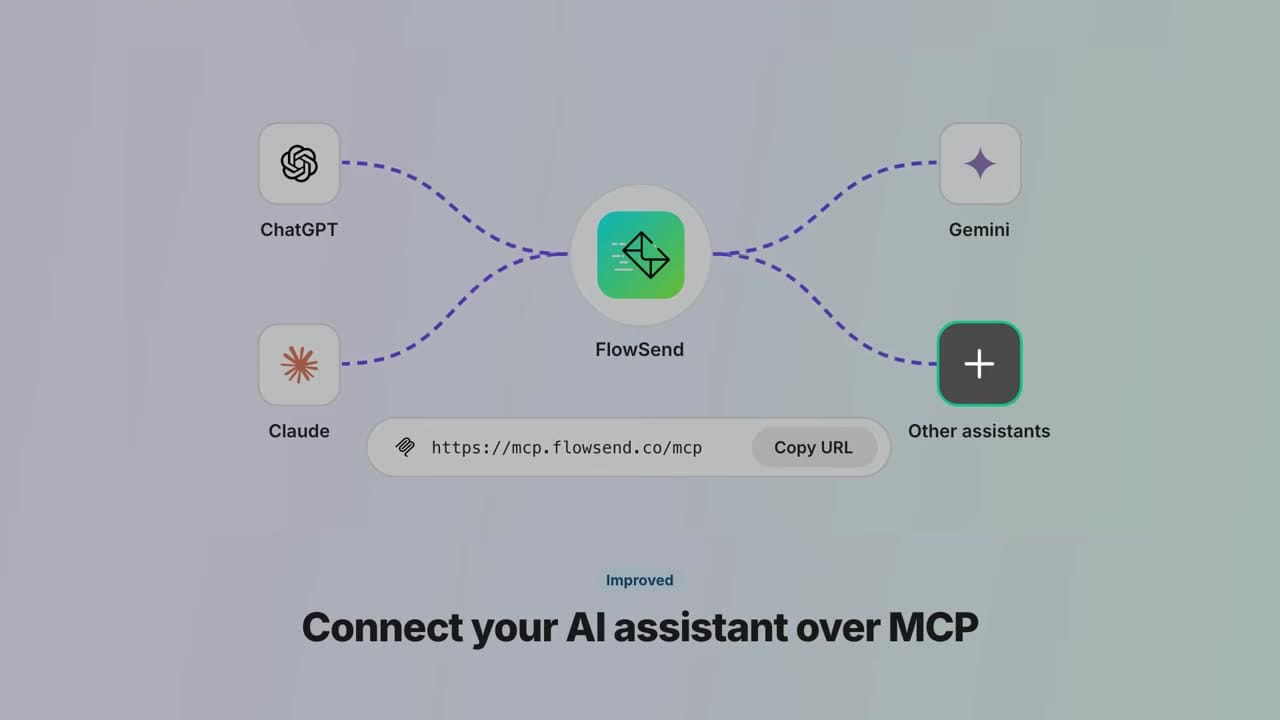
FlowSend exposes an MCP server URL in the app. You copy that URL, add it to an assistant that supports MCP, and complete the assistant's own connection setup. After that, you can work with supported FlowSend functionality from the same chat you already use.
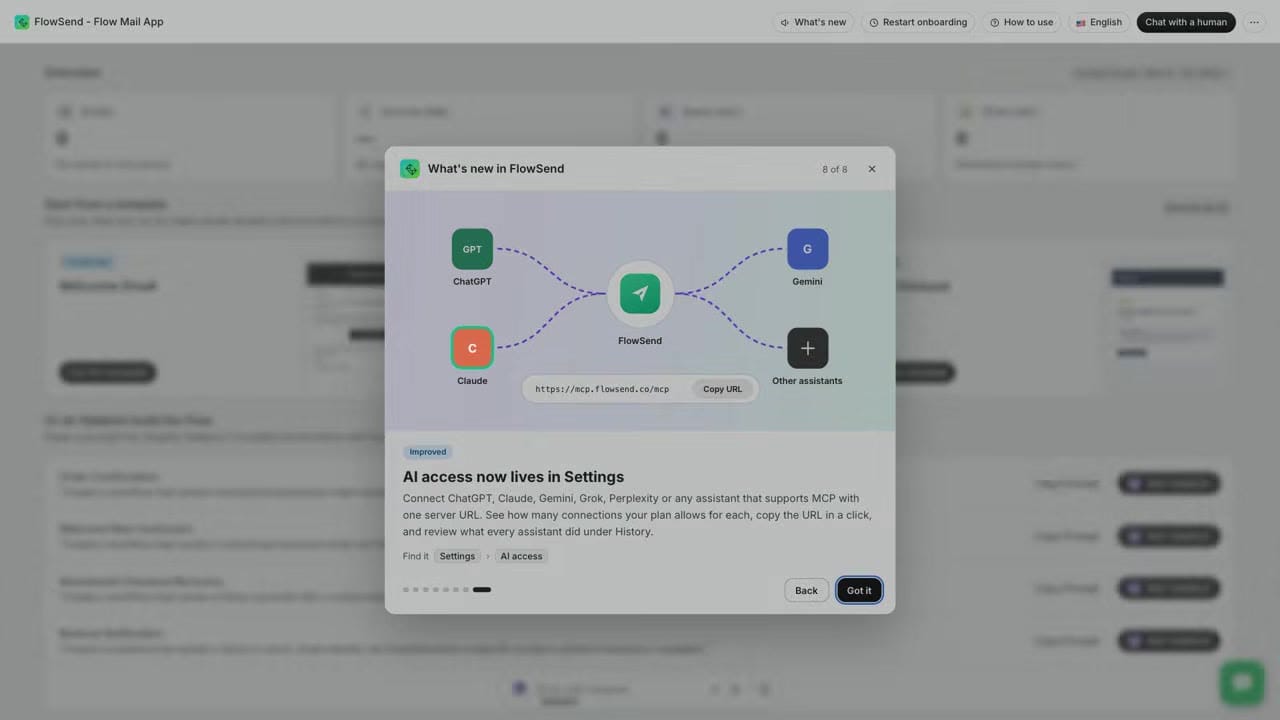
The in-app "What's new" message lists ChatGPT, Claude, Gemini, Grok, Perplexity, or any other assistant that supports MCP. You do not need a different connection method for each one — it is the same server URL.
Before you start
You will need:
- A Shopify store with FlowSend installed. The walkthrough and the current Shopify listing both note that you can get started for $1 for the first month.
- An AI assistant that supports MCP, such as ChatGPT, Claude, or Gemini.
- Access to FlowSend in your Shopify admin, including Settings.
Shopify Flow is what FlowSend uses to trigger and send the actual workflow emails. Install Shopify Flow if you have not already, then come back to AI Access when you want to work with FlowSend from chat.
Step 1. Open AI Access in FlowSend Settings
In FlowSend, go to:
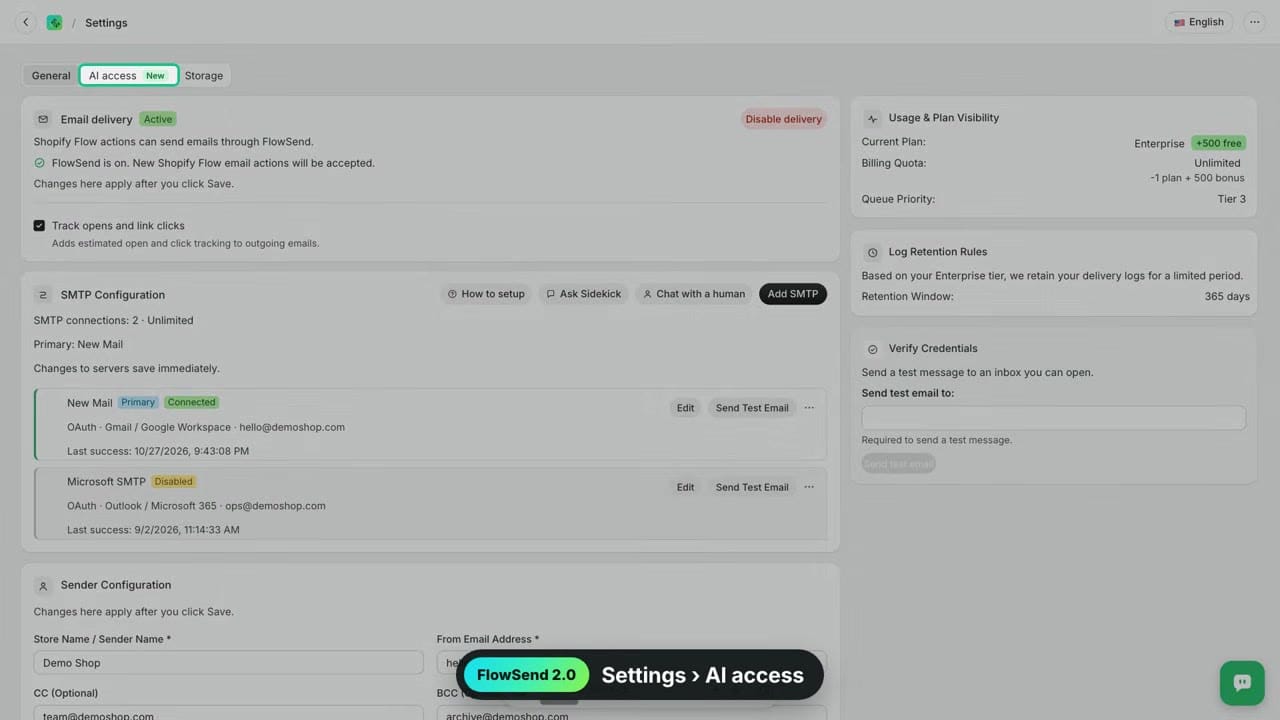
FlowSend → Settings → AI access
AI Access is a new Settings tab, sitting next to General and Storage. In the walkthrough, the tab is marked New, and an on-screen label points to Settings > AI access.
You can also find the same feature from the What's new tour inside the app (the AI Access card is item 8 of 8). That card is the quickest way to see what the feature does and where it lives.
Step 2. Copy your FlowSend MCP server URL
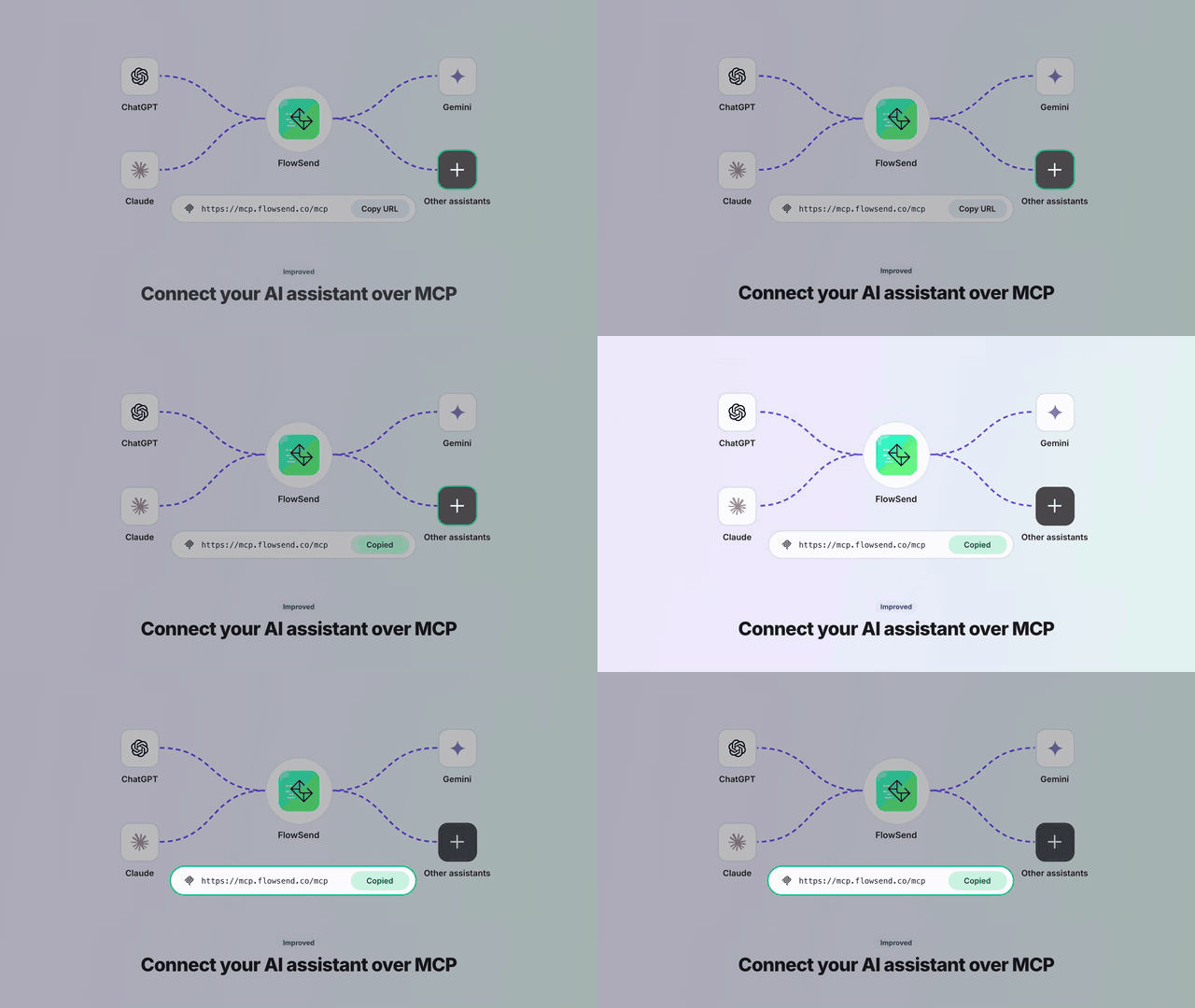
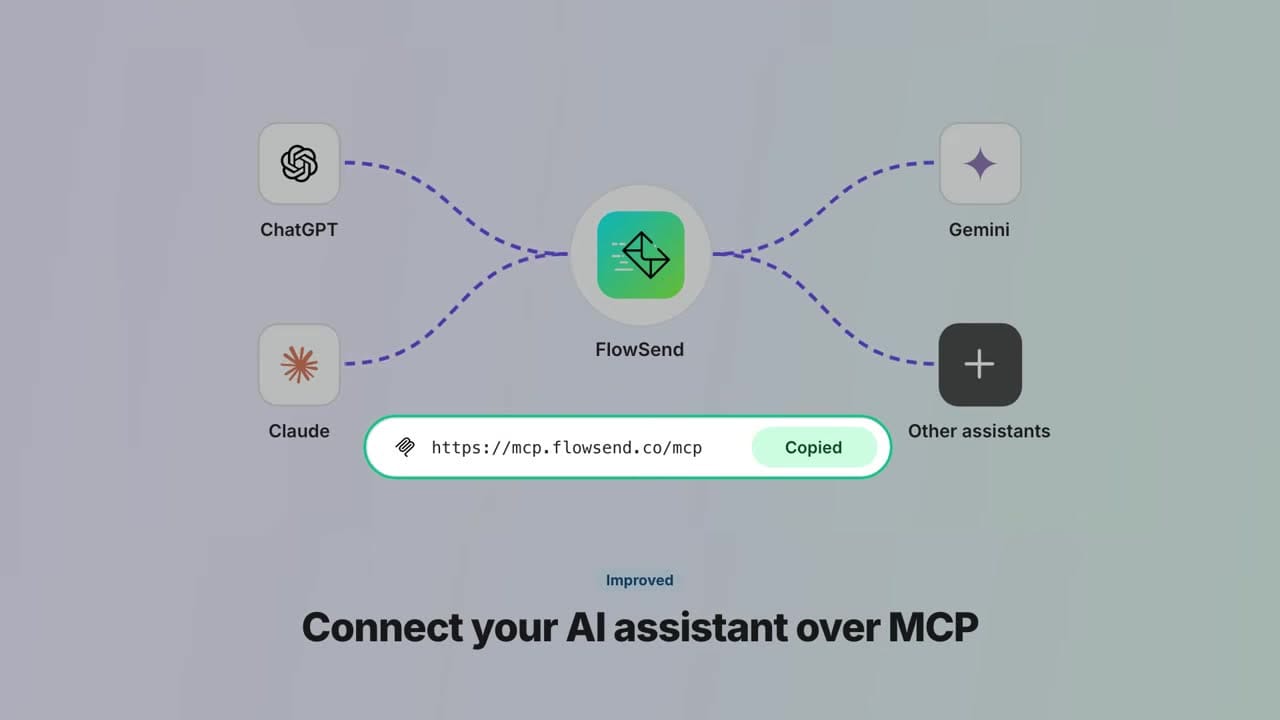
On the AI Access screen, find your FlowSend MCP server URL and click Copy URL.
The walkthrough shows the URL in the format https://mcp.flowsend.co/mcp. Use the URL that appears in your own FlowSend account — copy it from the app rather than typing it from memory.
When the copy succeeds, the button changes from Copy URL to Copied.
Step 3. Connect ChatGPT, Claude, Gemini, or another MCP assistant
Paste the server URL into your MCP-compatible assistant and finish that assistant's connection setup. The exact screens differ by product, but the FlowSend side of the work is the same: one URL, then the assistant's own connect flow.
You can connect:
- ChatGPT
- Claude
- Gemini
- Grok or Perplexity, if you use them
- Any other assistant that supports MCP
Once the connection is complete, you can interact with supported FlowSend functionality from the conversation, instead of switching back to the FlowSend admin for every task.
Step 4. Check your plan's connection limits
AI Access is tied to your FlowSend plan. The in-app message and the walkthrough both say you can see how many connections your plan allows for each assistant.
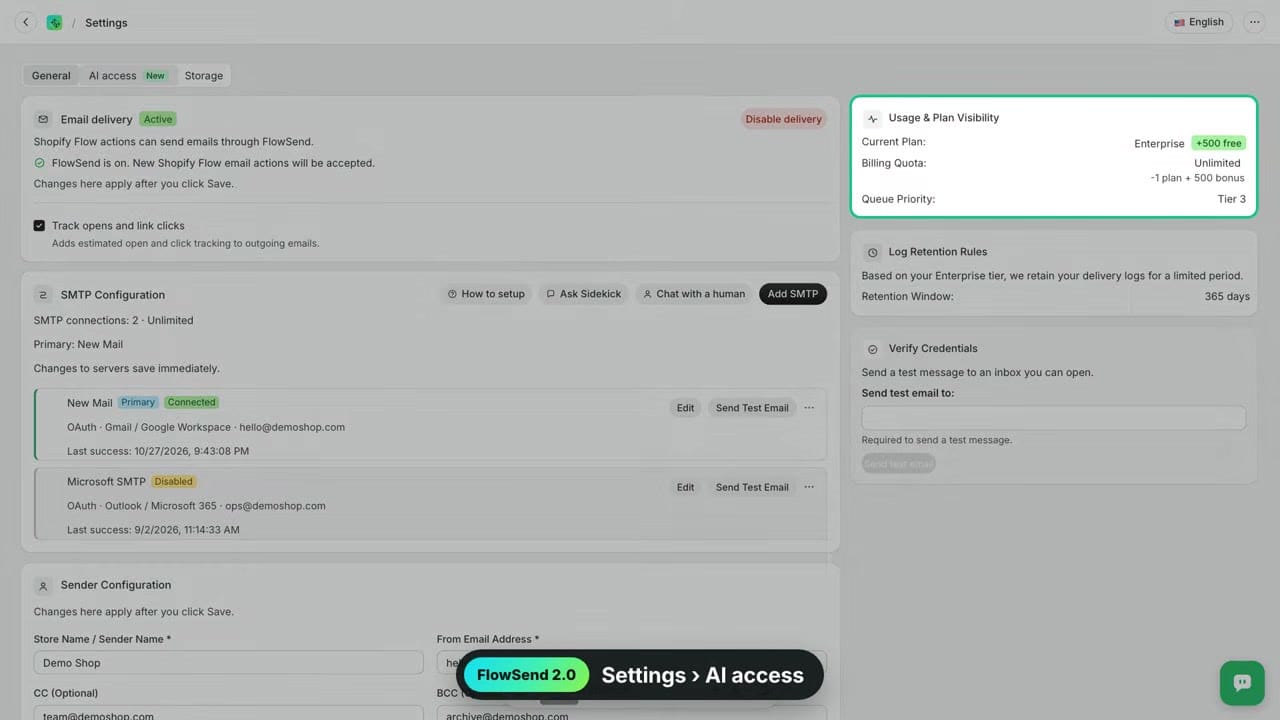
In the video, that explanation is paired with the Usage & Plan Visibility card in Settings, which shows your current plan, billing quota, and queue priority. Open Settings → AI access as well, so you can confirm the assistant connection limits that apply to your plan.
Step 5. Review assistant activity in History
After your assistant has been working with FlowSend, open History to review what it did. The "What's new" card puts it plainly: you can "review what every assistant did under History."
Use this when you want a record of assistant activity, or if you need to check a change that was made from chat.
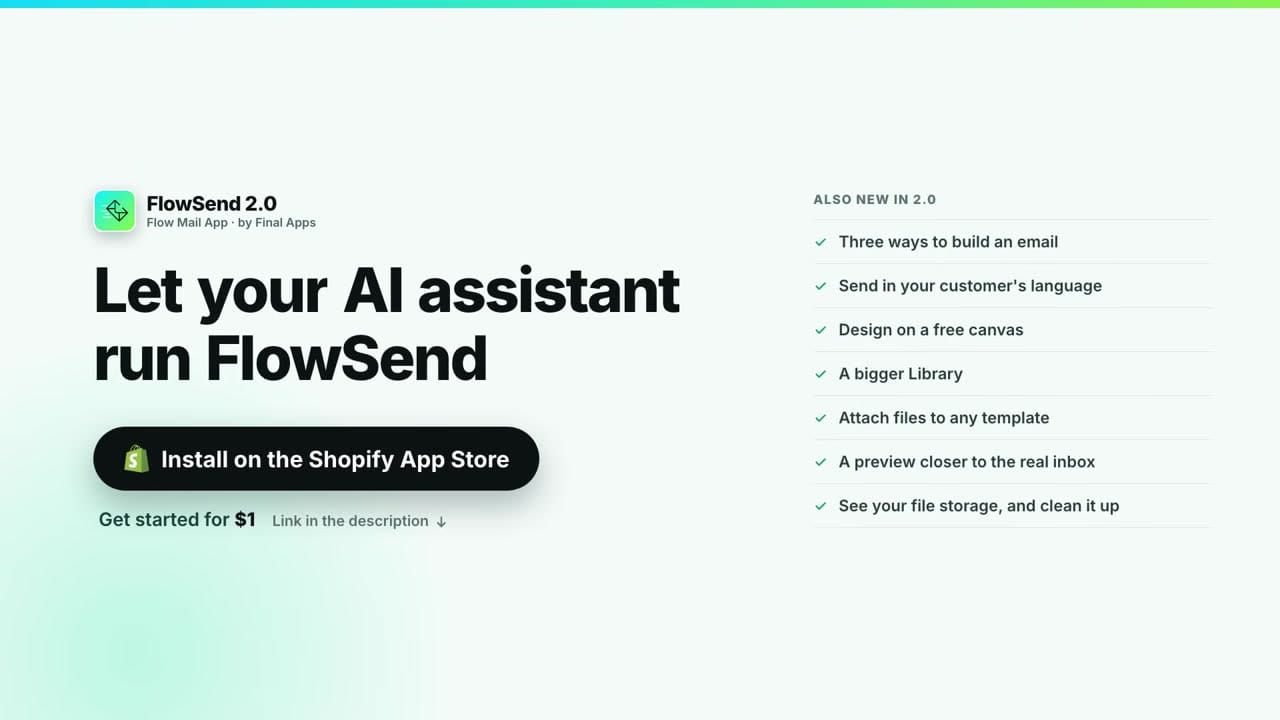
Also new in FlowSend 2.0
AI Access is one of the FlowSend 2.0 updates. The walkthrough also flags these additions, which are covered in the rest of this series:
- Three ways to build an email
- Send in your customer's language
- Design on a free canvas
- A bigger template library
- Attach files to any template
- A preview closer to the real inbox
- File storage you can review and clean up
Frequently asked questions
What is MCP, and do I need it to use FlowSend?
MCP (Model Context Protocol) is the connection method FlowSend uses for AI Access. You do not need MCP to send emails from Shopify Flow — that still happens through FlowSend's Flow action, your templates, and your SMTP or domain. MCP is only required if you want an AI assistant to work with FlowSend from chat.
Which AI assistants can I connect to FlowSend?
The walkthrough and the in-app AI Access card list ChatGPT, Claude, Gemini, Grok, Perplexity, or any other assistant that supports MCP. If your assistant can add an MCP server URL, you can point it at FlowSend.
Where do I find my FlowSend MCP server URL?
Go to FlowSend → Settings → AI access and click Copy URL. You can also see the URL on the AI Access card in the in-app "What's new" tour.
How many AI assistants can I connect?
That depends on your FlowSend plan. In Settings, check how many connections your plan allows for each assistant. The listing's plans differ by monthly email actions, queue priority, and log retention; confirm the AI connection limit that applies to your account inside the app.
Can I see what my assistant changed in FlowSend?
Yes. FlowSend records assistant activity in History, so you can review what each connected assistant did.
How much does it cost to get started?
FlowSend is free to install on the Shopify App Store. At the time of writing, the listing and the walkthrough both offer a $1 first month to get started (the current listing describes this as a BFCM offer, with Professional at $9.99/month, Advanced at $29.99/month, and Enterprise at $49.99/month or $499.99/year after that). Pricing can change, so check the FlowSend listing for the plan that fits your store.
Start sending Shopify Flow emails with AI Access
Install FlowSend, open Settings → AI access, copy your MCP server URL, and connect the assistant you already use. Then keep your branded Flow emails, SMTP setup, and templates in one place — and work with them from chat when you need to.
Install FlowSend on the Shopify App Store — get started for $1.