On this page
Some customers type "URGENT" or "Please process urgently" into the order note. Without an automated notification, that request can sit unnoticed until fulfillment is already underway. This Shopify Flow tutorial uses Shopify Sidekick and FlowSend to send your team an internal alert whenever a new order note contains the word "urgent."
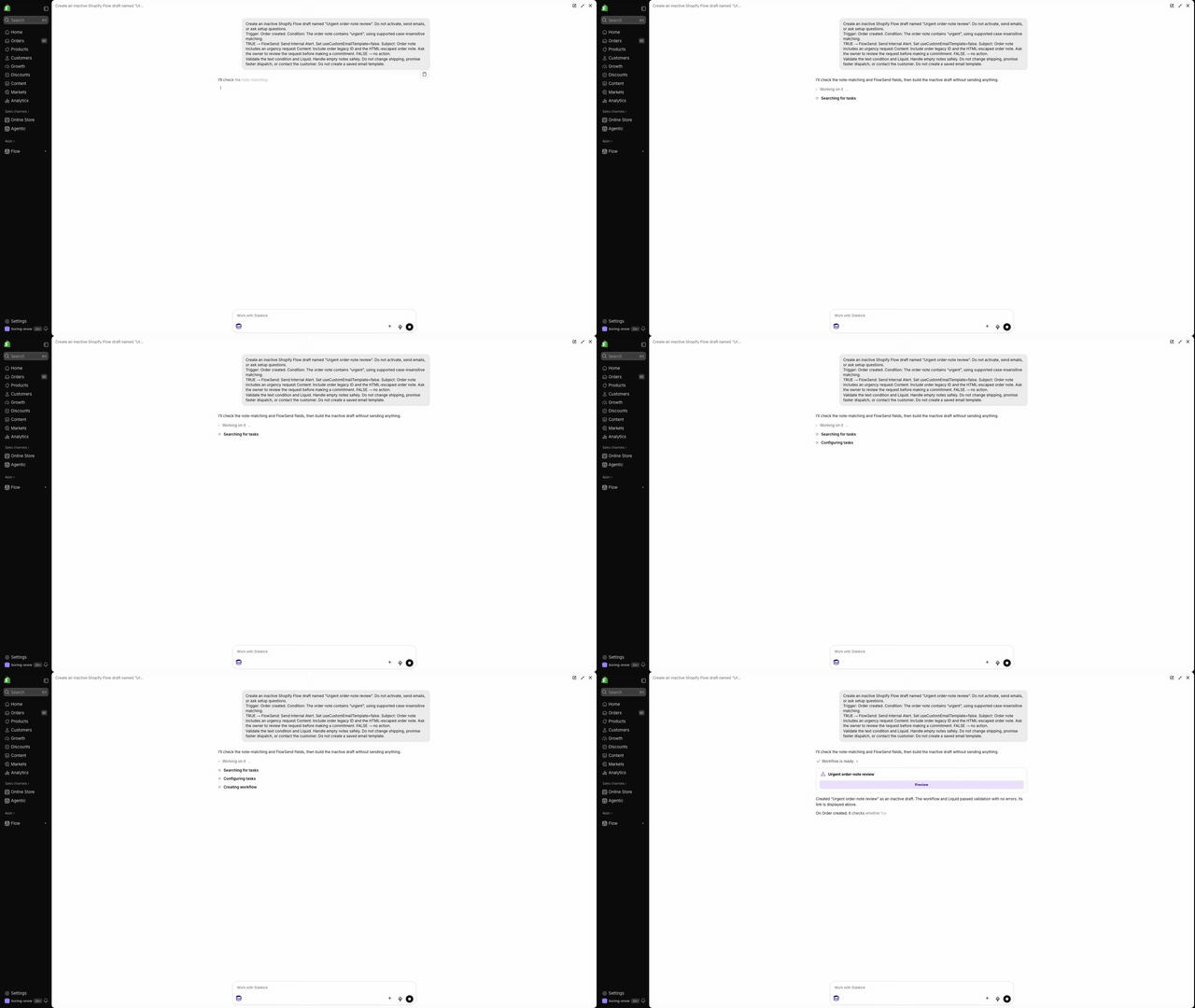
FlowSend is a Shopify Flow mail app from Final Apps. It sends branded transactional emails from a Flow workflow, using your own domain or SMTP provider, instead of a generic shopifyemail.com from address. In this walkthrough, FlowSend's Send Internal Alert action emails your team the order ID and the HTML-escaped note, so someone can review the request before making any commitment.
This is a review workflow, not a priority-shipping service. It does not promise faster delivery, change shipping arrangements, or contact the customer.
What this workflow does
On every new order, Flow checks whether the order note contains "urgent," ignoring capitalization. So URGENT, Urgent, and urgent all match. If the note is empty, or the word is not there, the workflow follows the false branch and takes no action.
If the condition is true, FlowSend sends one internal alert with the subject Order note includes an urgency request. The message includes:
- The order's legacy ID
- The order note, HTML-escaped so the text is safe to display
- A request for the owner to review the urgency request before making any commitment
The custom email template stays off. FlowSend uses inline alert content and does not create a saved template.
Before you start
You will need:
- A Shopify store with FlowSend installed. The listing and these walkthroughs note that you can get started for $1 for the first month.
- Shopify Flow, which is what triggers and runs the workflow.
- Access to Shopify Sidekick in your admin, so you can paste the prompt below.
- The staff email you want the alert to reach. The video description asks you to configure your actual staff recipient before you use the workflow.
Step 1. Paste the Sidekick prompt
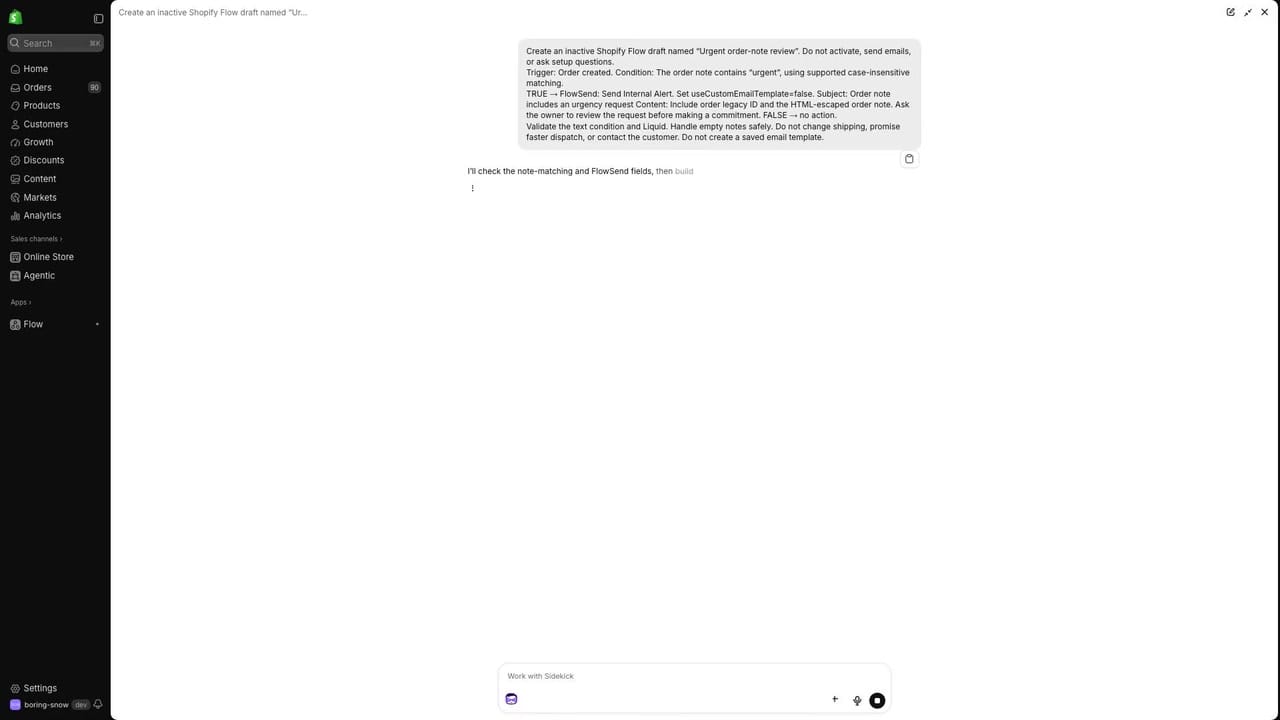
Open Sidekick in your Shopify admin and paste this prompt, which is the one used in the walkthrough. It asks Sidekick to create an inactive draft named "Urgent order-note review," without activating the workflow, sending emails, or asking setup questions.
Create an inactive Shopify Flow draft named “Urgent order-note review”. Do not activate, send emails, or ask setup questions.

Trigger: Order created. Condition: The order note contains “urgent”, using supported case-insensitive matching.

TRUE → FlowSend: Send Internal Alert. Set useCustomEmailTemplate=false. Subject: Order note includes an urgency request Content: Include order legacy ID and the HTML-escaped order note. Ask the owner to review the request before making a commitment. FALSE → no action.

Validate the text condition and Liquid. Handle empty notes safely. Do not change shipping, promise faster dispatch, or contact the customer. Do not create a saved email template.
Step 2. Let Sidekick validate and create a draft
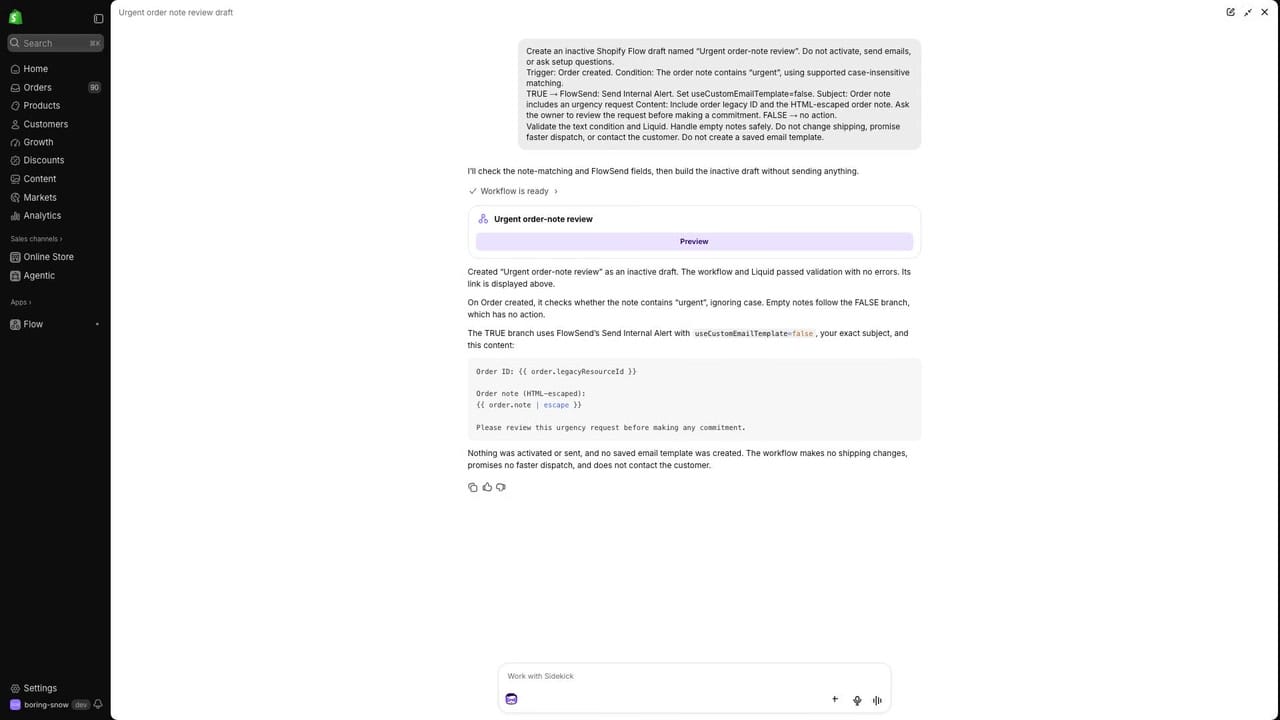
Sidekick checks the condition and the FlowSend fields, searches for the right tasks, and creates the workflow. When it finishes, you should see Workflow is ready and a preview card for Urgent order-note review.
In the walkthrough, Sidekick confirms that the workflow and Liquid passed validation with no errors. It also restates the important limits: nothing was activated or sent, no saved email template was created, and the workflow does not change shipping, promise faster dispatch, or contact the customer.
{{ order.note | escape }}.Step 3. Open the draft in Flow
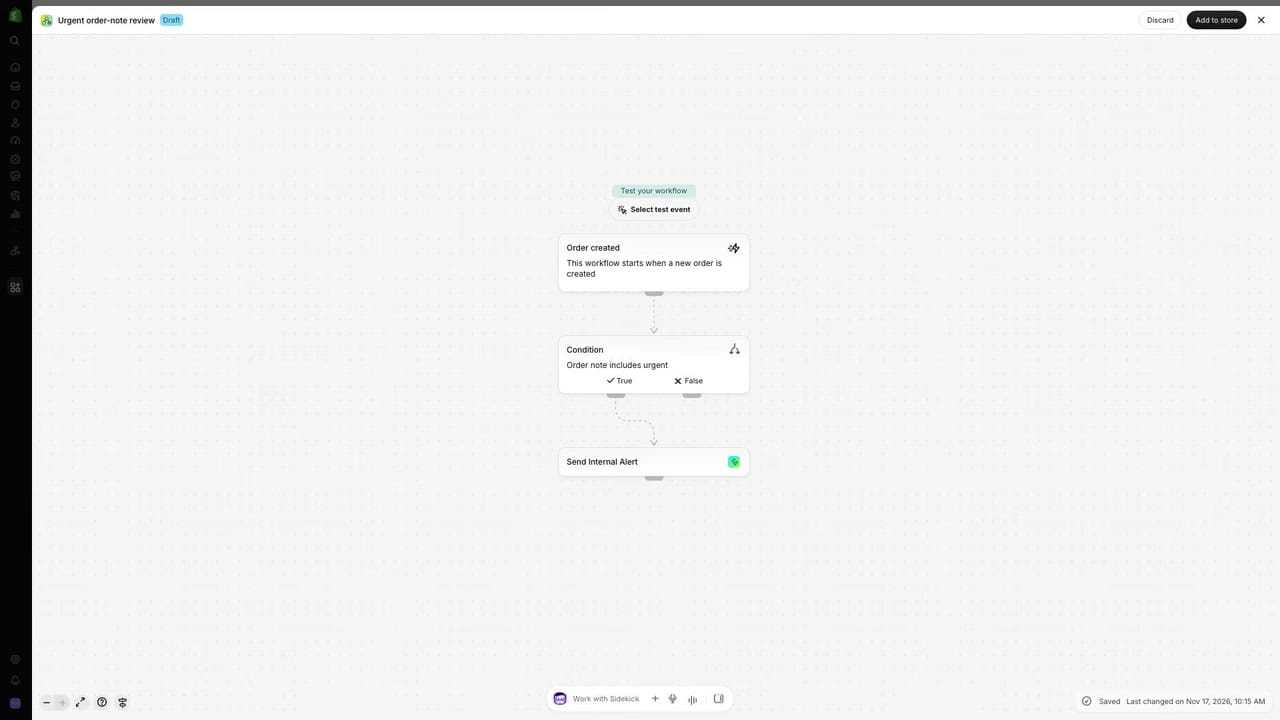
Open the draft from Sidekick's preview link. The workflow is saved as a draft and stays switched off until you turn it on.
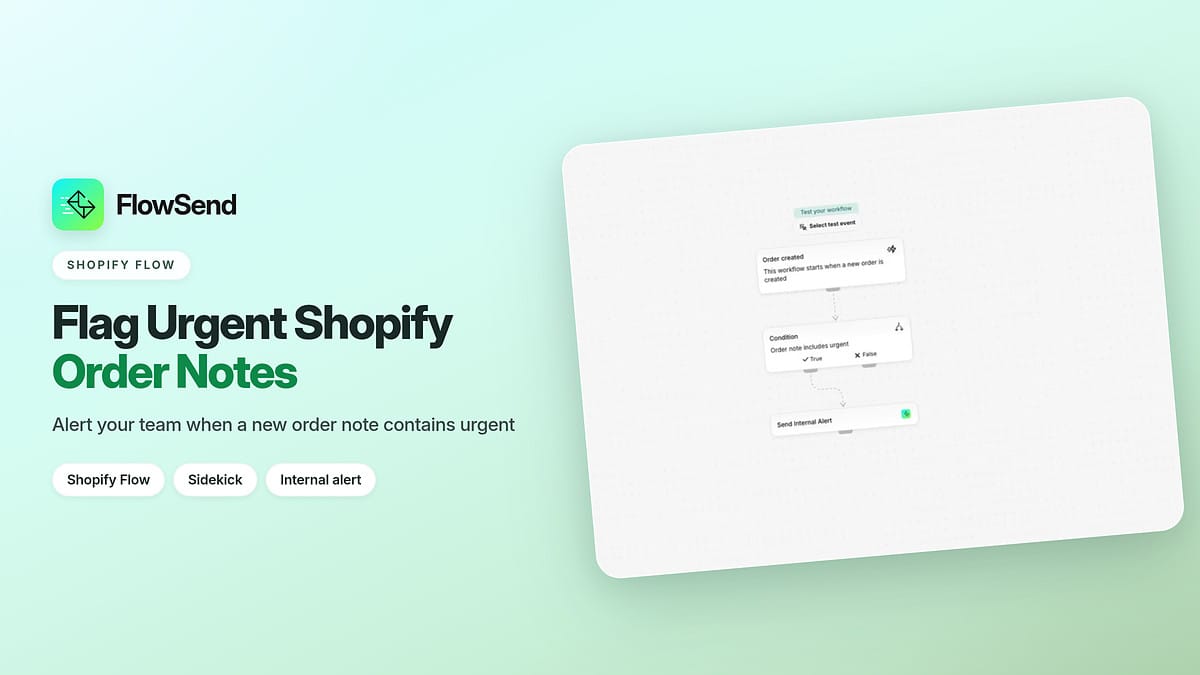
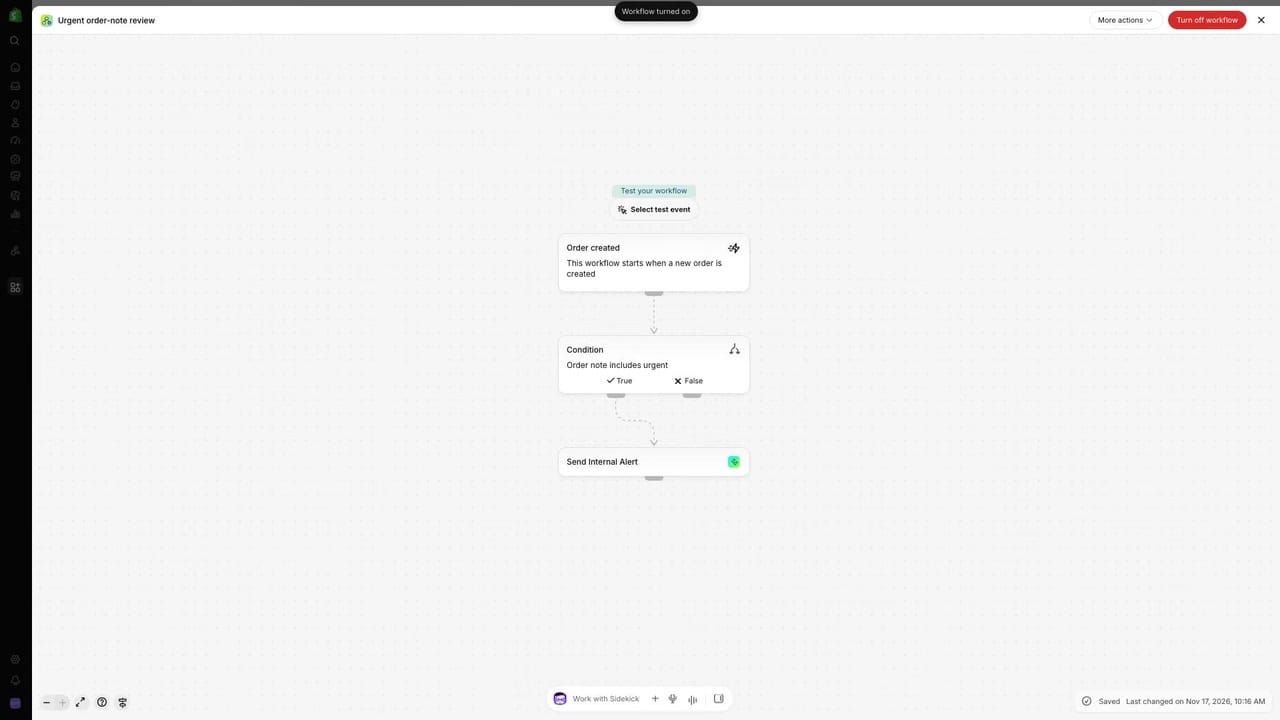
The canvas has three steps:
- Order created — this Shopify trigger runs for every new order and does not need extra configuration.
- Condition — "Order note includes urgent."
- Send Internal Alert — FlowSend's internal alert action, on the true branch only.
Step 4. Check the condition
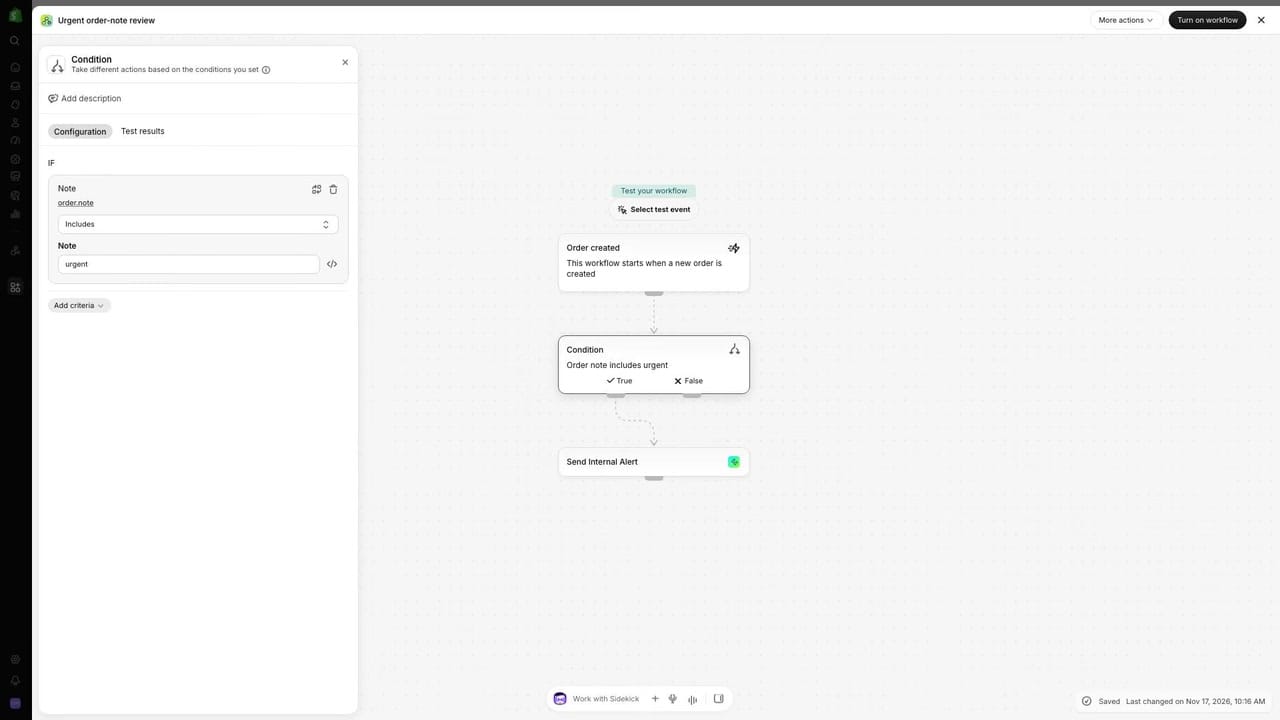
Click the condition to confirm the check. In the walkthrough it is set to:
- Note (
order.note) - Includes
- urgent
Matching ignores case, so a note that says URGENT still follows the true branch. Empty notes follow the false branch, which has no action.
Step 5. Review the FlowSend internal alert
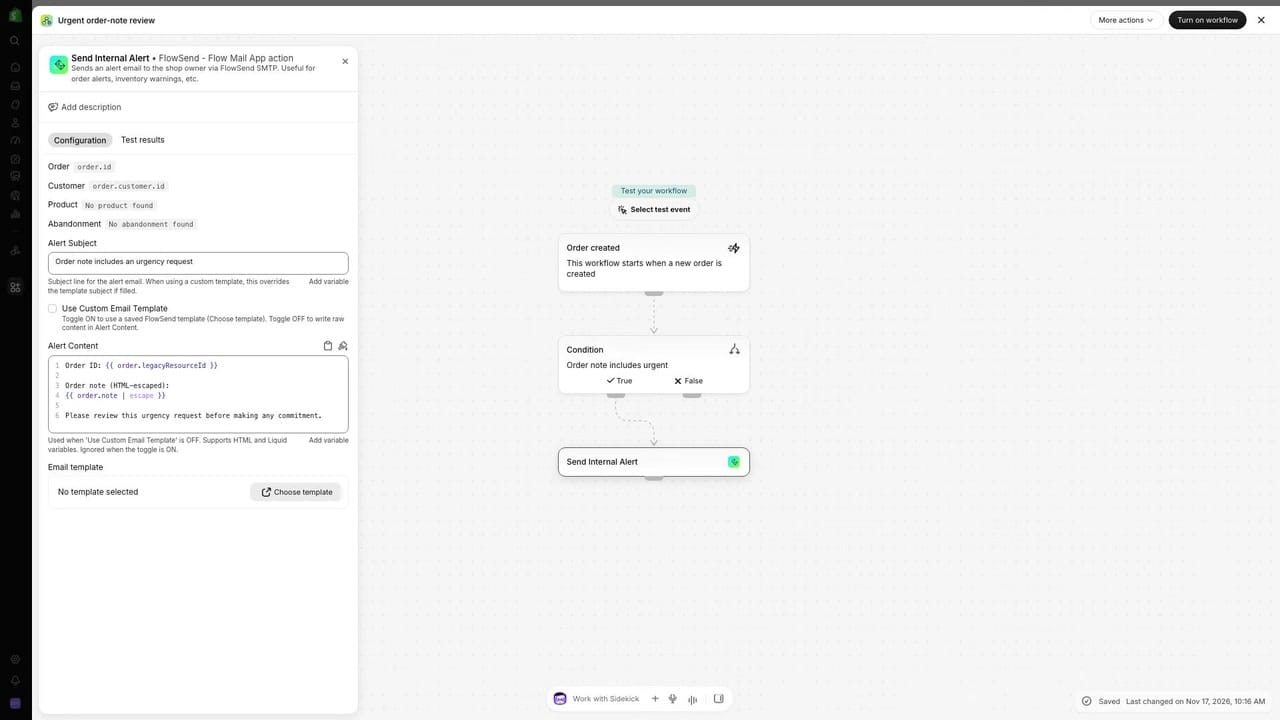
Open the Send Internal Alert action. The UI describes it as a FlowSend action that sends an alert email to the shop owner via FlowSend SMTP.
In the walkthrough:
- Alert Subject is
Order note includes an urgency request. - Use Custom Email Template is left off, so FlowSend uses the inline Alert Content instead of a saved template.
- The content includes the order legacy ID (
{{ order.legacyResourceId }}), the HTML-escaped note ({{ order.note | escape }}), and a line asking the owner to review the urgency request before making any commitment. - Email template stays on "No template selected."
Step 6. Turn the workflow on yourself
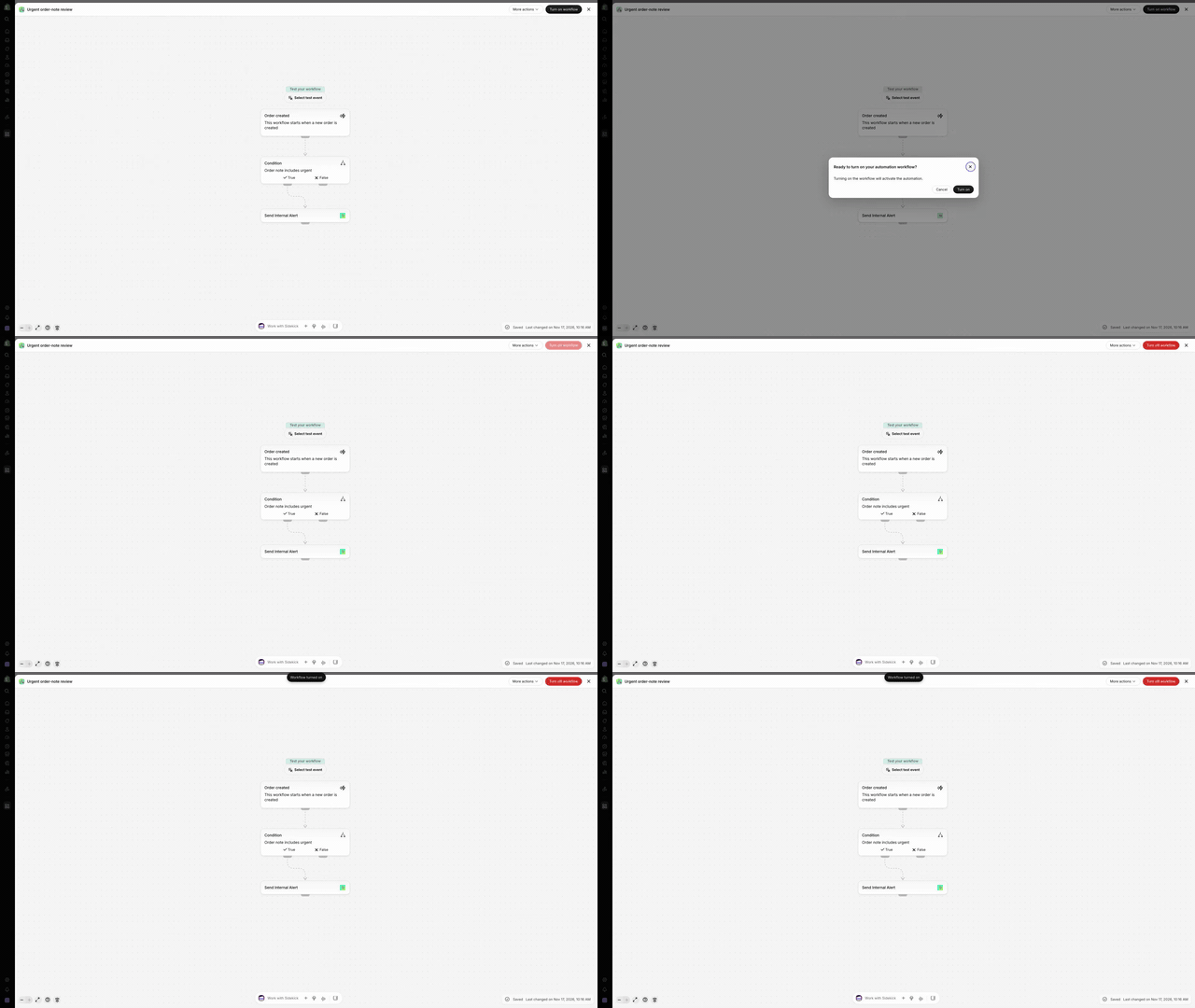
Sidekick leaves the workflow off, as the prompt requested. Review the trigger, condition, and alert content first, and set the staff recipient you actually want to notify. Then click Turn on workflow, confirm the dialog, and wait for the Workflow turned on confirmation.
Frequently asked questions
Does this promise faster shipping to the customer?
No. The workflow only notifies your team. It does not change shipping, alter fulfillment, or contact the customer. Treat the alert as a request to review the note before you make any commitment.
Is the match case-insensitive?
Yes. The walkthrough uses supported case-insensitive matching, so URGENT, Urgent, and urgent all qualify.
What happens if the order note is empty?
Empty notes follow the false branch, which has no action. The workflow only sends an alert when the note contains "urgent."
Why is the order note HTML-escaped?
The alert uses {{ order.note | escape }} so the customer's note is shown as text, rather than being interpreted as HTML.
Does FlowSend create a saved email template for this alert?
No. Use Custom Email Template stays off, and the walkthrough does not create a saved template. The subject and body are written inline on the Send Internal Alert action.
How much does it cost to get started?
FlowSend is free to install on the Shopify App Store. At the time of writing, the listing and these walkthroughs offer a $1 first month to get started (the current listing describes this as a BFCM offer, with Professional at $9.99/month, Advanced at $29.99/month, and Enterprise at $49.99/month or $499.99/year after that). Pricing can change, so check the FlowSend listing for the plan that fits your store.
Start flagging urgent Shopify order notes
Install FlowSend, paste the Sidekick prompt, review the inactive draft in Flow, and turn it on when the alert looks right. Your team can then review urgency requests in the order note before anyone promises a faster dispatch.
Install FlowSend on the Shopify App Store — get started for $1.