On this page
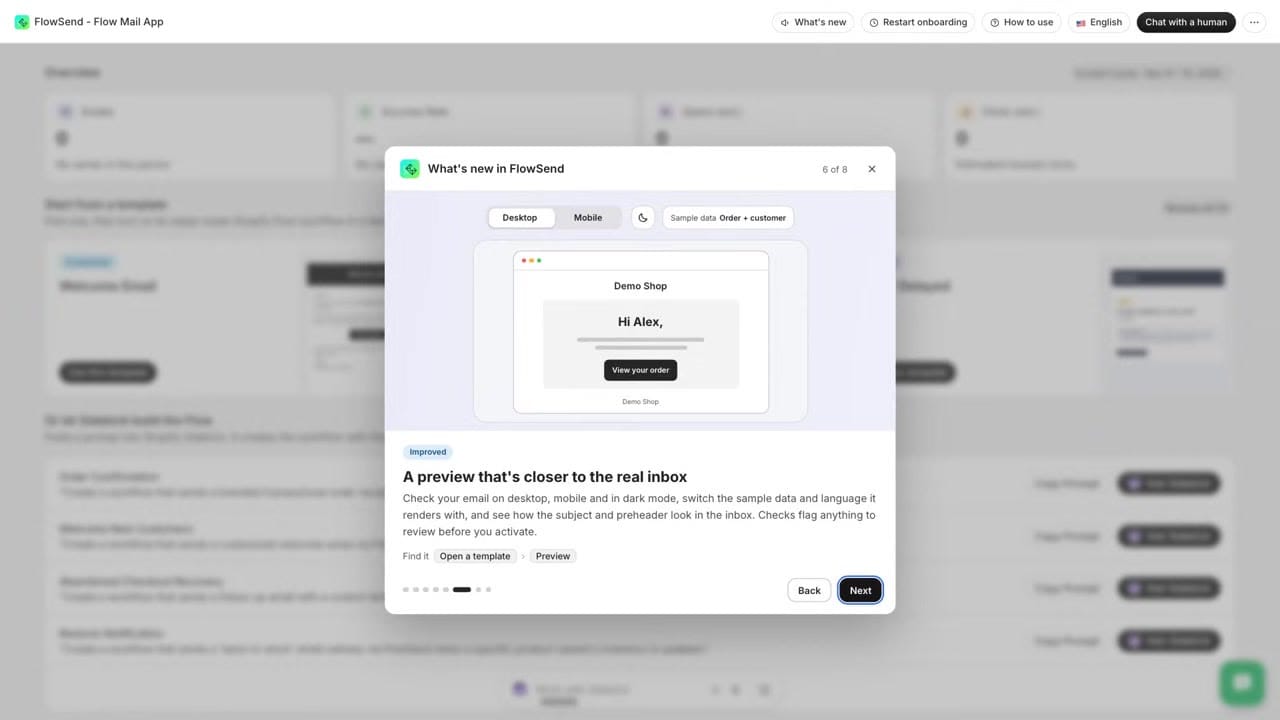
A Shopify Flow email can look right on a desktop canvas and still feel cramped, or hard to read, in a real inbox. FlowSend 2.0 adds a preview closer to the real inbox: desktop and mobile views, a dark-mode preview, sample order and customer data, a subject and preheader as they appear in the inbox, and checks before you activate the template.
FlowSend is a Shopify Flow mail app from Final Apps. It sends branded transactional emails from a Flow workflow, using your own domain or SMTP provider. Preview is the last look you get at the template before that Flow action starts sending it.
This guide follows the FlowSend 2.0 walkthrough for Preview and shows you where to find each of those checks.
What the new preview includes
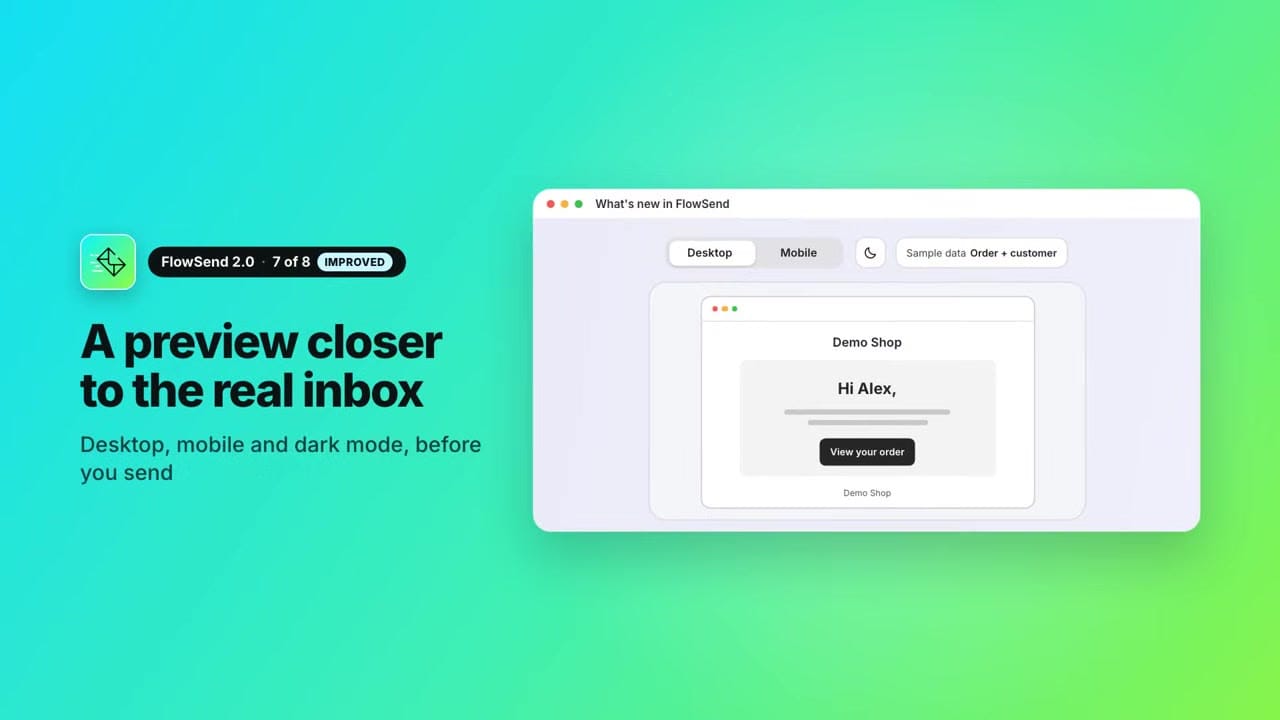
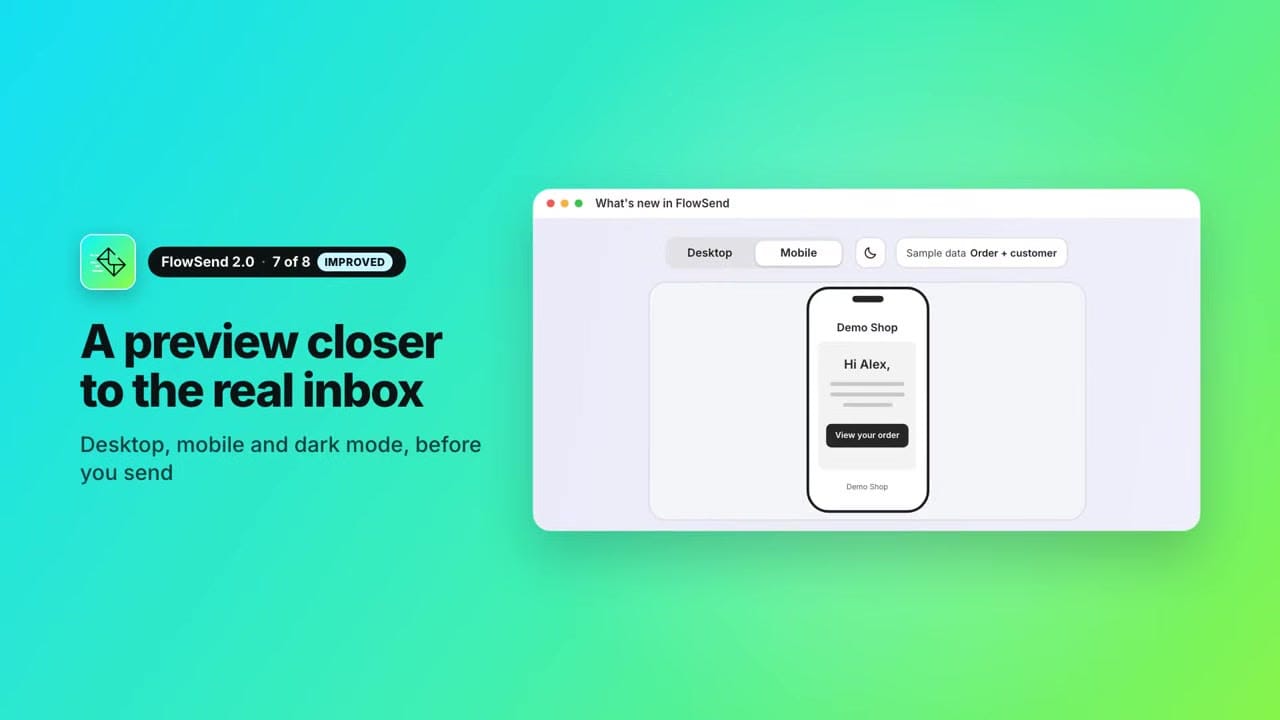
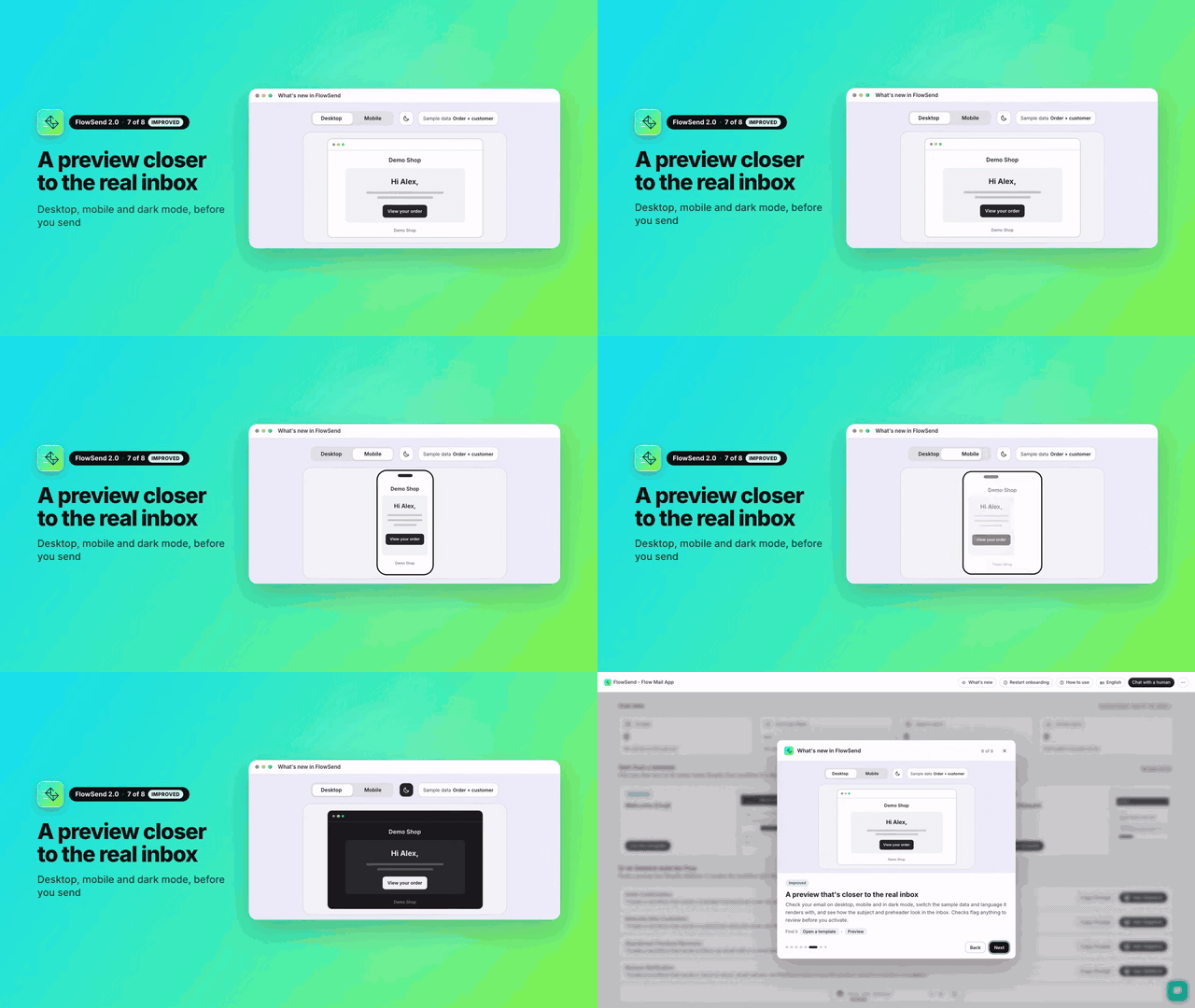
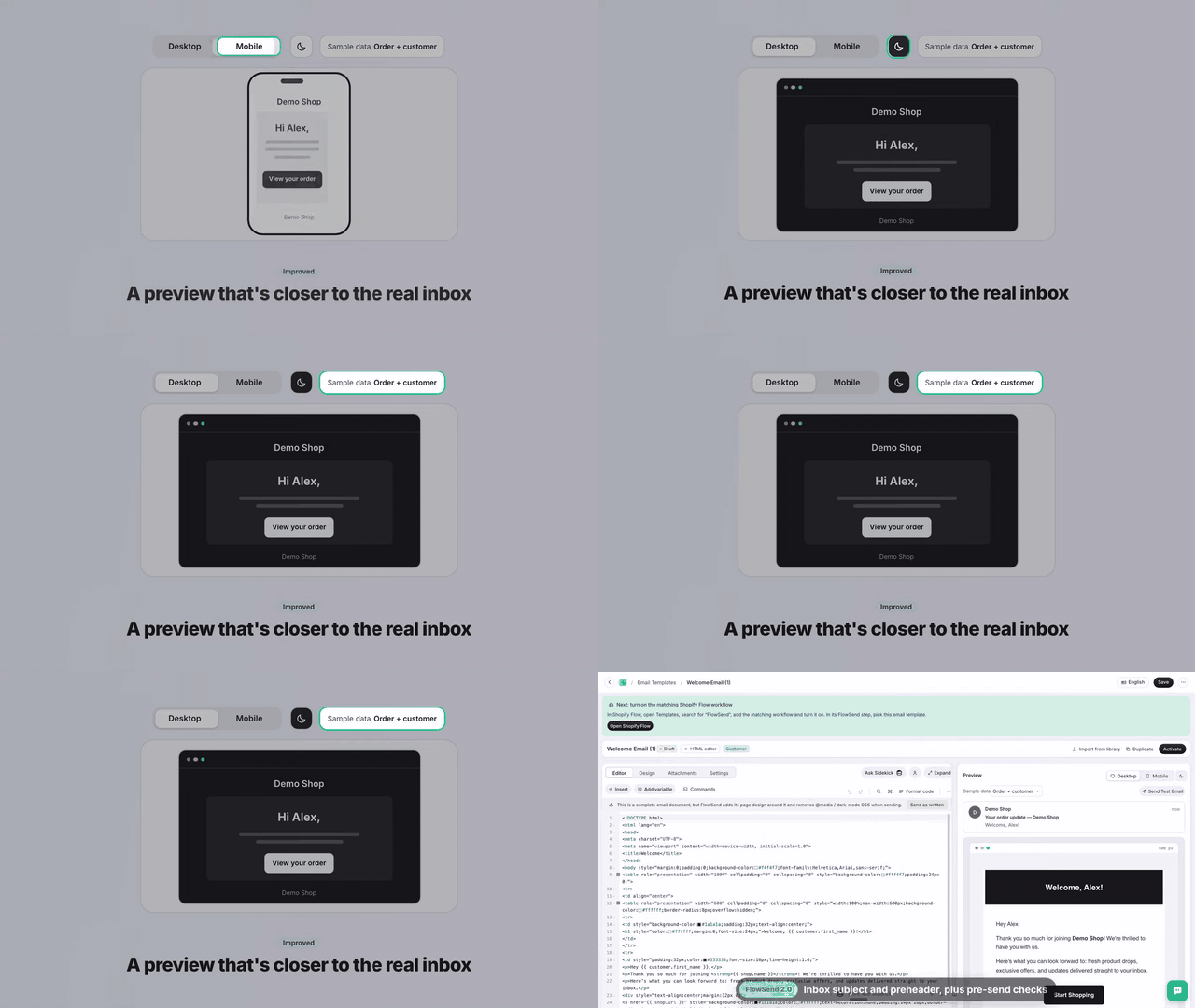
The in-app "What's new" card (7 of 8) describes Preview as closer to the real inbox: desktop, mobile, and dark mode, plus sample data, language, and your subject and preheader as they appear in the inbox. Checks flag anything to review before you activate.
The video description adds a useful caveat that still applies after you preview: actual rendering can vary between email clients and devices. Use Preview to catch obvious issues, then send a test email as well.
Before you start
You will need:
- A Shopify store with FlowSend installed. The walkthrough and the current Shopify listing both note that you can get started for $1 for the first month.
- A FlowSend email template to preview.
- Shopify Flow, which is what will send the email after you activate the template and turn on the matching workflow.
Have some idea of the customer and order data your Flow will pass in, so the sample-data preview is easier to judge.
Step 1. Open a template and go to Preview
In FlowSend, go to:
FlowSend → Email Templates → Open a template → Preview
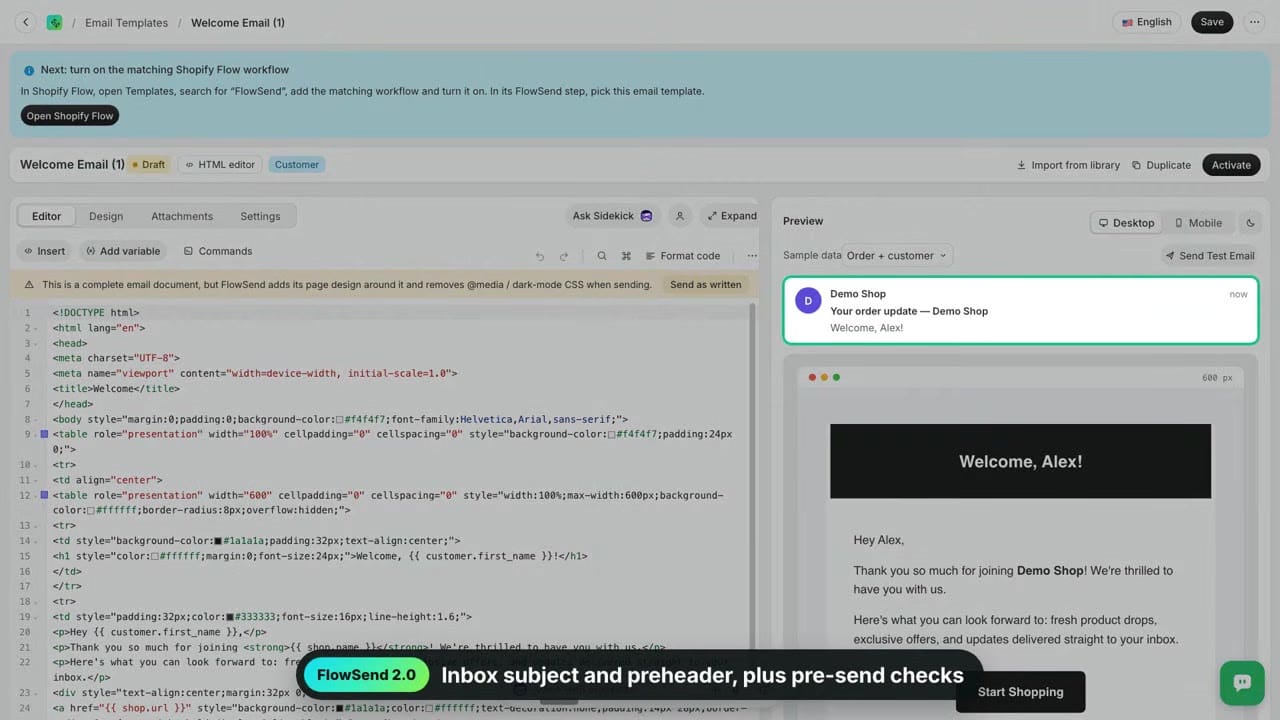
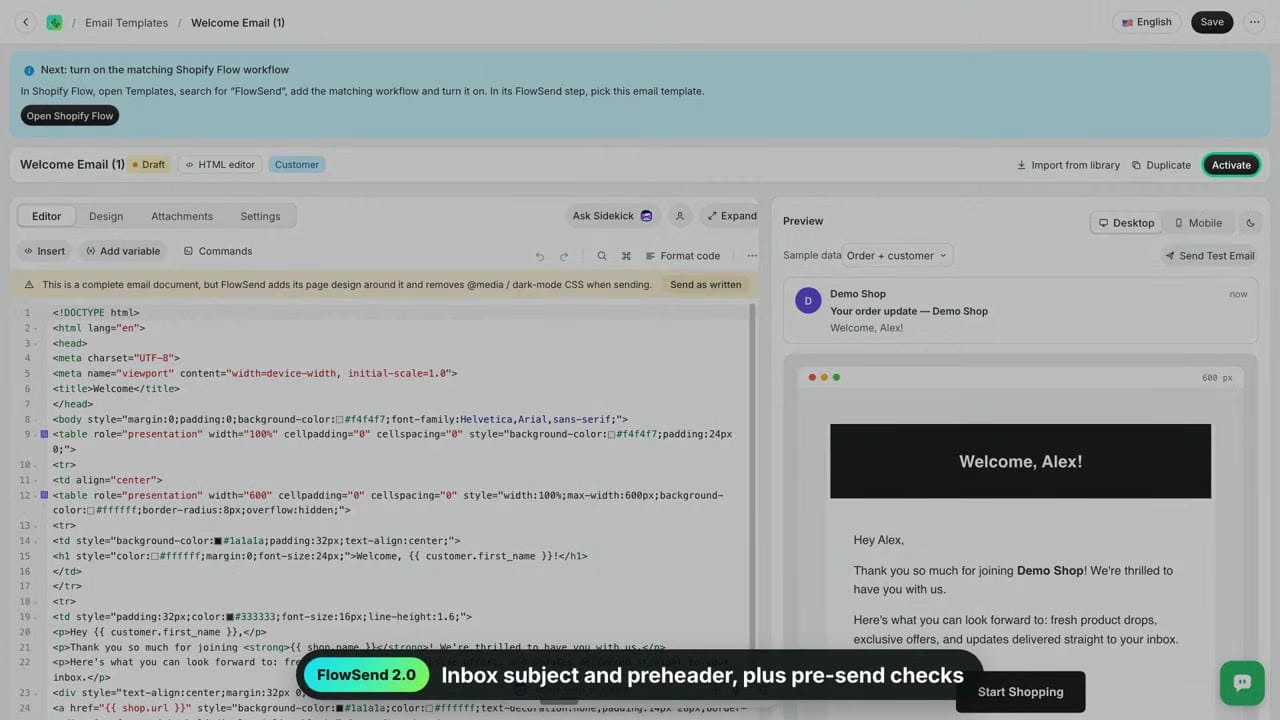
In the walkthrough, this is a Welcome Email draft. The editor already includes a Preview pane beside the template, with Desktop and Mobile toggles and Send Test Email. The path in the "What's new" card is the same idea: open the template and use Preview.
A banner at the top of the template reminds you to turn on the matching Shopify Flow workflow and pick this email in the FlowSend step.
Step 2. Switch between desktop and mobile
Start with the desktop preview, then switch to mobile. Look at font size, button width, image scale, and how stacked content reads on a narrower screen.
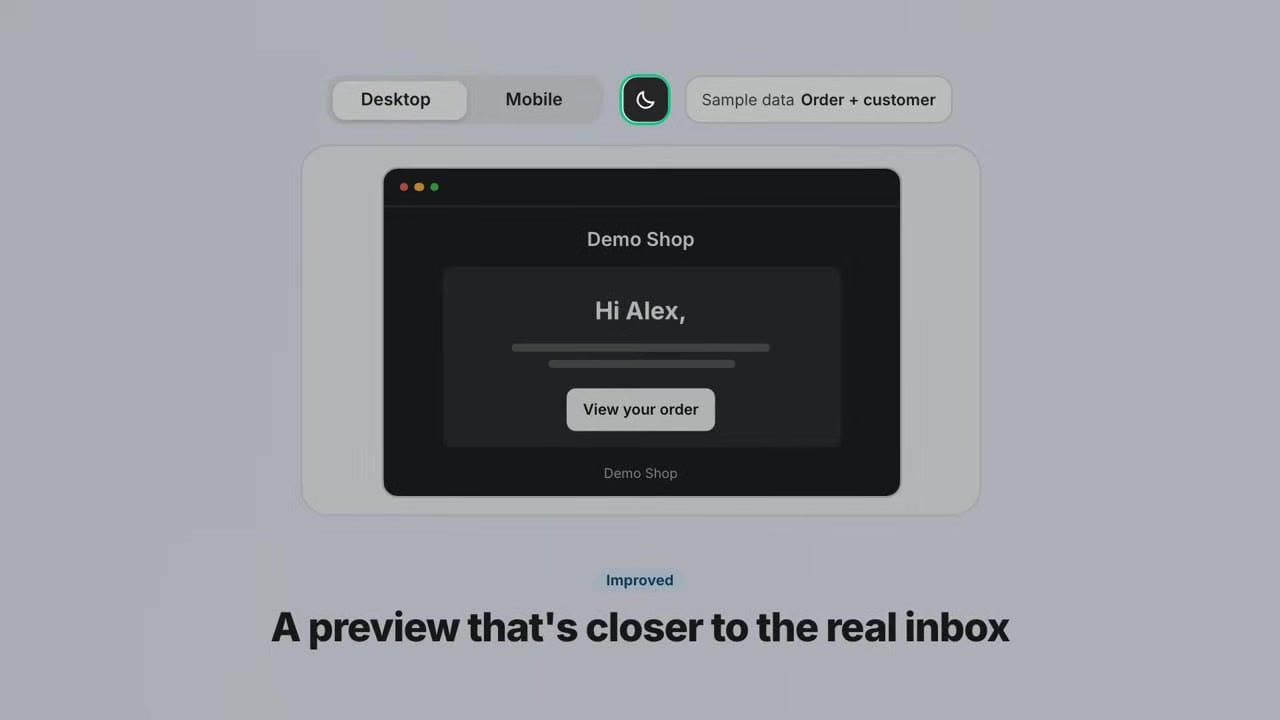
The walkthrough shows both views clearly, first as title graphics and then in the live editor's preview pane. Dark mode is shown clearly in the graphics; it is not clearly toggled as a separate control in the live preview panel recorded in the session, so look for the dark-mode option in Preview when you have a template open.
Step 3. Load sample order and customer data
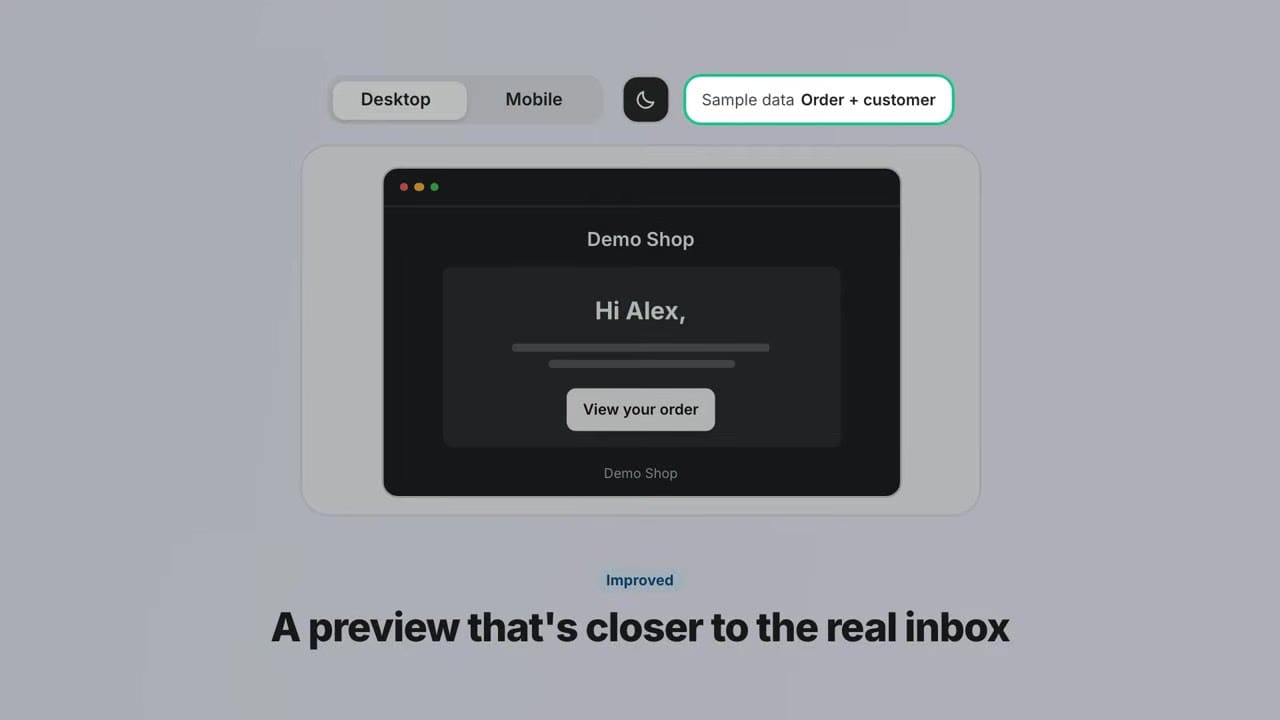
Use sample data so Liquid fields resolve to realistic values instead of placeholder tags. The walkthrough highlights Order + customer as the sample-data set, and the preview shows copy such as "Welcome, Alex!" rather than raw {{ customer.first_name }}.
This is the closest view you get, inside FlowSend, to what a real Flow run will fill in.
Step 4. Check the inbox subject and preheader
Preview also shows how the subject and preheader appear together in an inbox list. In the walkthrough, the example is:
- Subject: Your order update — Demo Shop
- Preheader: Welcome, Alex!
Read them as a pair. A strong subject can still look weak if the preheader repeats it, or if it shows leftover placeholder text.
The "What's new" card also mentions previewing by language. That language switch is described there and in the narration; it is not shown as a live control in the recorded preview panel. If your template has translations, look for a language option in Preview and confirm each version.
Step 5. Review checks, then activate and send a test
When the preview looks right, review any checks and Activate the template. The "What's new" card says checks flag anything to review before you activate. The recorded session highlights the Activate control in the editor more clearly than a dedicated checks-results panel, so open Preview and look for flagged items in your own template.
You can also use Send Test Email from the preview pane. Remember that rendering can still vary between clients and devices, as the video description notes.
Also new in FlowSend 2.0
The closer preview is one of the FlowSend 2.0 updates. The walkthrough also flags these additions, which are covered in the rest of this series:
- Connect your AI assistant over MCP
- Three ways to build an email
- Send in your customer's language
- Design on a free canvas
- A bigger Library
- Attach files to any template
- File storage you can review and clean up
Frequently asked questions
What can I preview in FlowSend 2.0?
Desktop, mobile, and dark mode, plus sample data, language, and the subject and preheader as they appear in the inbox. Checks flag items to review before you activate.
Does a good preview guarantee the email will look the same in every inbox?
No. The official video description notes that actual rendering can still vary between clients and devices. Preview catches a lot, and a test email is still worth sending.
Where do I find Preview?
Open the email template and use Preview. The "What's new" path is Open a template → Preview. The live editor also includes a preview pane with Desktop, Mobile, and Send Test Email.
What sample data is shown in the walkthrough?
The walkthrough uses Order + customer, and the preview resolves the welcome email for a customer named Alex.
What should I check besides the email body?
Check the subject and preheader together, as they appear in the inbox. In the walkthrough, that pair is "Your order update — Demo Shop" and "Welcome, Alex!"
How much does it cost to get started?
FlowSend is free to install on the Shopify App Store. At the time of writing, the listing and the walkthrough both offer a $1 first month to get started (the current listing describes this as a BFCM offer, with Professional at $9.99/month, Advanced at $29.99/month, and Enterprise at $49.99/month or $499.99/year after that). Pricing can change, so check the FlowSend listing for the plan that fits your store.
Preview your Shopify Flow emails before they send
Install FlowSend, open a template, and use Preview. Check desktop, mobile, and dark mode, load sample data, read the subject and preheader, and review checks before you activate. Then attach the template to a Shopify Flow workflow.
Install FlowSend on the Shopify App Store — get started for $1.