On this page
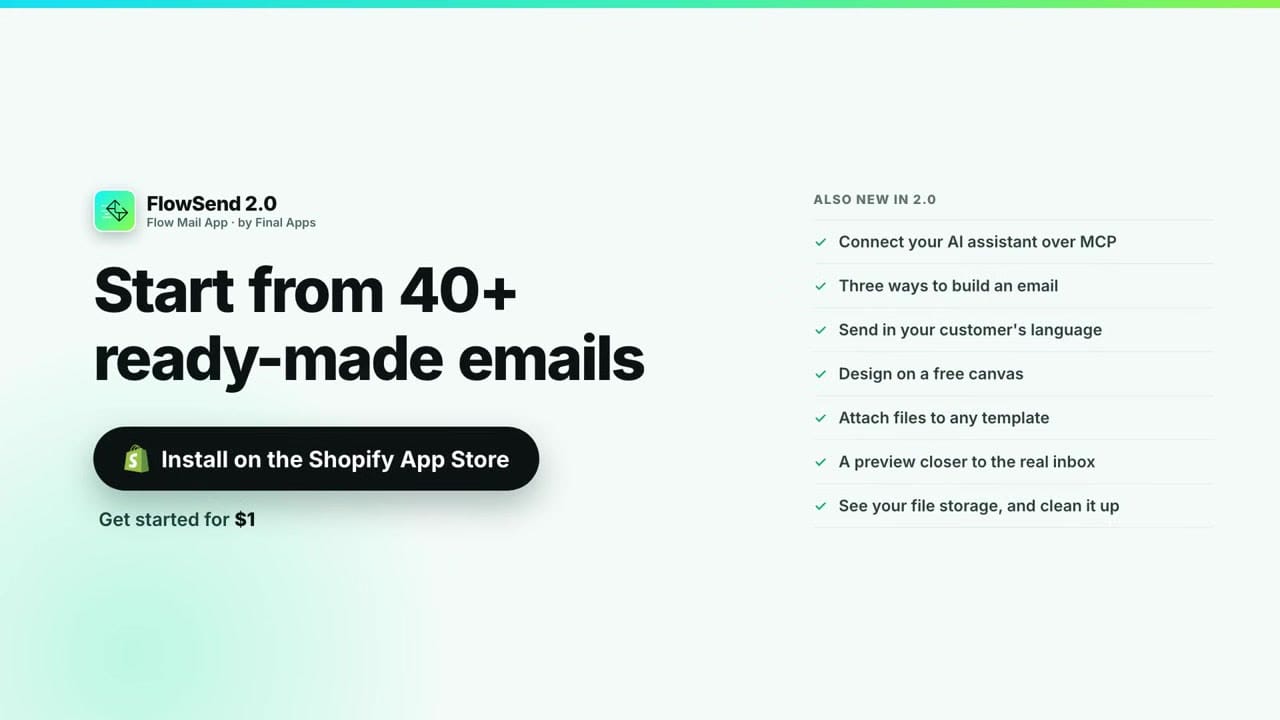
You do not have to design every Shopify Flow email from a blank page. FlowSend 2.0 expands the Library to 40+ ready-made emails, organized by category so you can start with a designed, tested template and adapt it to your store.
FlowSend is a Shopify Flow mail app from Final Apps. It sends branded transactional emails from a Flow workflow, using your own domain or SMTP provider. The Library is the fastest way to get those templates in place, then attach them to a Flow action.
This guide follows the FlowSend 2.0 walkthrough for the bigger Library and shows you where to find it in Email Templates.
What is in the FlowSend Library
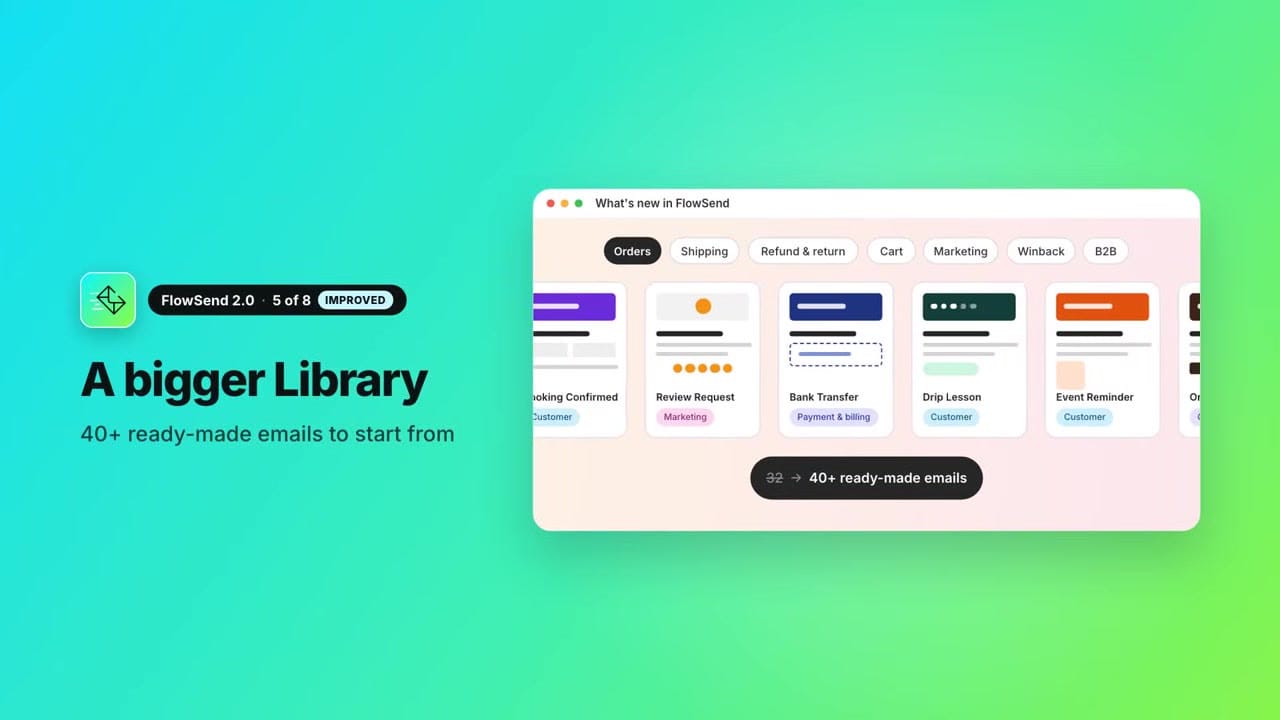
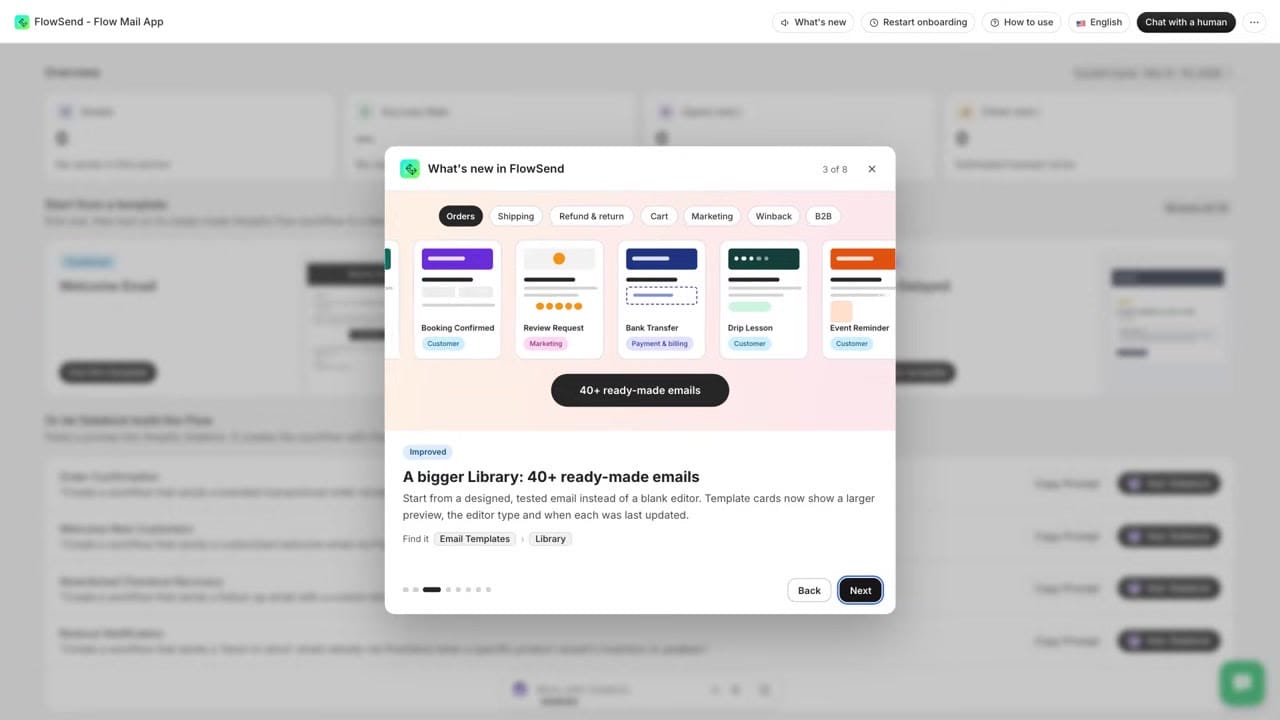
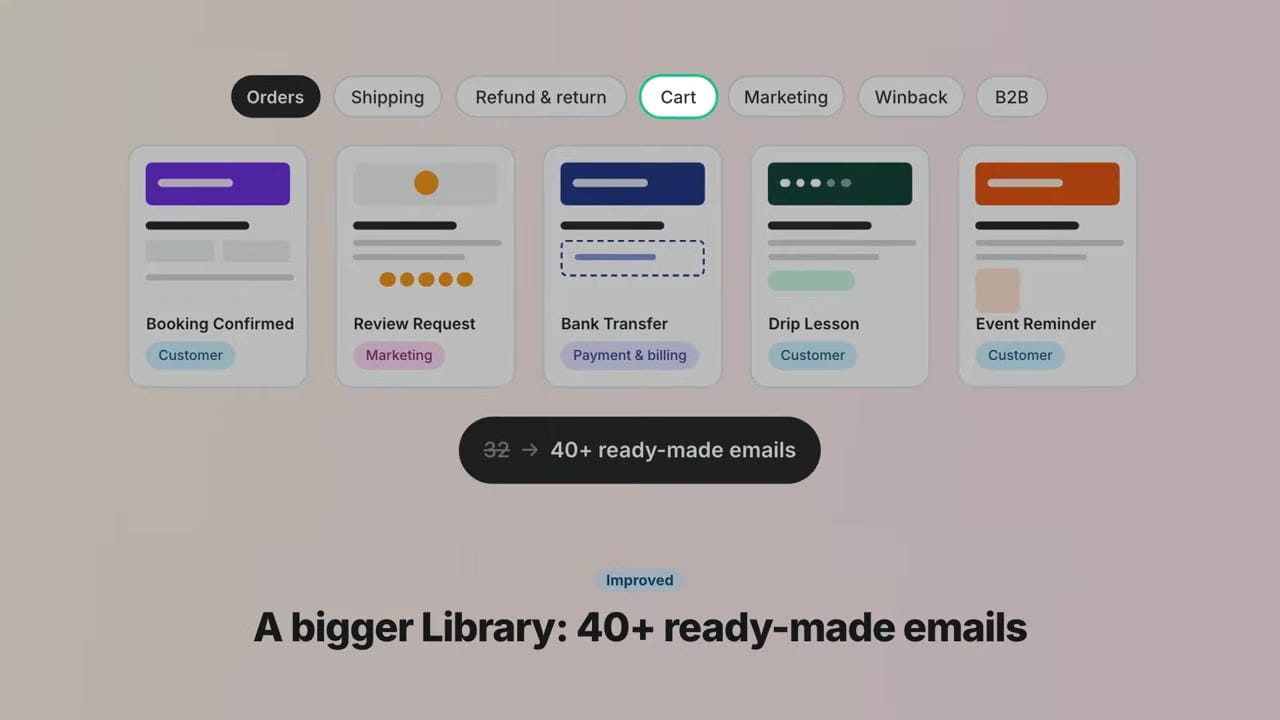
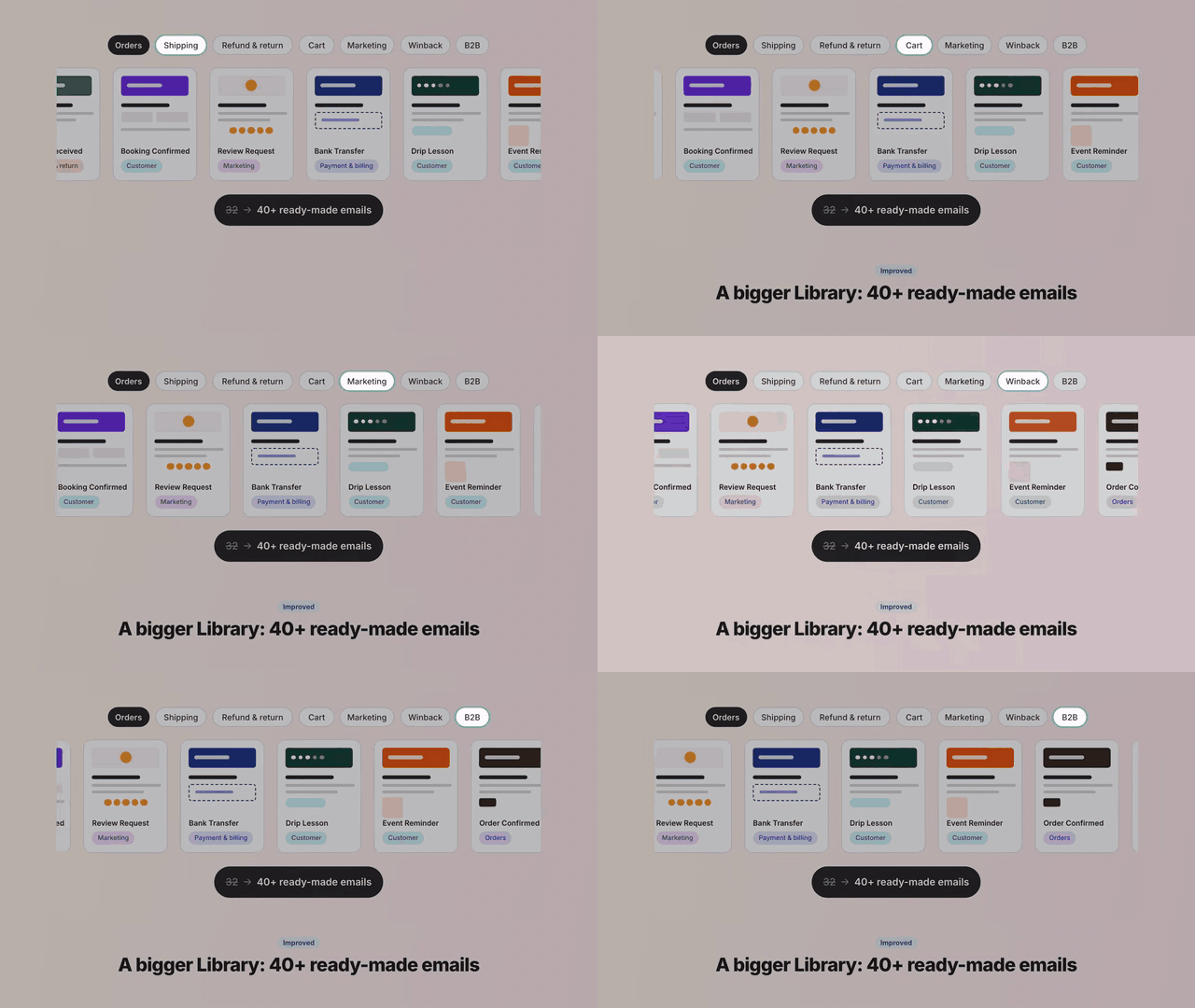
The in-app "What's new" card (3 of 8) describes the Library as 40+ designed, tested emails for Flow, organized by category. In the walkthrough graphic, those categories are:
- Orders
- Shipping
- Refund & return
- Cart
- Marketing
- Winback
- B2B
Example cards shown in that graphic include Booking Confirmed, Review Request, Bank Transfer, Drip Lesson, and Event Reminder. They are examples of the catalog, not the full 40+.
The same graphic labels the change as 32 → 40+, so this is an expansion of the Library you may already know, not a brand-new starting set.
Before you start
You will need:
- A Shopify store with FlowSend installed. The walkthrough and the current Shopify listing both note that you can get started for $1 for the first month.
- Access to FlowSend in your Shopify admin, including Email Templates.
- Shopify Flow, which is what triggers and sends the finished email.
You can also start a template from scratch or with Sidekick. The Library is the option to use when you want a designed, tested starting point.
Step 1. Open Email Templates and select the Library tab
In FlowSend, go to:
FlowSend → Email Templates → Library
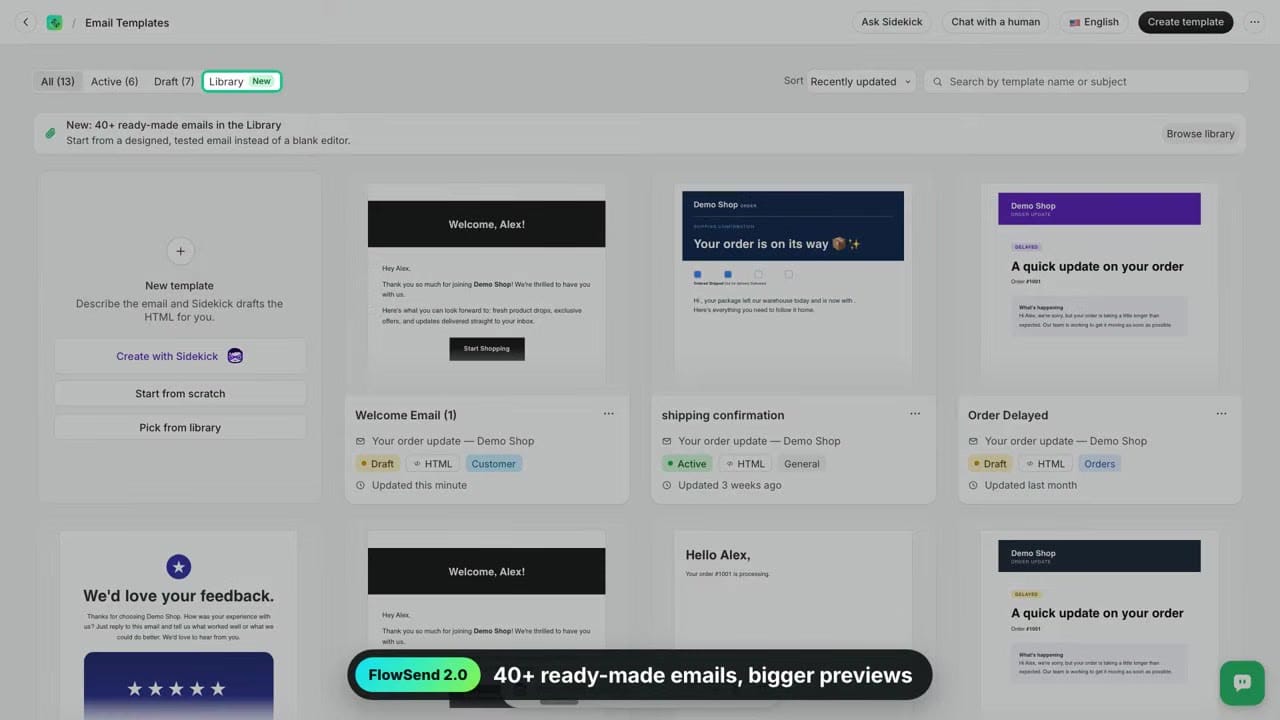
On the Email Templates page, the walkthrough highlights a Library tab marked New, next to the templates list. That is the live admin view recorded in the video. The categorized catalog (Orders, Shipping, and the rest) is shown in the "What's new" graphic rather than as a full browse session inside the Library itself.
Step 2. Browse by category and pick a template
Choose the category that matches the email you need — for example, Shipping for a fulfillment notice, or Winback for a return-to-store campaign — then open a template.
Starting from a Library email means the structure, typical copy, and layout are already in place. You can then switch to the Rich, Visual, or HTML editor, depending on how you prefer to customize it.
Step 3. Review the preview, editor type, and last updated details
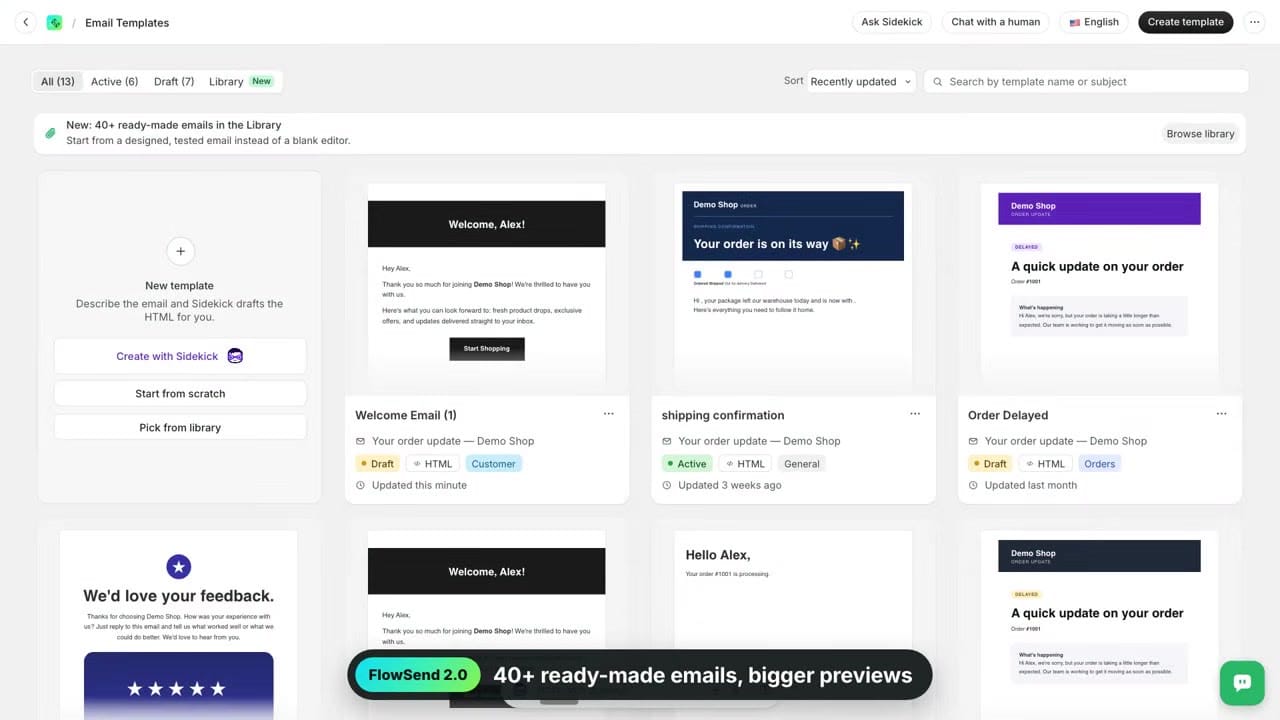
Your Email Templates list also got a cleaner layout in this update. Each card now shows a bigger preview, the editor type (for example, HTML), when the template was last updated, and its status (draft or active, in the walkthrough).
Use those details when you compare a Library template you just added with drafts you are already working on.
Step 4. Customize the template and attach it to Shopify Flow
Open the template, adjust the content and branding for your store, and save it. Then, in Shopify Flow, add or open the matching workflow, search for FlowSend, and pick this email in the FlowSend step.
Until that Flow workflow is on, the template stays in FlowSend, ready for the action to use.
Also new in FlowSend 2.0
The bigger Library is one of the FlowSend 2.0 updates. The walkthrough also flags these additions, which are covered in the rest of this series:
- Connect your AI assistant over MCP
- Three ways to build an email
- Send in your customer's language
- Design on a free canvas
- Attach files to any template
- A preview closer to the real inbox
- File storage you can review and clean up
Frequently asked questions
How many ready-made templates does FlowSend include?
FlowSend 2.0 includes 40+ ready-made emails. The walkthrough graphic also shows the Library growing from 32 to 40+.
How is the Library organized?
By category. The walkthrough lists Orders, Shipping, Refund & return, Cart, Marketing, Winback, and B2B.
Where do I find the Library?
Go to Email Templates and open the Library tab. The "What's new" path is Email Templates → Library.
Can I edit a Library template after I pick it?
Yes. The Library gives you a designed, tested starting point. You can then customize the email in the Rich, Visual, or HTML editor and use it from Shopify Flow.
What is new on the Email Templates list itself?
Each card now shows a bigger preview, the editor type, and when the template was last updated, so it is easier to scan drafts and active emails.
How much does it cost to get started?
FlowSend is free to install on the Shopify App Store. At the time of writing, the listing and the walkthrough both offer a $1 first month to get started (the current listing describes this as a BFCM offer, with Professional at $9.99/month, Advanced at $29.99/month, and Enterprise at $49.99/month or $499.99/year after that). Pricing can change, so check the FlowSend listing for the plan that fits your store.
Start with a ready-made Shopify Flow email
Install FlowSend, open Email Templates → Library, and pick a template from the 40+ catalog. Customize it for your store, then attach it to a Shopify Flow workflow.
Install FlowSend on the Shopify App Store — get started for $1.