On this page
If your store serves customers in more than one language, your Shopify Flow emails can follow their preference. FlowSend 2.0 adds Translations to each email template: you turn the feature on, add the languages your customers use, and translate the content block by block.
FlowSend is a Shopify Flow mail app from Final Apps. It sends branded transactional emails from a Flow workflow, using your own domain or SMTP provider. At send time, FlowSend checks the customer's language and uses the matching translation when one is available.
This guide follows the FlowSend 2.0 walkthrough for Translations and shows you where the setting lives on a template.
How FlowSend translations work
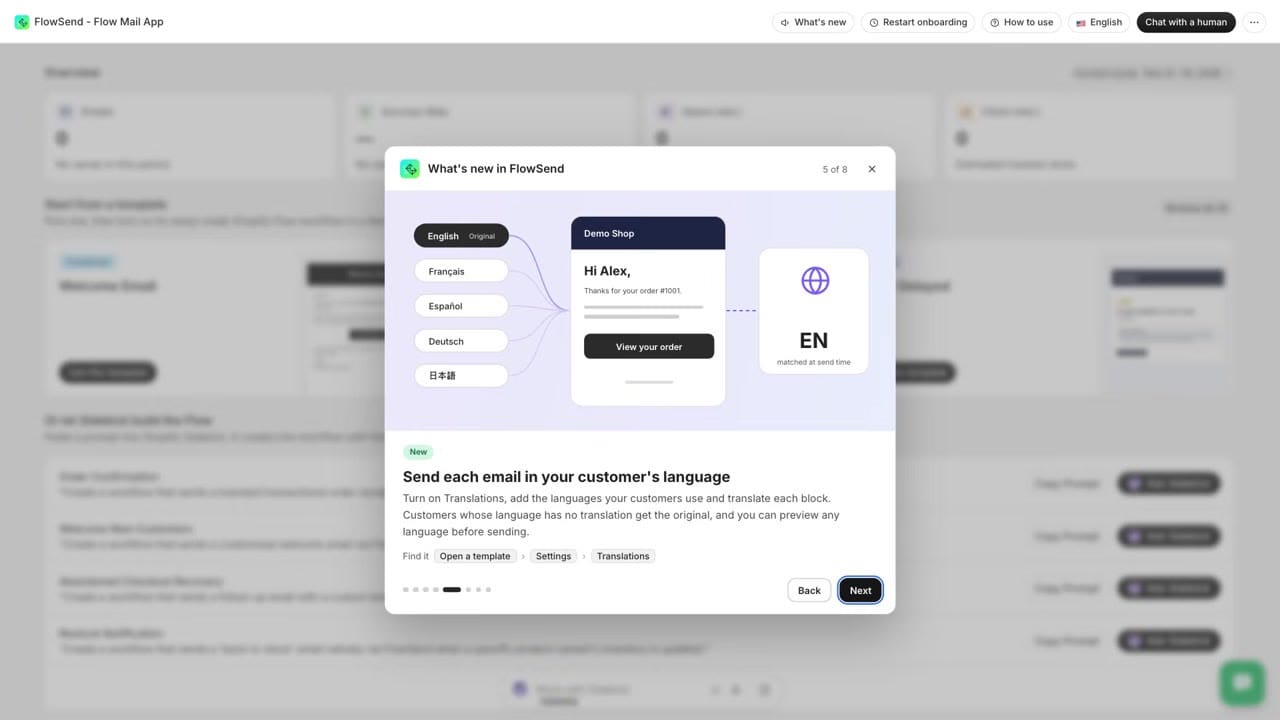
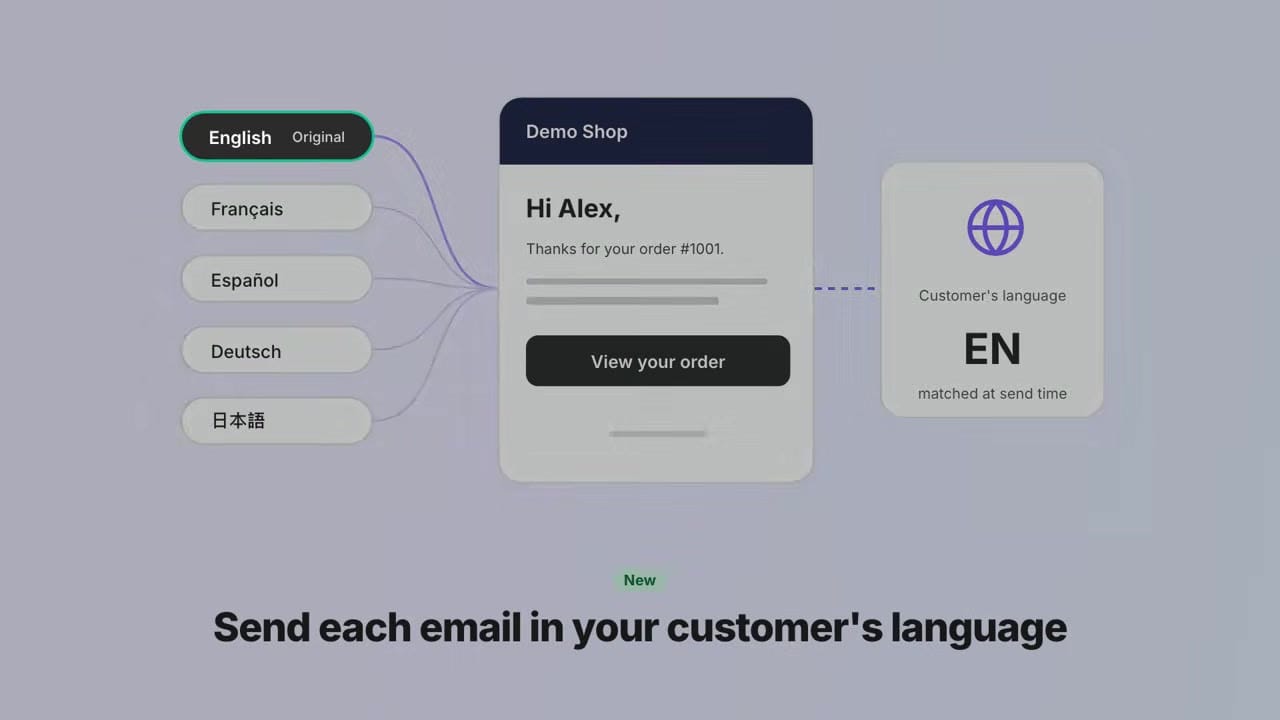
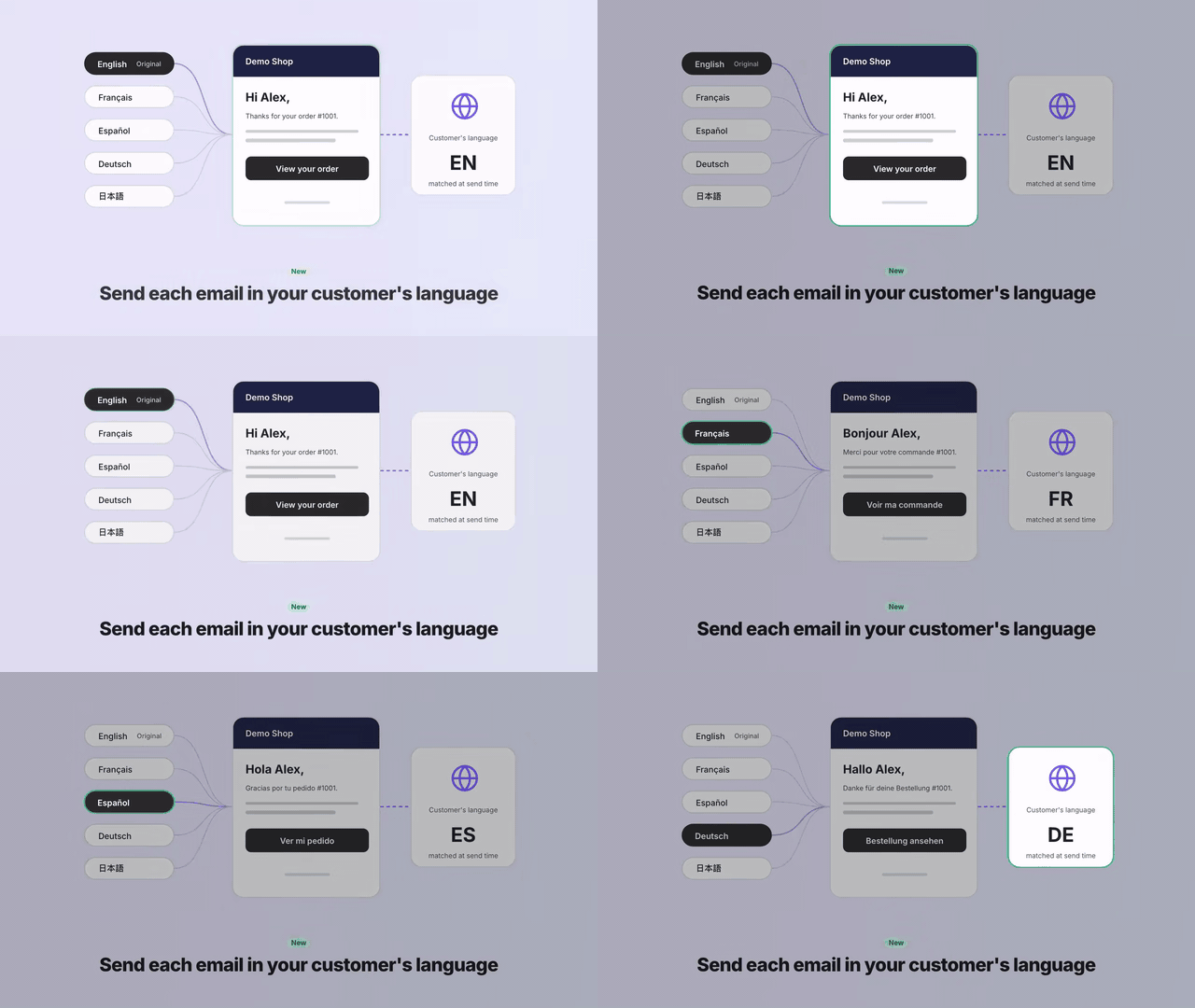
The in-app "What's new" card puts the flow in one paragraph: turn on Translations, add the languages your customers use, and translate each block. Customers whose language has no translation get the original, and you can preview any language before sending.
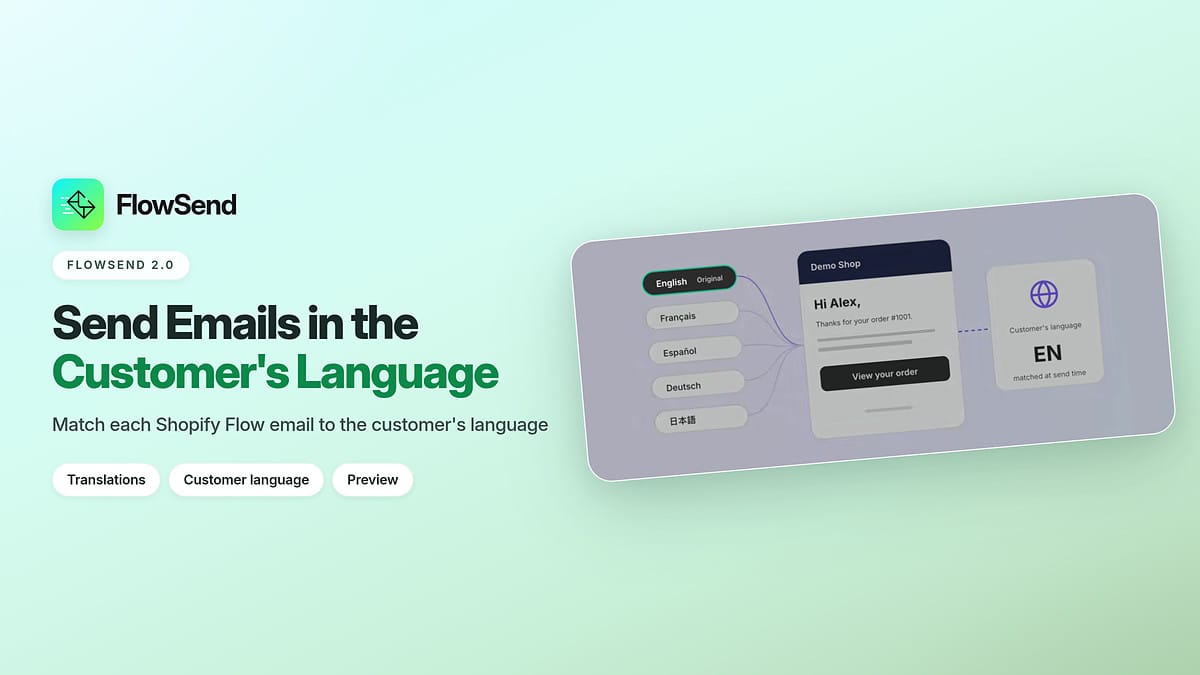
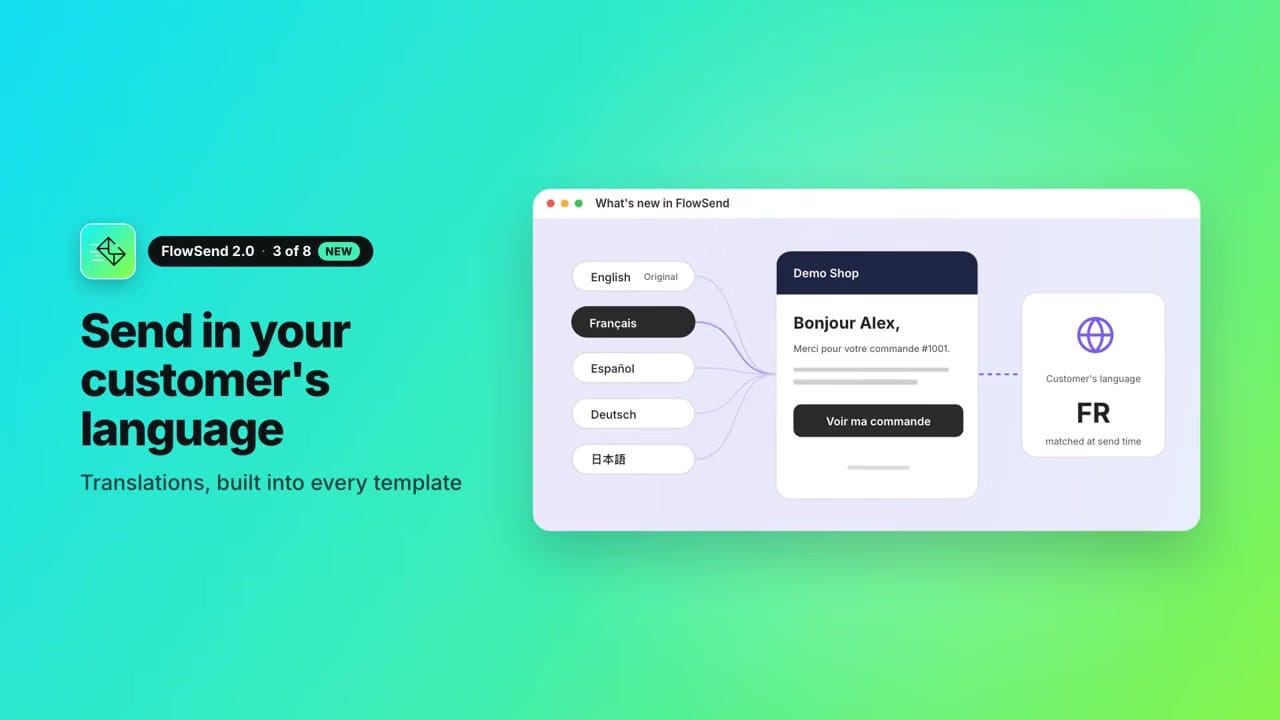
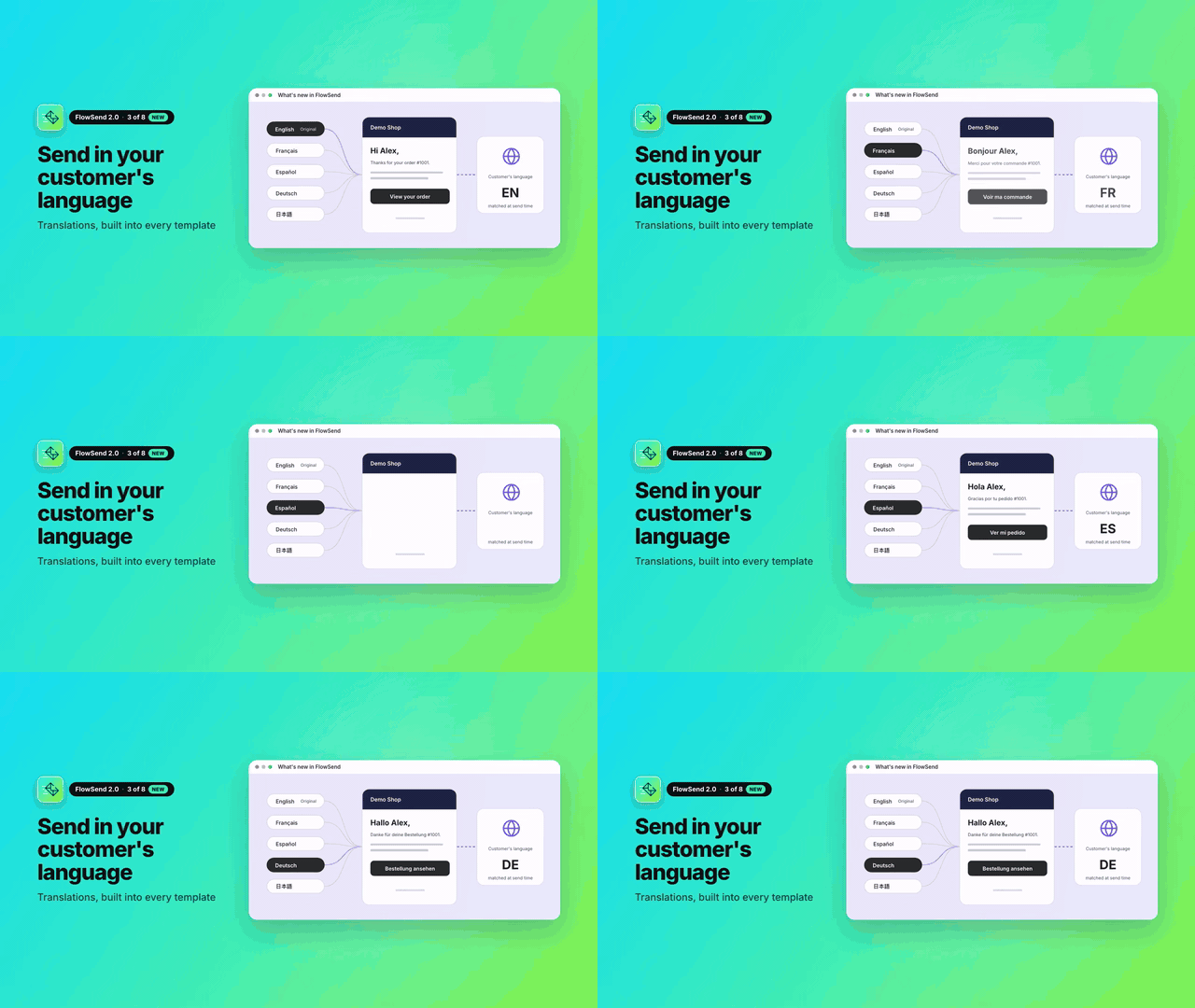
The graphic in the walkthrough shows a template with:
- English marked as the original
- Français, Español, Deutsch, and 日本語 as additional languages
- The customer's language matched at send time (for example, FR)
You do not need a separate template for each language. Translations are built into the same template.
Before you start
You will need:
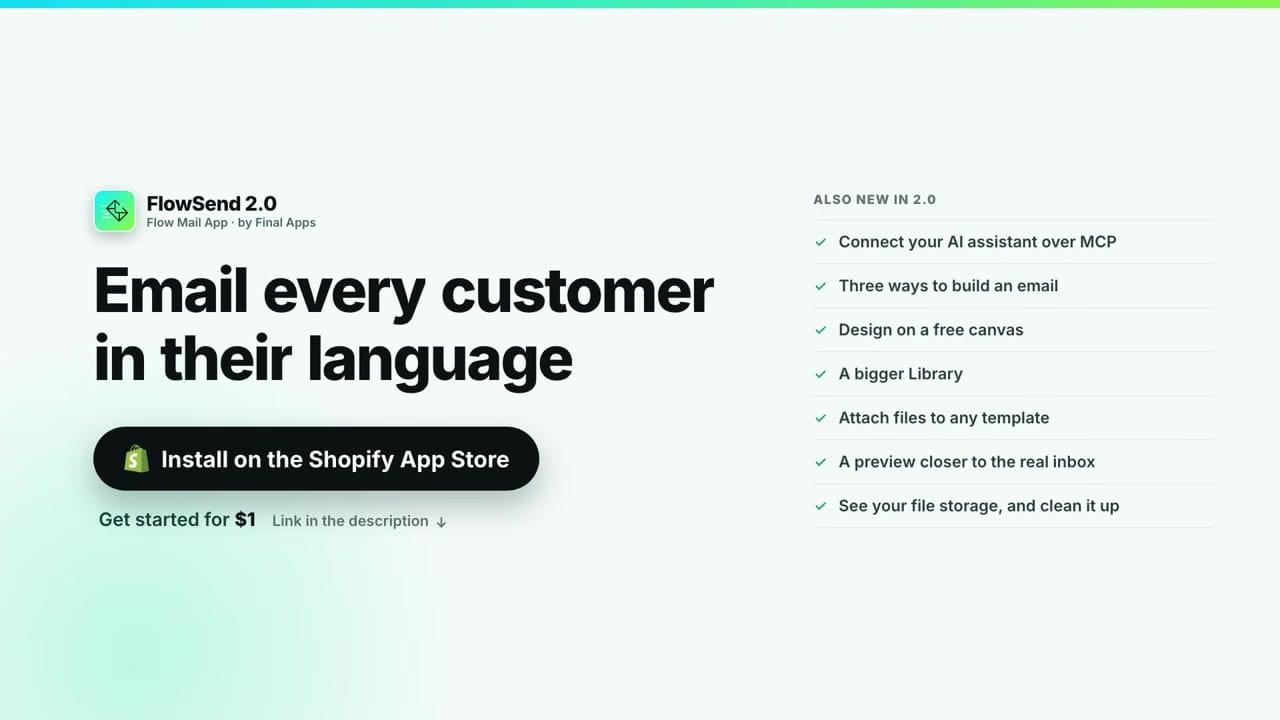
- A Shopify store with FlowSend installed. The walkthrough and the current Shopify listing both note that you can get started for $1 for the first month.
- At least one FlowSend email template to translate.
- Shopify Flow, which is what triggers and sends the email.
The Shopify listing also lists many storefront languages for the app itself. Template translations are a FlowSend 2.0 feature shown in this walkthrough, and they apply to the email content you send from Flow.
Step 1. Open a template and go to Settings → Translations
In FlowSend, go to:
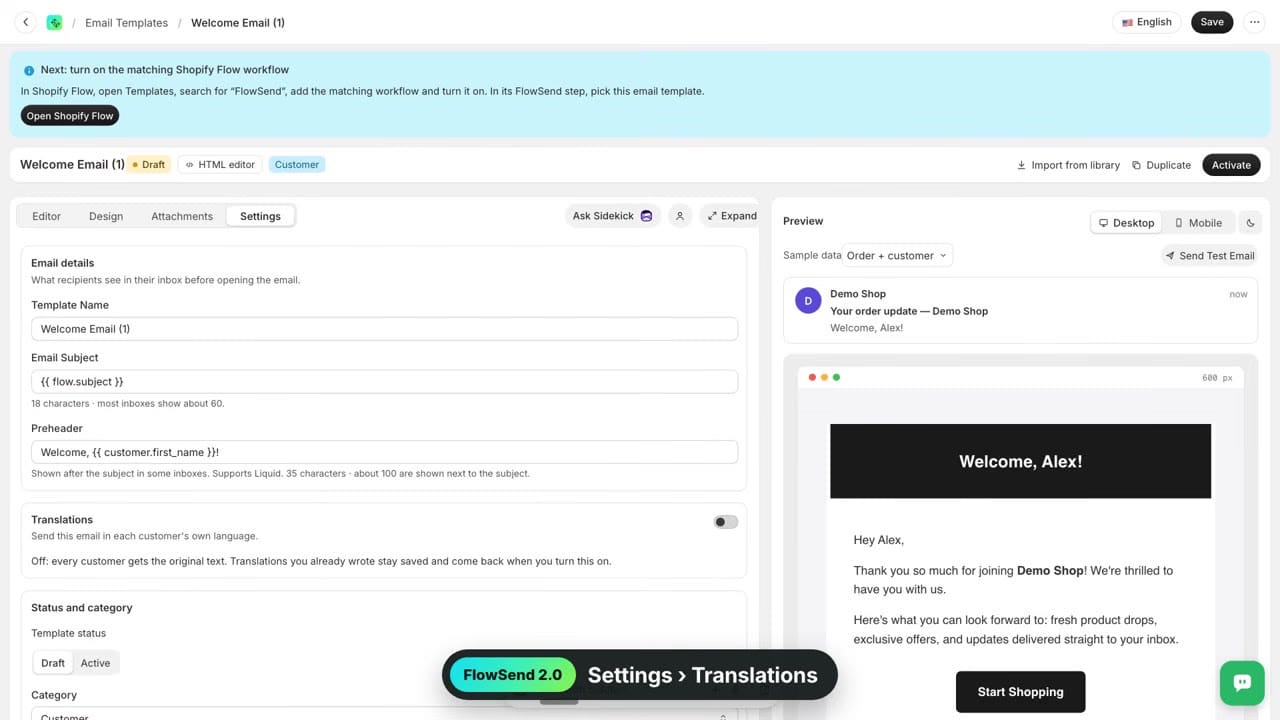
FlowSend → Email Templates → Open a template → Settings → Translations
In the walkthrough, this is a Welcome Email draft. The Settings tab includes an Email details section (template name, subject, and preheader, including Liquid such as {{ flow.subject }} and {{ customer.first_name }}) and a Translations section underneath.
A label on screen points to Settings > Translations, so the path is easy to follow.
Step 2. Turn on translations and add your languages
Turn on Translations, then add the languages your customers use.
In the recorded session, the toggle is shown in the off position, with this helper text: "Off: every customer gets the original text. Translations you already wrote stay saved and come back when you turn this on." The walkthrough does not show the screens for adding languages or editing each block, so complete those steps in your own template after you turn the setting on. The narration and the "What's new" card are what describe adding languages and translating each block.
The languages shown in the walkthrough's diagram are English (the original), French, Spanish, German, and Japanese — a useful starting set if those match your customers, not a complete list of everything FlowSend can support.
Step 3. Translate each content block
Create a translated version of the email's content blocks for each language you added. The "What's new" card is specific: you translate each block, rather than pasting one giant alternative email with no structure.
Keep the original as your fallback. You do not have to finish every language before you can keep sending the email.
Step 4. Preview a language before you send
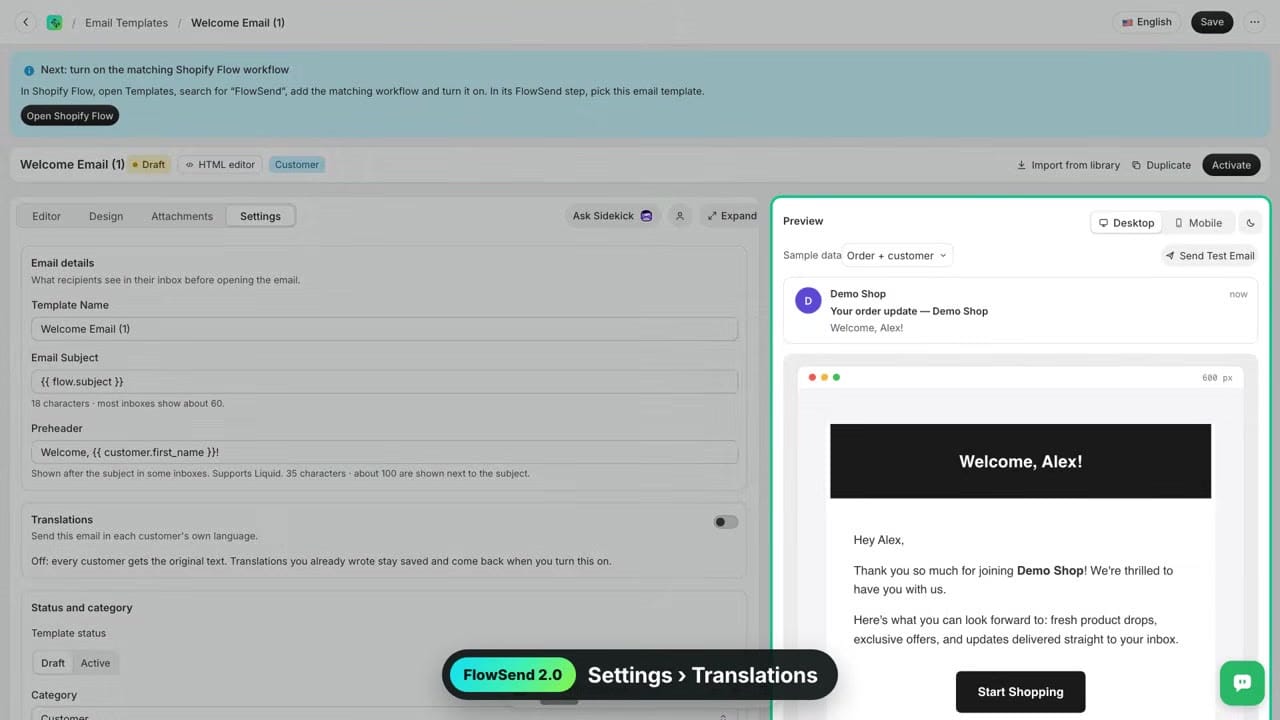
You can preview any language before sending, so you can check the content and layout. In the walkthrough, the template's Preview pane sits beside Settings, with Desktop and Mobile toggles, sample data (Order + customer), and Send Test Email.
The preview shown in that part of the video is the original English welcome email. Use the preview once translations are on to switch languages and review each version, as the "What's new" card describes.
Step 5. Let FlowSend match the language at send time
When a Shopify Flow action uses the template, FlowSend selects an available translation based on the customer's language. If there is no match, the customer receives the original.
A banner on the template also reminds you to turn on the matching Shopify Flow workflow and pick this template in the FlowSend step.
Also new in FlowSend 2.0
Translations are one of the FlowSend 2.0 updates. The walkthrough also flags these additions, which are covered in the rest of this series:
- Connect your AI assistant over MCP
- Three ways to build an email
- Design on a free canvas
- A bigger Library
- Attach files to any template
- A preview closer to the real inbox
- File storage you can review and clean up
Frequently asked questions
What happens if a customer’s language has no translation?
They get the original email. The walkthrough and the in-app card both say FlowSend falls back to the original, so the message still sends.
Do I need a separate template for each language?
No. Translations are built into the same template. You turn the feature on, add languages, and translate the blocks.
Where do I turn translations on?
Open the email template, go to Settings, and use the Translations section. The "What's new" path is Open a template → Settings → Translations.
Which languages can I use?
The walkthrough shows English as the original, plus French, Spanish, German, and Japanese. The "What's new" card refers to “the languages your customers use,” rather than a fixed short list. Add the languages that matter for your store, and confirm what the template Settings screen offers in your account.
Can I preview a translation before it sends?
Yes. The feature includes a preview for any language before sending. Use it to check copy and layout, then let Shopify Flow send the template as usual.
How much does it cost to get started?
FlowSend is free to install on the Shopify App Store. At the time of writing, the listing and the walkthrough both offer a $1 first month to get started (the current listing describes this as a BFCM offer, with Professional at $9.99/month, Advanced at $29.99/month, and Enterprise at $49.99/month or $499.99/year after that). Pricing can change, so check the FlowSend listing for the plan that fits your store.
Start sending Shopify Flow emails in your customer's language
Install FlowSend, open a template, and go to Settings → Translations. Turn the feature on, add the languages your customers use, and translate each block. FlowSend will match a translation at send time, and fall back to the original when it needs to.
Install FlowSend on the Shopify App Store — get started for $1.