On this page
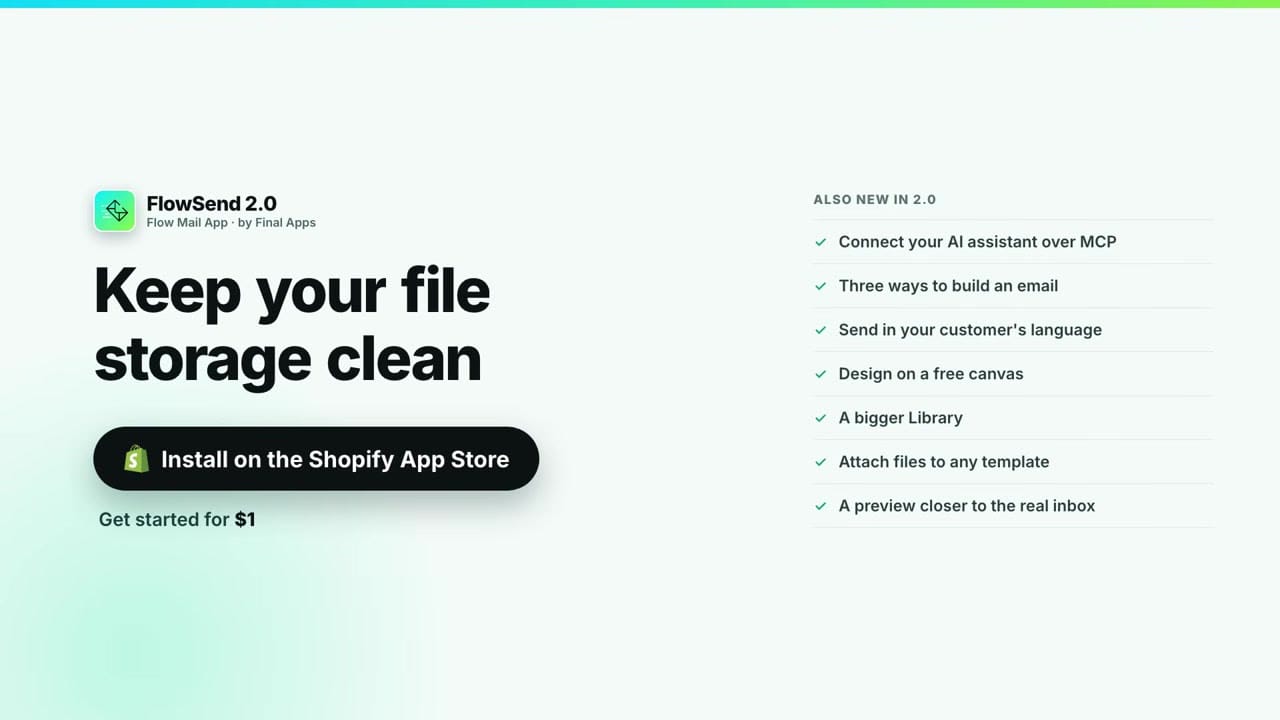
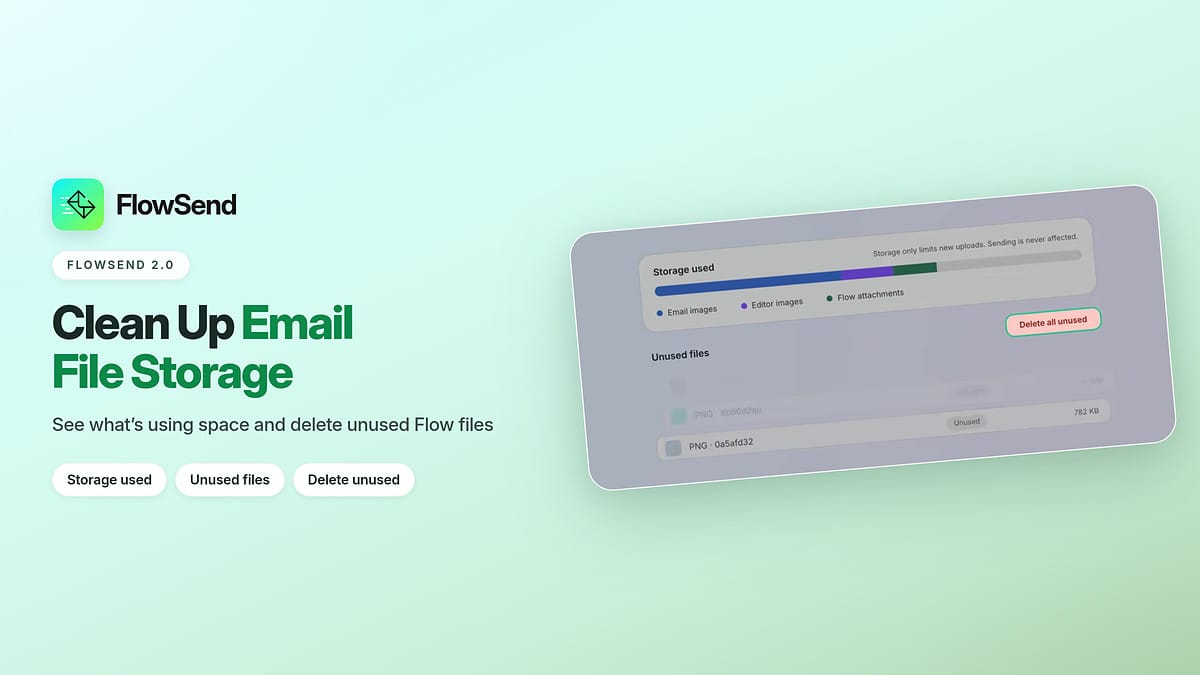
As you add images and attachments to Shopify Flow emails, it helps to know what is using space — and what you can safely remove. FlowSend 2.0 adds a Storage view that breaks down file use, surfaces unused files, and lets you delete them in one step.
FlowSend is a Shopify Flow mail app from Final Apps. It sends branded transactional emails from a Flow workflow, using your own domain or SMTP provider. Storage only limits new uploads. Sending is never affected, so a full storage quota will not stop emails already in your Flows from going out.
This guide follows the FlowSend 2.0 walkthrough for Storage and shows you where the totals appear in Settings and on the Usage page.
How FlowSend storage is organized
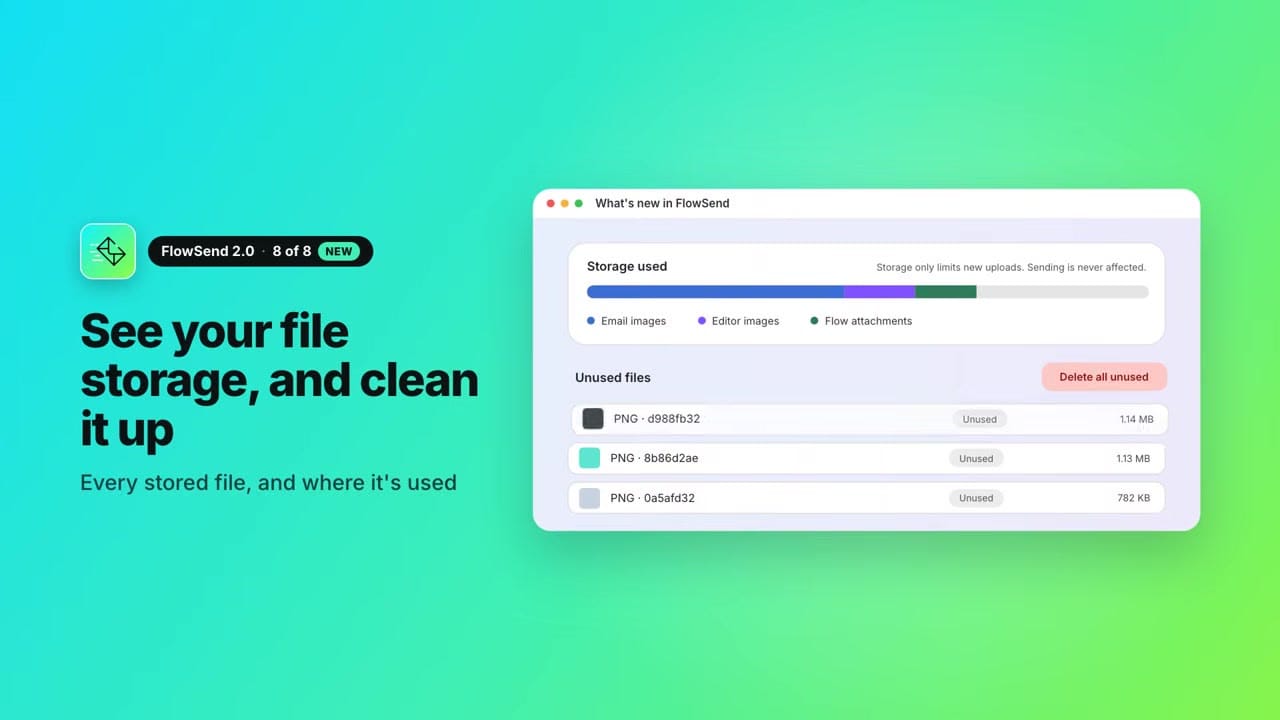
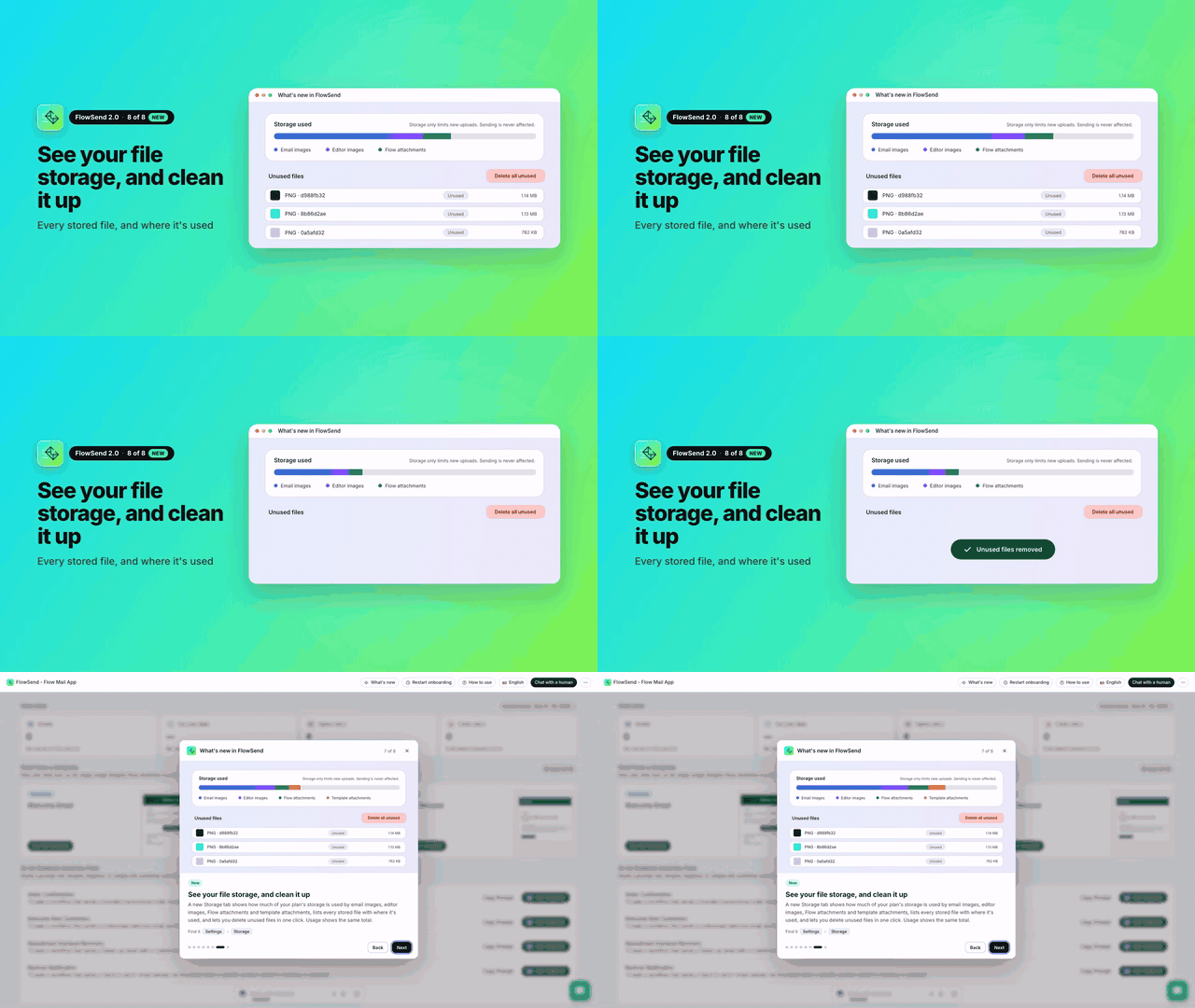
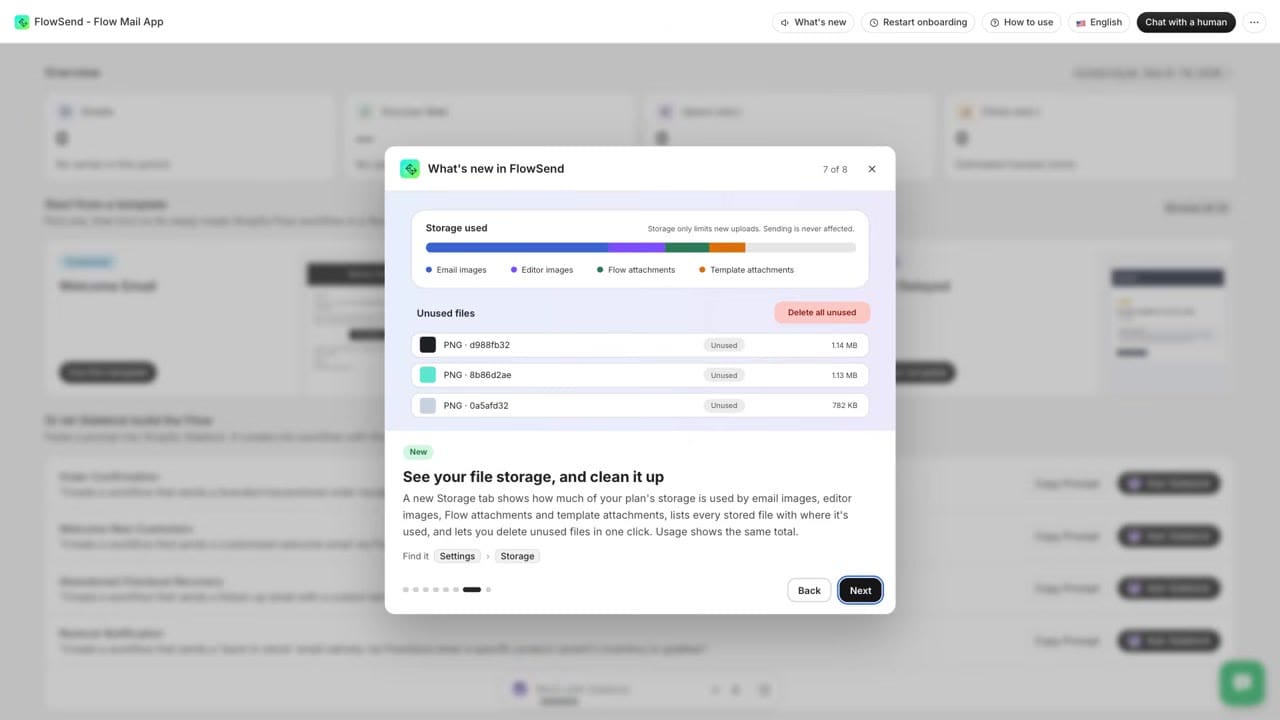
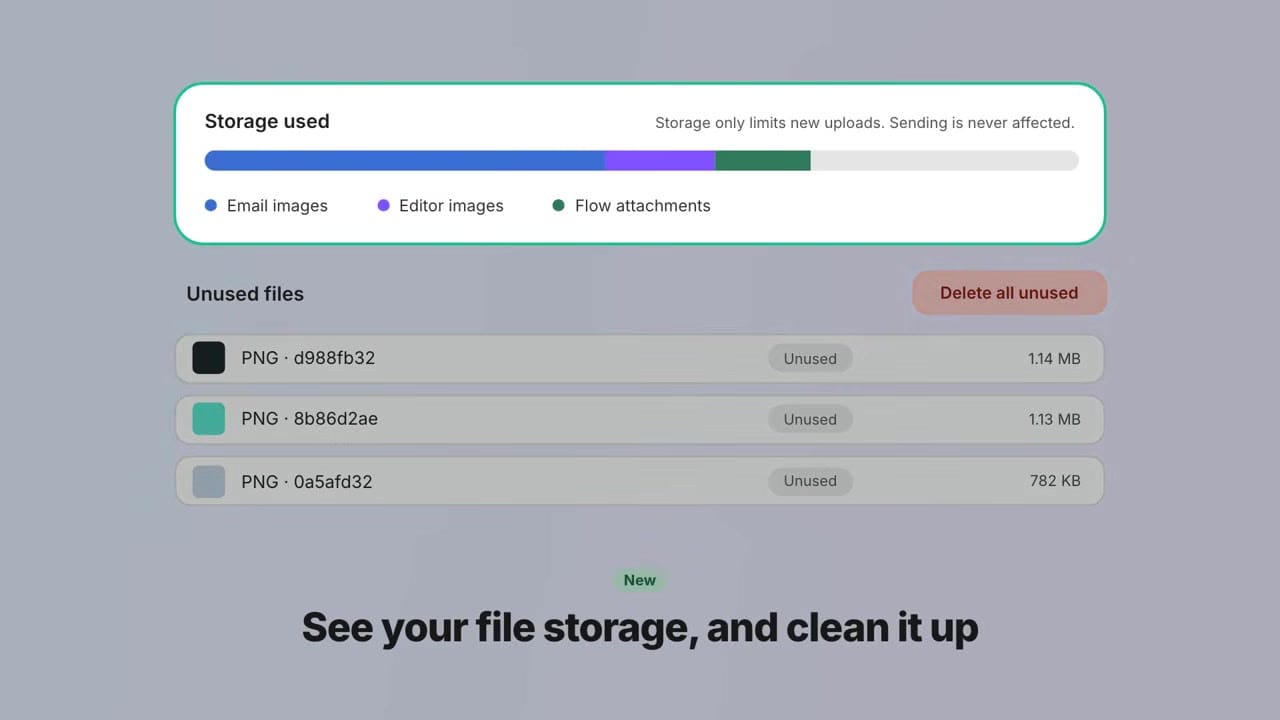
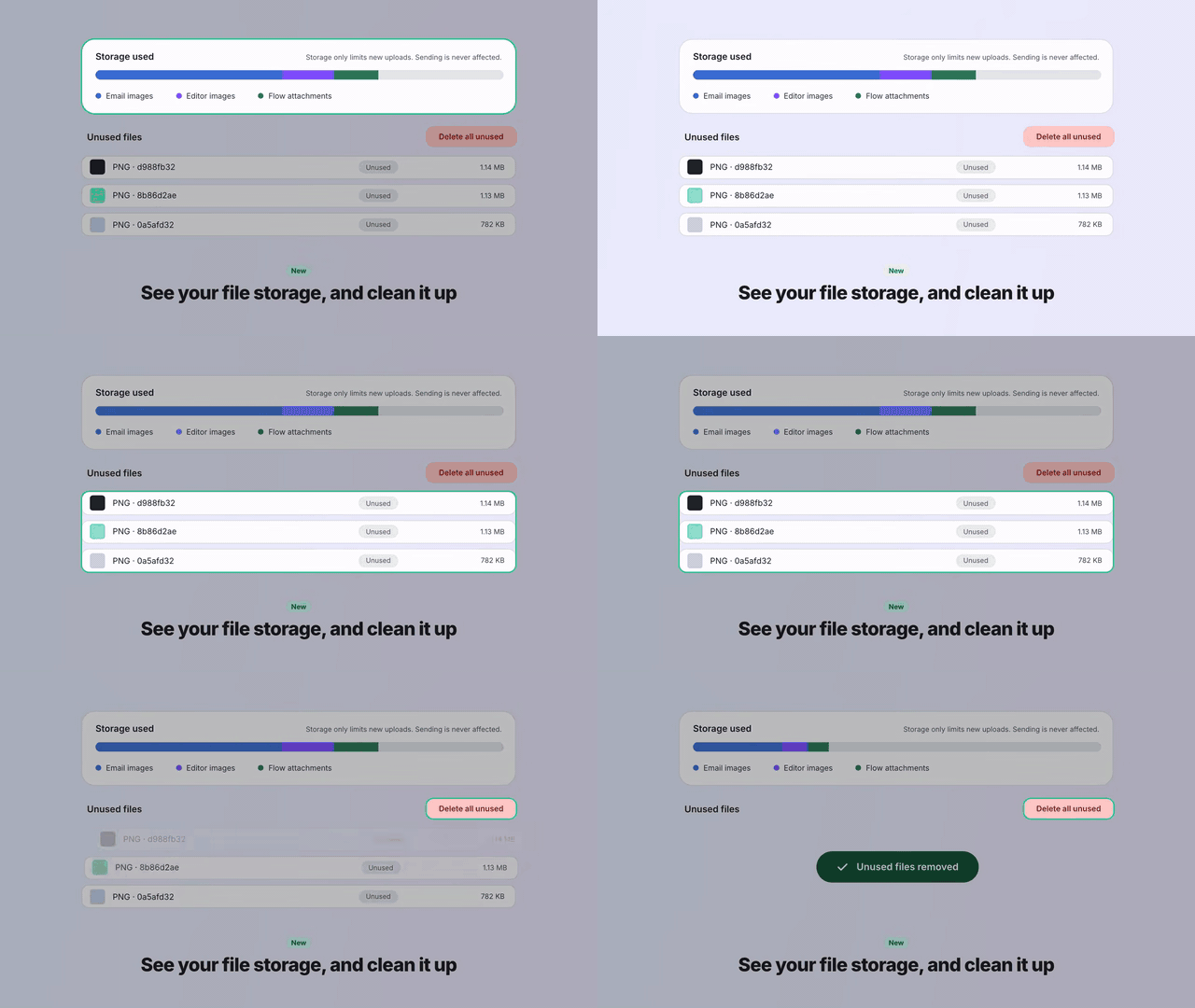
The in-app "What's new" card (8 of 8) describes Storage as a breakdown of what is using space, with unused files listed so you can delete them in one click. It also repeats the important rule: storage only limits new uploads. Sending is never affected.
The walkthrough graphic groups storage into these categories:
- Email images
- Editor images
- Flow attachments
- Template attachments (shown as a fourth, orange category on the "What's new" card)
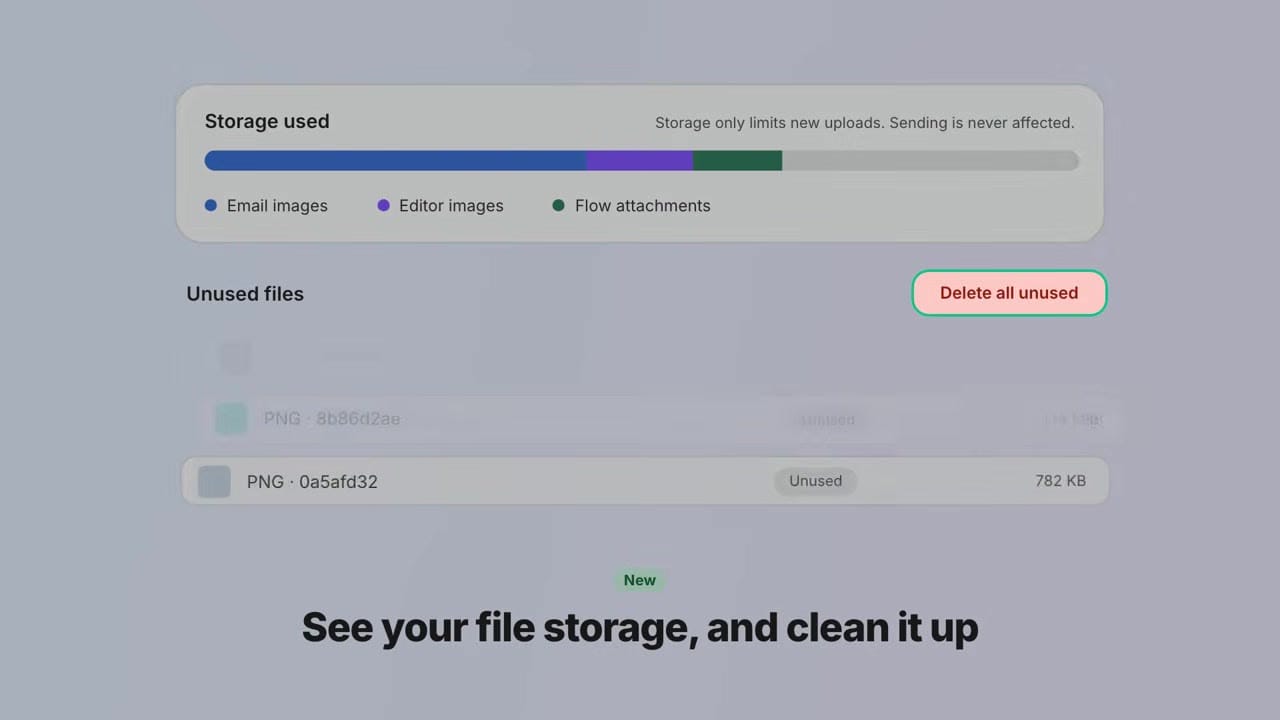
It also shows an Unused files list and a Delete all unused action. In the graphic, that delete control is presented as a button, not as a confirmed delete in a live admin session, so treat the cleanup step as something you will confirm in your own account.
Before you start
You will need:
- A Shopify store with FlowSend installed. The walkthrough and the current Shopify listing both note that you can get started for $1 for the first month.
- Permission to open FlowSend Settings and Usage.
- A sense of which images and attachments you still need, before you delete unused files.
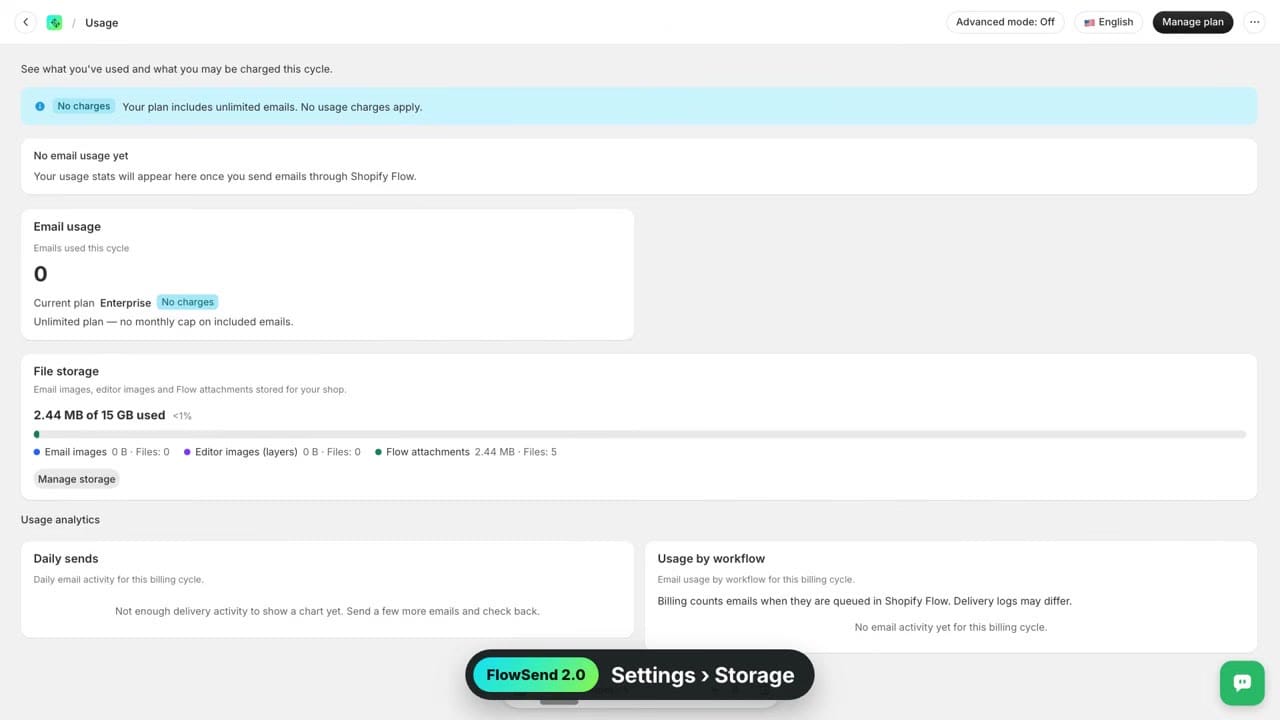
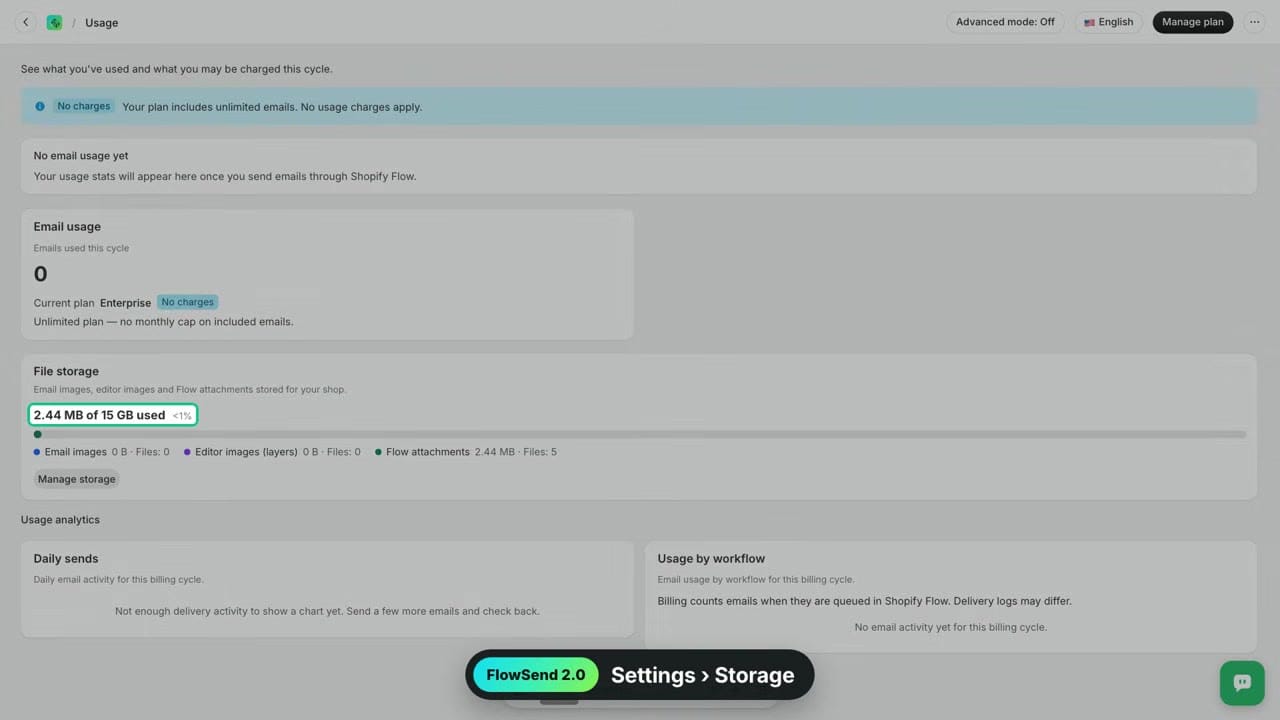
Storage limits vary by plan. The walkthrough's demo is on an Enterprise plan and shows 2.44 MB of 15 GB used. Do not assume every plan includes 15 GB; check the total on your own Usage or Storage screen.
Step 1. Open Settings → Storage (and confirm the total on Usage)
The "What's new" card and an on-screen overlay both point here:
FlowSend → Settings → Storage
The recorded admin view in the walkthrough is the Usage page, which shows the same storage total and a Manage storage link, rather than a live session inside a dedicated Storage tab. Look for Settings → Storage in your account, and use the Usage page as a second place to confirm the total.
On the Usage page in the demo you will see:
- The current plan (Enterprise in the walkthrough)
- File storage used versus the plan limit (2.44 MB of 15 GB, under 1% in the demo)
- A Manage storage control
- A File storage breakdown
Step 2. Review the file-storage breakdown
Open the breakdown and see which category is using space. In the demo, Flow attachments account for 2.44 MB across 5 files, which matches the total on the Usage page.
Use this view to tell images in emails apart from files added as attachments — especially if you have been adding invoices or other documents to templates, as covered in the attachments guide earlier in this series.
Step 3. Check unused files and delete what you no longer need
Review the Unused files list. If those files are no longer referenced by templates or Flow steps, you can remove them. The walkthrough highlights Delete all unused as a one-click cleanup in the graphic.
Because the recorded session does not show a confirmed delete, take a moment in your own account to check the list before you remove files. Uploaded attachments count toward plan storage, so cleaning unused files is one way to free space for new uploads.
Remember the rule from the "What's new" card: deleting unused files (or hitting a storage limit) does not stop emails from sending. Storage only limits new uploads.
Step 4. Keep sending from Shopify Flow as usual
Your FlowSend templates and Shopify Flow workflows keep sending even if storage is full. If you need to upload new images or attachments, free some space first, or confirm the limit on your plan.
Also new in FlowSend 2.0
Storage is one of the FlowSend 2.0 updates. The walkthrough also flags these additions, which are covered in the rest of this series:
- Connect your AI assistant over MCP
- Three ways to build an email
- Send in your customer's language
- Design on a free canvas
- A bigger Library
- Attach files to any template
- A preview closer to the real inbox
Frequently asked questions
Does a full storage quota stop emails from sending?
No. The walkthrough and the "What's new" card both say storage only limits new uploads. Sending is never affected.
What kinds of files appear in the breakdown?
The walkthrough graphic includes email images, editor images, and Flow attachments, and the "What's new" card also lists template attachments.
Where do I find storage?
The "What's new" path is Settings → Storage. The recorded admin view in the walkthrough is the Usage page, which shows the same total and a Manage storage link.
How much storage does FlowSend include?
That depends on your plan. The walkthrough demo is Enterprise, with 2.44 MB of 15 GB used. Check the total in your own Usage or Storage view rather than assuming 15 GB.
What does Delete all unused do?
It is the one-click cleanup shown in the walkthrough graphic for files that are no longer in use. The video shows the button in the graphic, not a confirmed delete, so review the unused-files list in your account before you remove anything.
How much does it cost to get started?
FlowSend is free to install on the Shopify App Store. At the time of writing, the listing and the walkthrough both offer a $1 first month to get started (the current listing describes this as a BFCM offer, with Professional at $9.99/month, Advanced at $29.99/month, and Enterprise at $49.99/month or $499.99/year after that). Pricing can change, so check the FlowSend listing for the plan that fits your store.
See what is using your Shopify email storage
Install FlowSend, then open Settings → Storage and confirm the same total on the Usage page. Review the breakdown, check unused files, and delete what you no longer need. Your Shopify Flow emails will keep sending; storage only limits new uploads.
Install FlowSend on the Shopify App Store — get started for $1.